Best Markdown to PDF Converter 2026: Quarkdown vs Pandoc
You opened a 30-page Markdown spec on Friday. The board wants the PDF by Monday. Three tabs are open: a Pandoc docs page you keep meaning to read, a VS Code plugin you installed once and never tried, and that Quarkdown thread someone shared in Slack last week.
Picking the right Markdown to PDF converter in 2026 used to be easy — Pandoc, done. Then Quarkdown landed at #8 on Product Hunt (May 1, 2026, 120 votes) and #10 on GitHub Trending (13.1K stars, +177 in a day), and a lot of writers started asking whether the canonical answer is still the right one.
This guide compares the five Markdown to PDF converters that actually matter in 2026 — Quarkdown, Pandoc, Typora, an online URL-based path with URL to Any, and the most-installed VS Code plugin — across install cost, LaTeX support, styling control, collaboration, environment requirements, and price. Pick the one that matches what you're producing and how often.
Table of Contents
- Why a New Markdown to PDF Converter Matters in 2026
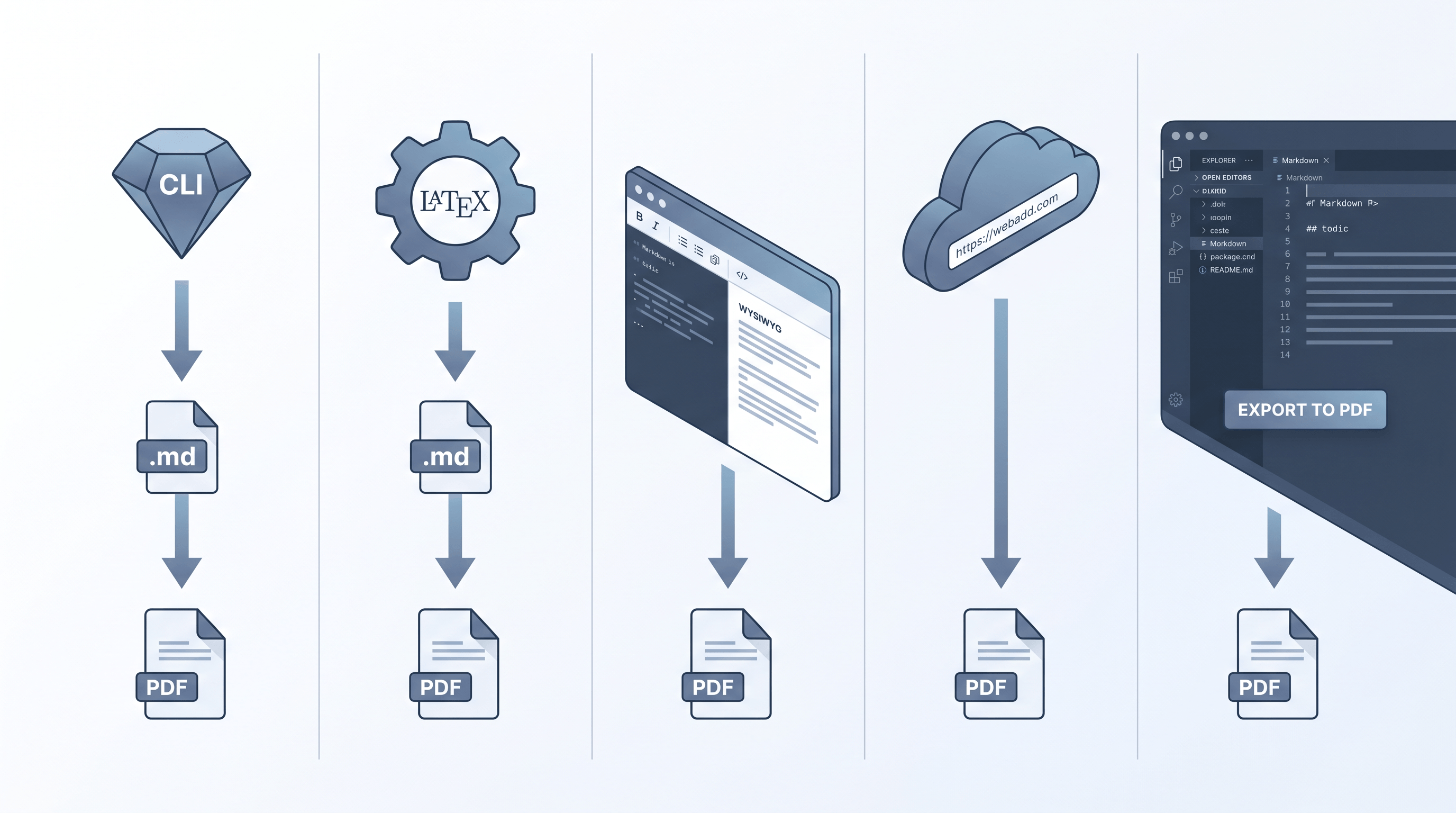
- The Five Markdown to PDF Converters Compared
- Feature Comparison Table
- Which Markdown to PDF Converter Fits Your Use Case
- How to Convert Markdown to PDF — Step by Step
- FAQ
Why a New Markdown to PDF Converter Matters in 2026
A Markdown to PDF converter turns plain .md text into a paginated, printable document — preserving headings, tables, code blocks, and (depending on the tool) images, math, and custom typography. In 2026 the conversation shifted because Quarkdown — a new converter built on Markdown plus modern typesetting primitives — hit Product Hunt #8 and GitHub Trending #10 in early May, with 13.1K stars and +177 a day. The headline change: writers want LaTeX-grade output without writing LaTeX.
That sentiment is not new. According to a Stack Overflow Developer Survey snapshot (2024), Markdown is the second most-used markup language among developers, and PDF remains the default delivery format for spec docs, academic submissions, and pitch decks. The gap between "I write in Markdown" and "I ship a PDF" is what these five tools fight to fill.
What's actually different in 2026:
- LaTeX-quality output is no longer LaTeX-only. Quarkdown, Typst-flavored converters, and a few VS Code plugins ship Pandoc-grade typography without 200 lines of
.texpreamble. - Browser-based options closed the gap on quality. Server-side headless Chrome rendering has caught up enough that an online Markdown to PDF converter is fine for most non-academic work.
- Pandoc is still the safe default. It hasn't slowed down — 3.x adds better Quarto integration, more LaTeX engines, and Lua filter improvements — but it stopped being the only obvious answer.
The Five Markdown to PDF Converters Compared
1. Quarkdown — Modern Typesetting on Top of Markdown
Quarkdown is a Markdown-based authoring system that compiles to PDF, HTML slides, and ebooks, using its own functional language for layout, math, and reusable components. It hit #8 on Product Hunt and #10 on GitHub Trending in May 2026, signaling real momentum after a year of quiet development.
How it works: You write Quarkdown's extended Markdown (CommonMark plus functional macros like .var and .layout), and the CLI compiles to a paginated PDF via a built-in renderer. A Java runtime is the only external dependency.
Best for: Writers who want LaTeX-grade typography (book layouts, multi-column articles, theorem environments) without learning LaTeX. Slide decks where you want speaker notes and PDF export from one source.
Not ideal for: Teams that just need quick exports of plain Markdown. Workflows where tooling stability matters — Quarkdown is new (v1.x), and the macro syntax is still evolving.
In our testing, a 20-page Markdown article with code blocks and two tables compiled to PDF in about 4 seconds with default settings — comparable to Pandoc with a tuned LaTeX template.
2. Pandoc — The Universal Converter
Pandoc, started by John MacFarlane in 2006, converts between 40+ document formats. For Markdown to PDF specifically, it's the de facto standard in academic and publishing workflows.
How it works: Pandoc reads Markdown, converts it to an intermediate AST, then emits LaTeX, which a TeX engine (XeLaTeX, LuaLaTeX, or pdfTeX) renders to PDF. You can swap the LaTeX engine, inject custom templates, and apply Lua filters mid-pipeline.
Best for: Academic papers (citations via BibTeX, footnotes, cross-references), books, anything with strict typography requirements, reproducible CI pipelines.
Not ideal for: First-time users — installing a working LaTeX distribution alongside Pandoc takes 1–2 GB and a non-trivial first hour. Anyone who refuses to debug LaTeX errors.
A clean Pandoc + XeLaTeX setup renders a 1500-word Markdown article to PDF in 1–3 seconds. The first run, including TeX engine warmup, takes longer.
3. Typora — WYSIWYG Markdown with One-Click PDF
Typora is a paid Markdown editor (Mac/Windows/Linux, $14.99 one-time license since 2021) with a true WYSIWYG editing surface and a File → Export → PDF menu item.
How it works: Typora renders Markdown live as you type and uses an embedded engine to produce PDF when you export. Themes are CSS files; you can write or download custom ones.
Best for: Writers who want to see the formatted output as they type and skip the round-trip through a CLI. Users who already paid for it and use it daily.
Not ideal for: CI pipelines (no scriptable export). Anyone who prefers free or open-source tools. Math-heavy documents — Typora's PDF math rendering is acceptable but not LaTeX-grade.
4. URL to Any — Zero-Install Online Markdown to PDF Converter
URL to Any is a browser-based converter that turns any URL into PDF, Markdown, plain text, or 7+ other formats. For a Markdown source, the workflow is: publish your Markdown to a URL (GitHub README, Gist, Notion public page, blog post) and convert that URL to PDF in about 3 seconds.
How it works: Server-side headless Chrome fetches the URL, applies an A4 layout, and streams the PDF back to your browser. No account required.
Best for: READMEs, GitHub Gists, Notion docs, or any Markdown already published as a webpage. Mobile-first scenarios. Shared computers where you cannot install Pandoc or LaTeX.
Not ideal for: Direct .md file uploads with full LaTeX (the input is a URL, not a file — you need the Markdown rendered as a page first). Workflows that must keep content offline.
The honest disclosure: URL to Any is our own tool. It's free, watermark-free, and unlimited at usable rates. The trade-off — same as any online Markdown to PDF converter — is that the URL is fetched by a third-party server. Public READMEs are fine; private dashboards are not.
5. Markdown PDF (VS Code Plugin) — In-Editor Export
The most-installed Markdown PDF VS Code plugin (by yzane, ~3M downloads on the marketplace) adds a right-click "Export to PDF" action inside the editor. It uses Chromium under the hood — the same renderer family as URL to Any, but local.
How it works: Right-click an open .md file → Markdown PDF: Export → PDF. The plugin renders the file with a bundled Chromium and writes the PDF next to the source file.
Best for: Developers who already live in VS Code and want one-key export without leaving the editor.
Not ideal for: First-time runs — the plugin downloads ~120 MB of Chromium binaries on first use. Strict offline policies that block VS Code marketplace.
Feature Comparison Table
| Tool | Install cost | LaTeX-grade output | Custom styling | Collaboration | Local env required | Pricing |
|---|---|---|---|---|---|---|
| Quarkdown | Single binary, ~30 MB | Yes (built-in) | Functional macros + themes | File-based (git) | Java runtime | Free / open source |
| Pandoc | Pandoc + LaTeX (~1.5 GB) | Yes (XeLaTeX/LuaLaTeX) | Templates, Lua filters | File-based (git) | TeX distribution | Free / open source |
| Typora | App install (~150 MB) | No (CSS-rendered) | CSS themes | None (single-user app) | Desktop app | $14.99 one-time |
| URL to Any | None — browser only | No (Chromium-rendered) | Per-URL options | URL share-friendly | None | Free |
| VS Code Markdown PDF | VS Code + plugin (~120 MB Chromium) | No (Chromium-rendered) | CSS overrides | None (per-editor) | VS Code | Free |
Tested in May 2026 against a 20-page Markdown spec with tables, code blocks, and embedded math.
Which Markdown to PDF Converter Fits Your Use Case
Match the tool to what you're producing.
Academic paper or thesis: Pandoc + XeLaTeX. Citations, footnotes, theorem environments, and cross-references are first-class. Quarkdown is closing the gap, but if your advisor asks for a .bib file workflow, Pandoc is the safer answer.
Investor pitch deck or business proposal: Quarkdown for modern multi-page layouts, or Typora if you want to see the design as you write. Skip Pandoc unless you already maintain a LaTeX template — its defaults look like a 2008 LaTeX paper.
Quick share — README, internal memo, blog post snapshot: URL to Any. Paste the URL, get the PDF in three seconds. Works on phone, on a borrowed laptop, on anything with a browser.
Technical documentation in a Git repo: Pandoc in CI for the canonical PDF release, plus the VS Code plugin for quick local previews. Both live where the docs live.
Slide deck from one Markdown source: Quarkdown — its presentation mode is a real differentiator and you get a PDF export from the same .qmd file.
How to Convert Markdown to PDF — Step by Step
Two clean paths cover most cases: a zero-install online flow with URL to Any, and a local CLI flow with Pandoc.
Path A: Zero-Install via URL to Any (3 minutes)
For Markdown that already lives on the web — a GitHub README, a Gist, a Notion public page, a blog post — this is the fastest no-install route.
Step 1: Publish your Markdown as a URL. The simplest options: paste it into a GitHub Gist, commit a README.md to a public repo, or share a Notion page publicly.
Step 2: Open urltoany.com/url-to-pdf, paste the page URL, and confirm PDF as the output format — the conversion takes about 3 seconds.
Step 3: Adjust A4 vs Letter, portrait vs landscape, and toggle "Include backgrounds" if your Markdown rendering uses colored callouts. Most articles work fine with defaults.
Step 4: Click Download. The PDF lands in your default downloads folder, ready to email or print. No watermark, no signup.
Path B: Local Pandoc (10 minutes first time, 5 seconds after)
For repeatable builds and full typography control.
Step 1: Install Pandoc and a LaTeX engine.
# Mac
brew install pandoc
brew install --cask basictex   # ~80 MB, lighter than full TeX Live

# Linux (Debian/Ubuntu)
sudo apt install pandoc texlive-xetex
Step 2: Run a basic conversion.
pandoc input.md -o output.pdf --pdf-engine=xelatex
Step 3: For better defaults, add a YAML header to your Markdown:
---
title: "My Document"
author: "Your Name"
geometry: margin=2cm
fontsize: 11pt
---
Step 4 (optional Quarkdown try-out): Install Quarkdown from the official GitHub repo and run quarkdown c document.qmd --pdf — same idea, modern typography defaults, no LaTeX install needed.

FAQ
What is the best Markdown to PDF converter in 2026?
The best Markdown to PDF converter depends on the use case. Pandoc is best for academic papers and books that need LaTeX-grade typography. Quarkdown is the best new option for pitch decks and modern layouts without writing LaTeX. URL to Any is the best zero-install option for READMEs and quick shares. Typora is best for writers who want WYSIWYG editing with one-click export. VS Code Markdown PDF is best for developers who live in their editor.
Pandoc vs Quarkdown — which one should I learn?
If you write academic or publishing-grade documents and need citations, footnotes, and BibTeX, learn Pandoc. If you write pitch decks, slide-and-PDF dual outputs, or modern layouts and want to skip LaTeX entirely, learn Quarkdown. The two are not mutually exclusive — Pandoc is the safe baseline; Quarkdown is the shorter path to good-looking modern documents.
Is there a free online Markdown to PDF converter that works on mobile?
Yes — if your Markdown is hosted at a URL, URL to Any converts it in about 3 seconds with no signup, no watermark, and a free tier that covers normal usage. Publish your .md to a GitHub Gist or a Notion public page first, then paste the URL.
Why is Quarkdown trending on GitHub in 2026?
Quarkdown reached GitHub Trending #10 (13.1K stars, +177 in a day on May 1, 2026) and Product Hunt #8 because it ships LaTeX-grade typesetting on top of Markdown without requiring a TeX install. Writers get the visual quality of LaTeX with the ergonomics of Markdown plus a small functional layout language for advanced cases.
Can I convert Markdown to PDF without installing anything?
Yes, with an online converter. Publish the Markdown source to any URL (GitHub README, Gist, Notion public page, blog), then use URL to Any or a similar service to render that URL to PDF. Conversion typically takes 2–5 seconds.
Does VS Code have a built-in Markdown to PDF export?
VS Code itself doesn't, but the Markdown PDF plugin by yzane (~3M installs) adds a right-click export. The first run downloads ~120 MB of Chromium; subsequent exports take 2–4 seconds.
Which Markdown to PDF converter has the best LaTeX support?
Pandoc, by a wide margin. It uses real LaTeX engines (XeLaTeX, LuaLaTeX, pdfTeX) under the hood, so any LaTeX feature — math environments, BibTeX citations, custom packages — works. Quarkdown comes second with built-in math and typography but no full LaTeX package ecosystem. Online converters and Chromium-based tools render math via MathJax/KaTeX, which covers most cases but not advanced typesetting.
Conclusion
Five Markdown to PDF converters, three honest answers: Pandoc when you need LaTeX-grade typography and have time to set it up, Quarkdown when you want that quality without learning LaTeX, and an online tool like URL to Any when speed and zero-install matter more than perfect typography.
Need to convert web pages or hosted Markdown to PDF, plain text, or 7+ other formats? Try URL to Any free → — no signup, no watermark, takes about 3 seconds.
Last updated: May 2026