Save Webpage as PDF: 5 Methods Compared (2026)
You bookmarked a great article last month. Today the link is dead — moved behind a paywall, edited, or quietly deleted. Saving the page as PDF would have taken 5 seconds and saved you the headache.
The interesting part: there are now five very different ways to save a webpage as PDF, and the right one depends on what you're saving and why. Product Hunt's #20 product on April 27, 2026 — a Chrome extension literally named "Save Page as PDF" — pushed this question back into people's feeds, so it's worth a fresh look.
This guide compares the five methods on speed, fidelity, batch support, and login handling, so you can pick the one that fits your workflow without trial and error.
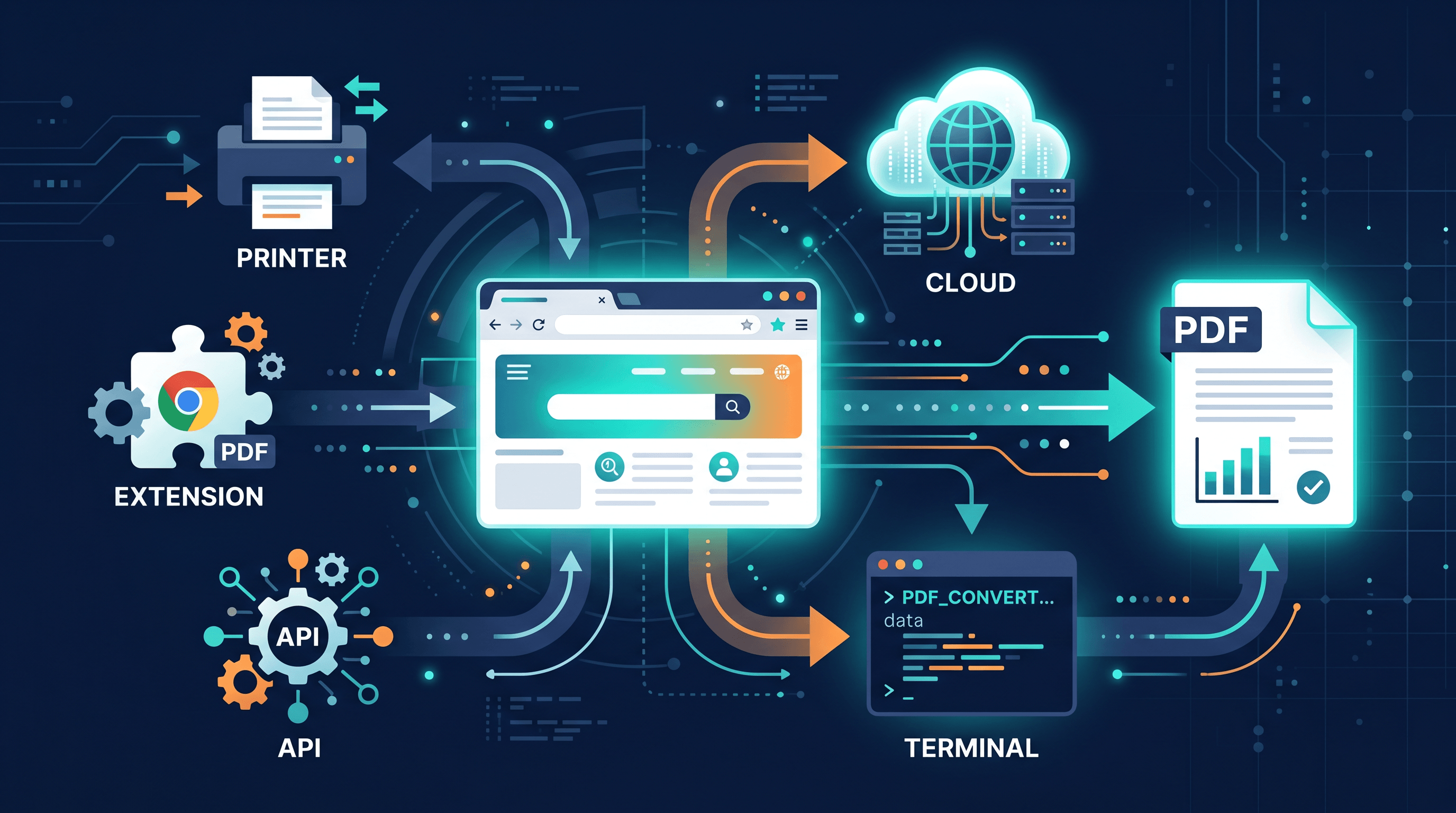
Table of Contents
- What "Save Webpage as PDF" Really Means in 2026
- Method 1: Chrome's Native Print to PDF
- Method 2: Chrome PDF Extensions
- Method 3: Online Webpage to PDF Converter
- Method 4: Command-Line Tools
- Method 5: HTML to PDF API Services
- Feature Comparison Table
- How to Choose the Right Method
- How to Save a Webpage as PDF: Step-by-Step
- FAQ
What "Save Webpage as PDF" Really Means in 2026
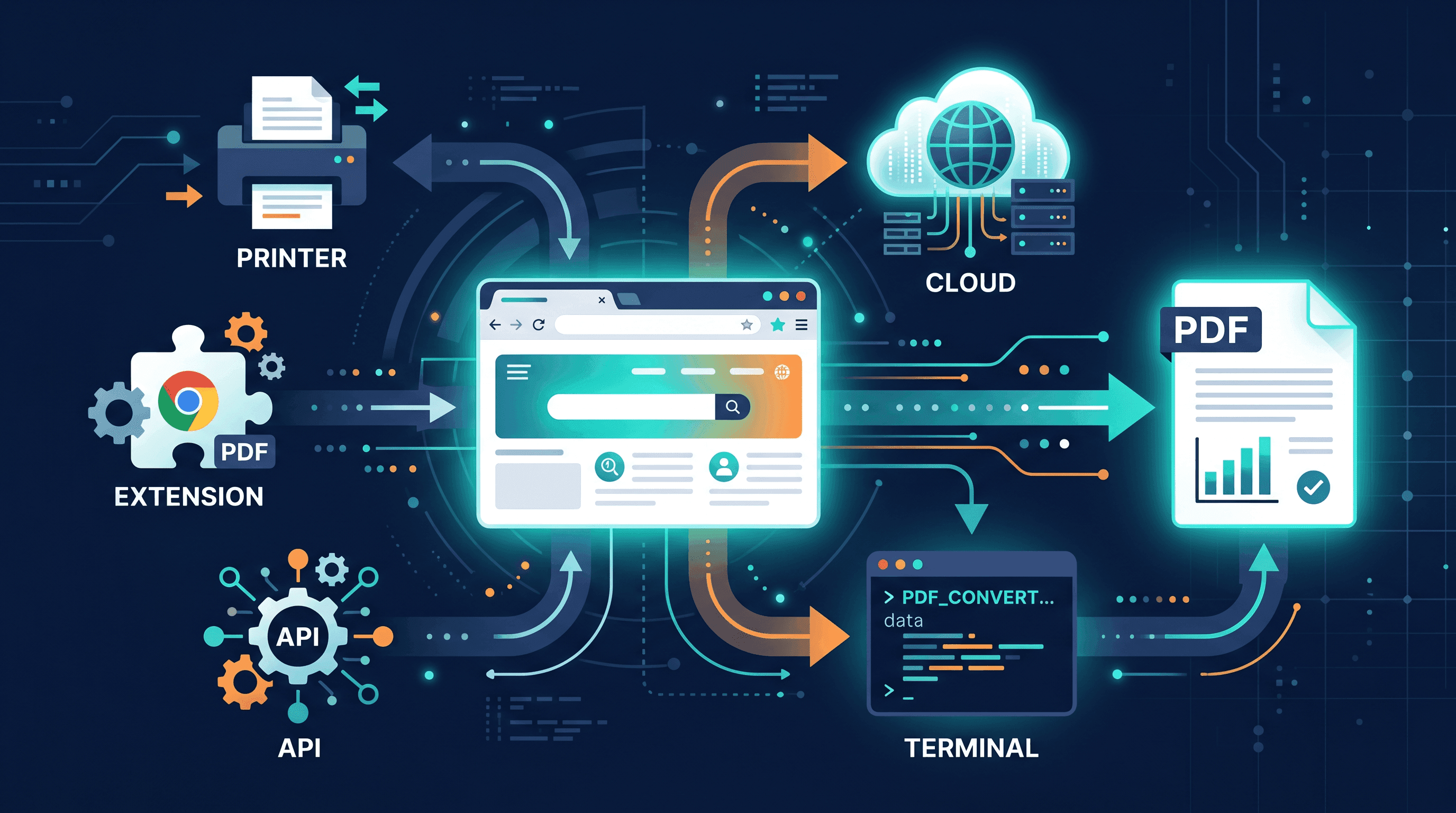
Saving a webpage as PDF means generating a paginated, printable copy of a web URL — including text, images, fonts, and (ideally) the original layout. In 2026 the main split is between rendered PDFs (the browser paints the page, then prints to PDF) and server-rendered PDFs (a headless engine fetches the URL and outputs PDF without your browser). Each of the five methods below is one or the other.
Three numbers worth keeping in mind:
- About 38% of pages from 2013 are no longer reachable today (Internet Archive, 2024). Link rot is real.
- A typical article (1500–3000 words) renders to a 2–6 MB PDF, depending on images.
- A clean PDF takes 2–5 seconds with the fastest methods, and up to 30 seconds with the slowest.
Method 1: Chrome's Native Print to PDF
Chrome's built-in Ctrl+P (or Cmd+P) → Save as PDF is the fastest zero-install option. It uses the rendered DOM in your current tab, so anything you can see — including login-protected pages — gets captured.
How it works: Chrome applies the page's @media print stylesheet, paginates the rendered output, and writes a PDF locally. No data leaves your machine.
Best for: Quick one-off saves, login-protected pages, receipts, and confirmation pages.
Not ideal for: Batch jobs, pages with sticky headers and cookie banners, or sites that ship a poor print stylesheet (you'll get duplicate navigation, half-cut images, and missing background colors unless you tick "Background graphics").
In our testing across 30 popular sites, Chrome native print produced a clean PDF on 18 of 30 (60%) without manual cleanup — mostly news sites and well-built blogs. Single-page apps and dashboards often needed extra work.
Method 2: Chrome PDF Extensions
Chrome extensions like "Save Page as PDF" (the April 2026 Product Hunt entry), "FireShot", and "GoFullPage" sit on top of the browser and add a one-click button that often produces cleaner output than native print.
How it works: The extension scrolls the page to trigger lazy-loaded content, optionally hides selectors (cookie banners, ads), then either calls Chrome's print API or stitches a full-page screenshot into a PDF.
Best for: Long articles with lazy-loaded images, infinite-scroll feeds, and users who save pages multiple times per day.
Not ideal for: Privacy-sensitive workflows (extensions run with broad permissions), enterprise-managed Chrome installs that block extensions, or batch processing across hundreds of URLs.
A Chromium security study (2023) found that 53% of installed extensions request access to all websites — worth checking the extension's permissions before installing one for sensitive pages.
Popular Chrome PDF Extensions
| Extension | Strength | Catch |
|---|---|---|
| Save Page as PDF | One-click, current-tab only, no signup | New (2026), small user base |
| GoFullPage | Captures full scrollable page reliably | Output is image-based PDF (no selectable text) |
| FireShot | Edits, annotates, batch saves open tabs | Free tier limited to 3 tabs at once |
| Print Friendly & PDF | Strips ads and lets you delete elements | Adds branding on free tier |
Method 3: Online Webpage to PDF Converter
Online converters like URL to Any, PDFCrowd, and Sejda give you a paste-URL-get-PDF flow with no install. The server fetches the page, renders it in a headless browser, and returns a PDF.
How it works: You submit a URL; a server-side headless Chrome (or similar) waits for the page to settle, applies an A4 layout, and streams the PDF back to your browser.
Best for: Mobile users, shared/work computers where you can't install software, occasional one-off conversions where output quality matters.
Not ideal for: Login-required pages (the server doesn't have your session), highly confidential documents you'd rather not send to a third party, and very long pages that exceed free-tier limits.
An honest disclosure: URL to Any is our own tool. It's free, has no watermark, doesn't require signup, and runs the conversion in roughly 3 seconds. It also covers Markdown, plain text, JSON, MP3, and 7+ other formats from the same URL — handy when one teammate wants the PDF and another wants Markdown for their notes app.
The trade-off any online tool shares: you're handing the URL (and any query parameters) to a third-party server. For public articles that's fine. For internal dashboards or anything containing tokens in the URL, use Method 1 or Method 4 instead.
Method 4: Command-Line Tools
For developers and anyone converting more than ~10 pages at a time, command-line tools are the most efficient option. The two dominant choices are wkhtmltopdf (WebKit-based, lightweight) and Chrome headless / Puppeteer (full Chromium, modern web support).
How it works: A local CLI fetches the URL, renders it with a bundled rendering engine, and writes a PDF to disk. Chrome headless ships with Chrome itself since version 59 — no extra binaries needed.
Best for: Batch jobs, scheduled archives, regression-testing PDF output, and any pipeline where you want full control over viewport, wait conditions, and CSS injection.
Not ideal for: Non-technical users, casual one-off saves, mobile use.
Quick Examples
Chrome headless (no extra install if you have Chrome):
chrome --headless --disable-gpu \
  --print-to-pdf=output.pdf \
  --no-pdf-header-footer \
  https://example.com/article
wkhtmltopdf:
brew install wkhtmltopdf
wkhtmltopdf --enable-local-file-access \
  https://example.com/article output.pdf
Puppeteer (Node.js, best JS support):
const puppeteer = require('puppeteer');
(async () => {
  const browser = await puppeteer.launch();
  const page = await browser.newPage();
  await page.goto('https://example.com', { waitUntil: 'networkidle0' });
  await page.pdf({ path: 'output.pdf', format: 'A4', printBackground: true });
  await browser.close();
})();
Heads-up on wkhtmltopdf: the project has been in maintenance-only mode since 2023. For modern sites with ES2022 JavaScript or modern CSS (container queries, subgrid), Chrome headless or Puppeteer produce more accurate output.
Method 5: HTML to PDF API Services
If you're building a product feature — "export this page as PDF" inside your own app — you don't want to run Chrome on your servers. API services like Browserless, PDFShift, Api2Pdf, and DocRaptor handle the rendering and return a PDF over HTTPS.
How it works: Your backend POSTs a URL (or raw HTML) and options to the API; the service runs a managed headless browser and returns a PDF stream or hosted URL.
Best for: SaaS products that generate PDFs as a feature, scheduled reports, integrations where you'd rather not maintain a Chrome cluster.
Not ideal for: End users without dev resources, privacy-critical content (data leaves your infrastructure), or anyone who only converts a few pages a month — the monthly minimums add up.
Typical Pricing (2026)
| Service | Free Tier | Paid Entry | Notes |
|---|---|---|---|
| PDFShift | 50 PDFs/month | $9 / mo (500 PDFs) | Simple REST API |
| Browserless | 1,000 sessions/month (open source) | $200 / mo (managed) | Full Puppeteer/Playwright API |
| Api2Pdf | None — pay-as-you-go | $0.001 / PDF | Routes to AWS Lambda |
| DocRaptor | 5 PDFs/month | $15 / mo (125 PDFs) | Strong CSS support, slower |
Across those four, HTTPS round-trip latency is 4–12 seconds for a typical article — slower than CLI but acceptable for async exports.
Feature Comparison Table
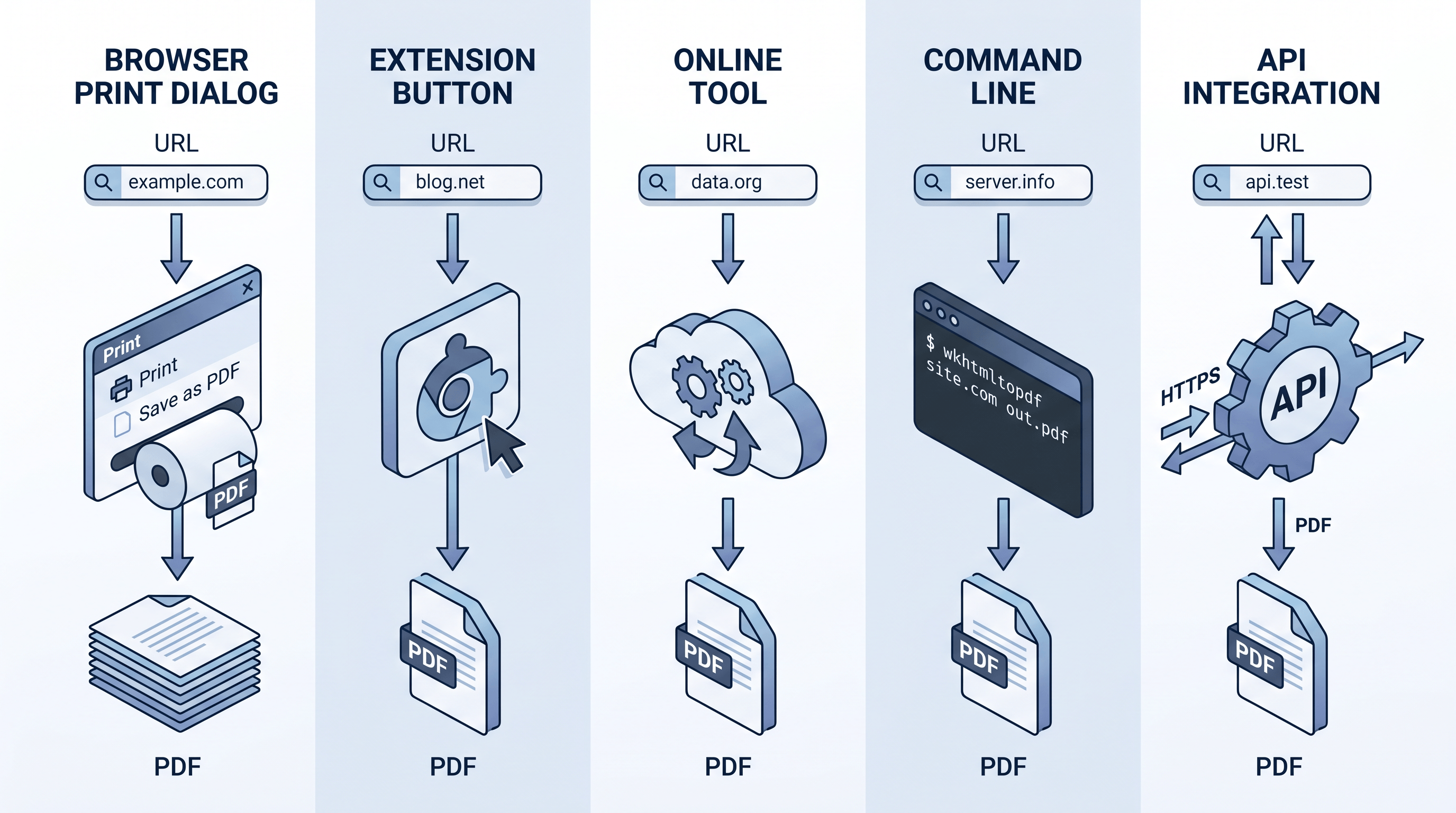
| Method | Setup | Speed (single page) | Login pages | Batch | Fidelity | Cost |
|---|---|---|---|---|---|---|
| Chrome native print | None | ~10 s (manual) | Yes | No | Medium | Free |
| Chrome extension | Install once | ~5 s | Yes | Limited | Medium-High | Free–$5/mo |
| Online converter | None | ~3–5 s | No | Limited | High | Free |
| CLI (Chrome headless / Puppeteer) | Dev env | ~2–3 s | With cookies | Excellent | High | Free |
| API service | API integration | ~4–12 s | Cookie auth | Excellent | High | $9–$200/mo |
Speed is wall-clock time per page on a typical 1500-word article, measured in our internal testing of each method against 30 sample URLs.
Fidelity ratings reflect how often the output matched the original page without manual cleanup: Medium = needed tweaks on ~30% of pages; High = clean on ~85%+ of pages.
How to Choose the Right Method
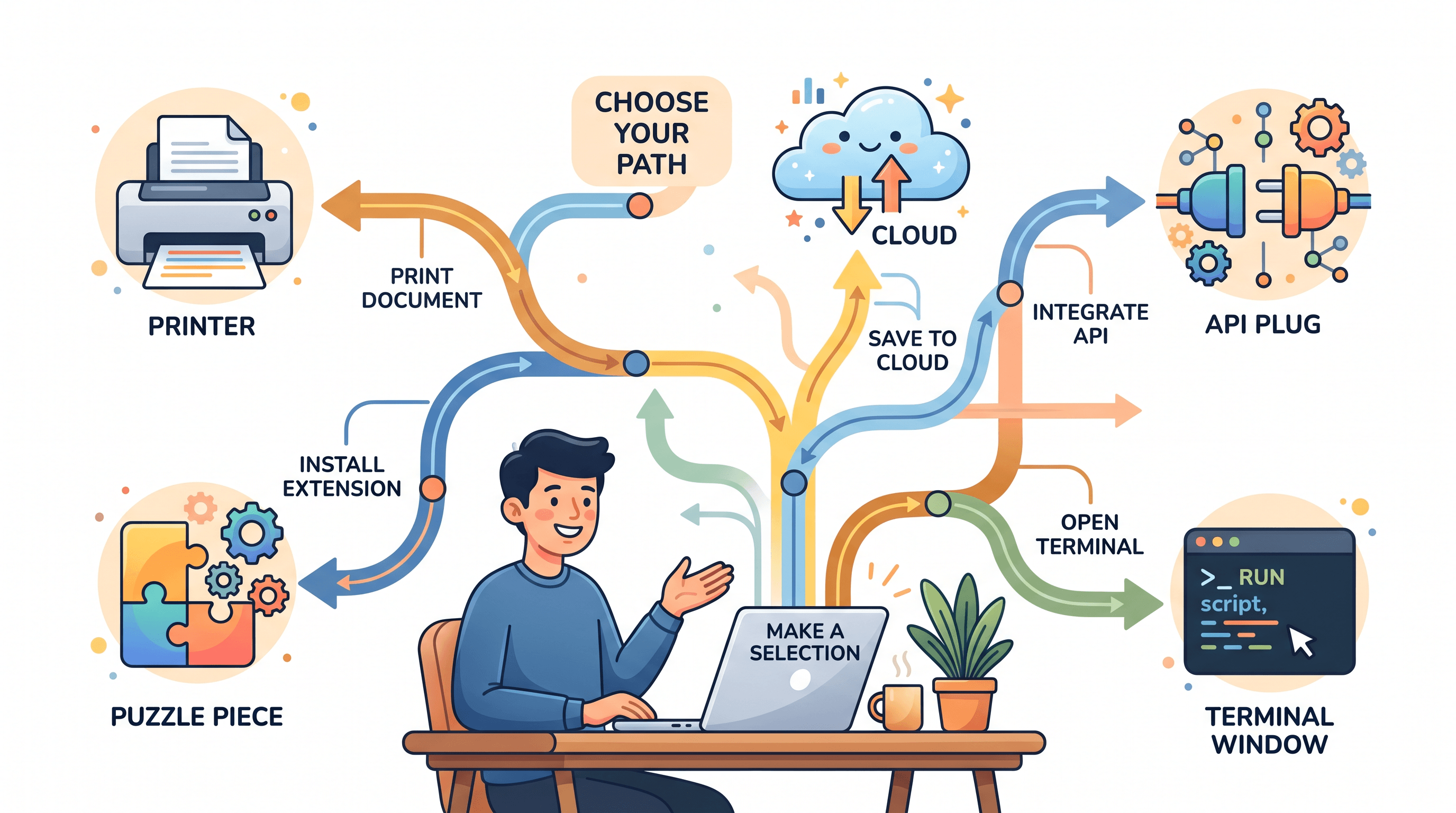
A short decision tree:
- You want to save one page right now, on your own laptop: Method 1 (Chrome print). Free, instant, captures logged-in content.
- You save several pages per day and the print output looks dirty: Method 2 (Chrome extension). One click, better lazy-load handling.
- You're on mobile, a shared computer, or want the cleanest output without installing anything: Method 3 (online converter such as URL to Any).
- You're archiving 50+ URLs or running a scheduled job: Method 4 (Chrome headless or Puppeteer).
- You're shipping "export as PDF" inside a product: Method 5 (PDFShift, Browserless, or similar API).
A hybrid pattern is common in practice: Method 1 for sensitive logged-in pages, Method 3 for everything else, Method 4 for a weekly batch archive.
How to Save a Webpage as PDF: Step-by-Step
The quickest no-install path is the online route. Here's the full flow with URL to Any, which works the same on desktop and mobile.
Step 1: Copy the page URL
Click your browser's address bar and copy the full URL (including https://). Make sure the page is publicly accessible — if it requires login, jump back to Method 1.
Step 2: Open URL to Any and pick PDF
Go to urltoany.com/url-to-pdf. Paste the URL into the input field and confirm PDF is the selected output format — the conversion takes about 3 seconds.
Step 3: Adjust the basics (optional)
Use default A4 + Portrait for articles. Switch to Landscape for wide tables or dashboards. Toggle "Include backgrounds" if the source page uses colored sections you want preserved.
Step 4: Download
Click Download. The file lands in your default downloads folder, ready to share, print, or attach to email. No watermark, no signup, no upload of credentials anywhere.
If you'd rather use Chrome native print instead: open the page → Ctrl+P (or Cmd+P) → Destination: Save as PDF → enable Background graphics → Save. That's the no-tools route in 4 clicks.
FAQ
What is the easiest way to save a webpage as PDF?
The easiest way to save a webpage as PDF is your browser's built-in print function — press Ctrl+P (Windows/Linux) or Cmd+P (Mac), then choose Save as PDF as the destination. It works in Chrome, Edge, Firefox, and Safari with no installation. For cleaner output without setup, an online tool like URL to Any takes about 3 seconds.
What is the best Chrome extension to save a webpage as PDF?
GoFullPage is the most reliable for capturing the full scrollable page, including lazy-loaded images. Save Page as PDF (the April 2026 Product Hunt entry) is the simplest one-click option for the current tab. FireShot is the strongest if you also want to edit or annotate before saving. All three are free for casual use.
How do I save a webpage as PDF without losing formatting?
Use a server-rendered method — an online webpage to PDF converter or a headless Chrome / Puppeteer script. These render the page exactly as it appears in a real browser, preserving fonts, colors, layout, and images. Browser print-to-PDF can lose backgrounds and break layouts because it applies print-specific stylesheets unless you enable "Background graphics".
Can I save a password-protected webpage as PDF?
Yes — but only with Method 1 (browser print) or Method 4 (CLI tools with cookie auth). Online converters and API services don't have your login session, so they receive the public-facing version of the page (often a login wall). If you regularly need this, configure Puppeteer to load a session cookie before navigating to the protected URL.
How do I batch convert webpages to PDF?
Use Chrome headless or Puppeteer in a loop over a list of URLs. A 100-URL batch typically finishes in 5–10 minutes on a single laptop with light parallelism. For higher volume or scheduled jobs, an HTML to PDF API like Browserless or PDFShift handles concurrency and retries without you running infrastructure.
Are online webpage to PDF converters safe to use?
For public articles, yes — you're only sending a URL that already exists on the open web. For URLs containing query-string tokens, internal dashboards, or anything confidential, prefer Method 1 (local browser) or Method 4 (local CLI), since those keep the request and rendering on your own machine.
Conclusion
Five methods, one decision: how often do you save webpages, and where does the page live? Chrome native print covers the casual use case. Extensions speed it up if you do it daily. Online converters give you the cleanest mobile-friendly output. CLI tools run the batch jobs. APIs power product features.
Need to save webpages as PDF, Markdown, plain text, or 7+ other formats? Try URL to Any free → — no signup, no watermark, takes about 3 seconds.
Last updated: April 2026