How to Save an Entire Webpage as PDF: Complete Guide 2025 (5 Methods)
Table of Contents
- Why Save Webpages as PDF?
- Method 1: Using Built-in Browser Print Function
- Method 2: Using Professional Online Conversion Tools
- Method 3: Installing Browser Extensions
- Method 4: Using Desktop Professional Software
- Method 5: Saving Webpages on Mobile Devices
- Advanced Tips: Preserving Complete Styles and Interactive Content
- Frequently Asked Questions
- Recommended Tool
In the digital age, we browse countless valuable webpages daily. Whether it's research materials, shopping receipts, news articles, or online content, saving an entire webpage as PDF has become an essential skill. The PDF format not only preserves the original layout and styling of webpages but also enables offline viewing, easy sharing, and long-term archiving.
This comprehensive guide introduces 5 practical methods to help you easily convert webpage to PDF, regardless of whether you're using Windows, Mac, iOS, or Android devices.
Why Save Webpages as PDF?
Before diving into specific methods, let's understand why the PDF format is so important:
Core Advantages
Permanent Content Preservation: Webpage content may be updated or deleted at any time. Saving as PDF creates a time snapshot, ensuring information won't be lost. According to Internet Archive research, approximately 20% of webpage links become broken annually.
Cross-Platform Compatibility: PDF files can be opened on any device and operating system without worrying about format chaos or missing fonts.
Easy Sharing and Printing: Compared to webpage links, PDF files are easier to share via email and produce better printing results, making them ideal for reports and presentations.
Offline Access: Saved PDFs can be viewed without internet connection, perfect for travel or unstable network scenarios.
Legal and Compliance Requirements: Many industries require saving webpage records as compliance evidence, such as e-commerce order confirmations and contract terms.
Method 1: Using Built-in Browser Print Function
This is the fastest and simplest method to save webpage as PDF, supported by all major browsers.
Chrome Browser Steps
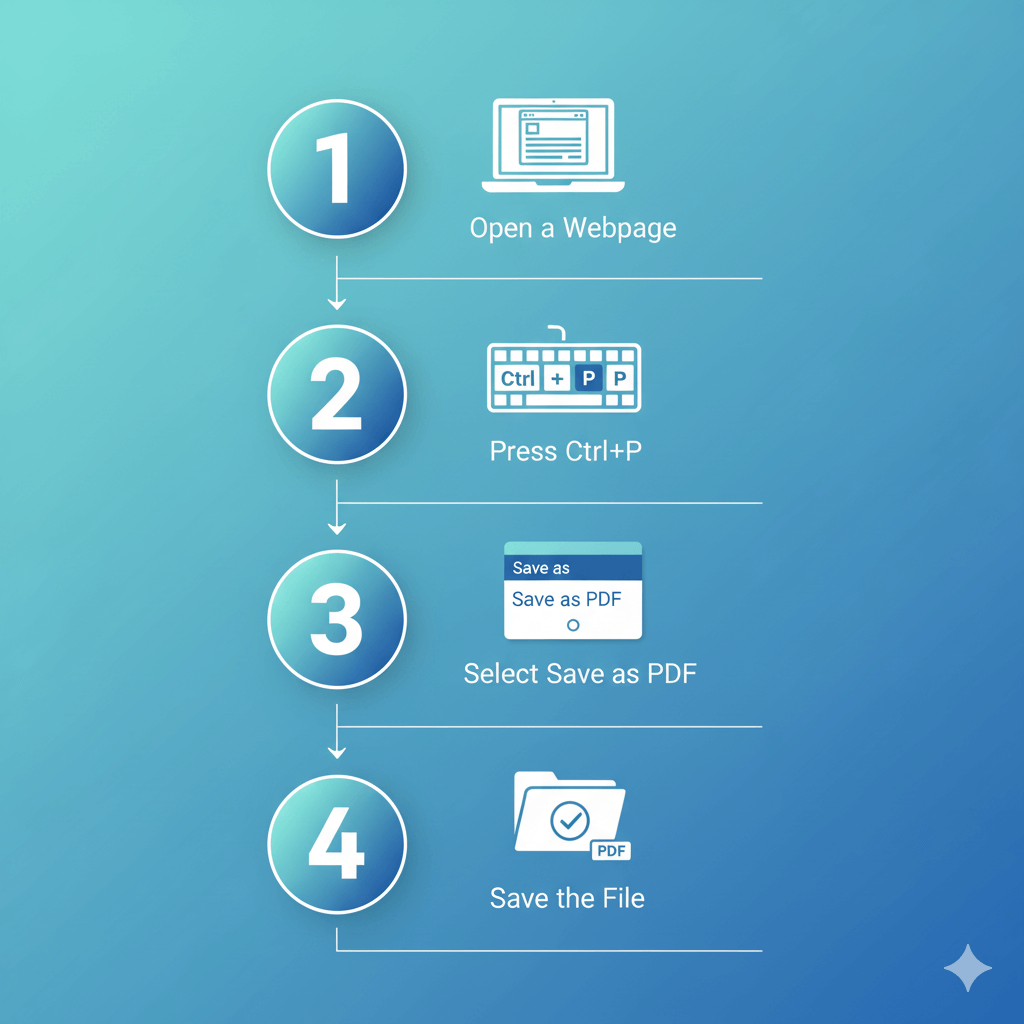
- Open Target Webpage: Access the webpage you want to save in Chrome
- Open Print Menu: Press keyboard shortcut
Ctrl + P(Windows) orCmd + P(Mac) - Select PDF Option: Choose "Save as PDF" from the "Destination" dropdown menu
- Adjust Settings:
- Page layout: Select portrait or landscape
- Margins: Recommend "Default" or "None"
- Background graphics: Check to preserve complete styling
- Page range: Select "All" to save entire webpage
- Click Save: Choose save location and complete conversion

Firefox and Edge Browsers
The steps are similar to Chrome, with main differences being in interface layout. Firefox users need to find the "Microsoft Print to PDF" option in print preview.
Pros and Cons Analysis
Advantages:
- Completely free, no additional software installation needed
- Simple and quick operation, complete in 3 steps
- Preserves basic webpage styling and text content
- Suitable for saving single-page articles and documents
Disadvantages:
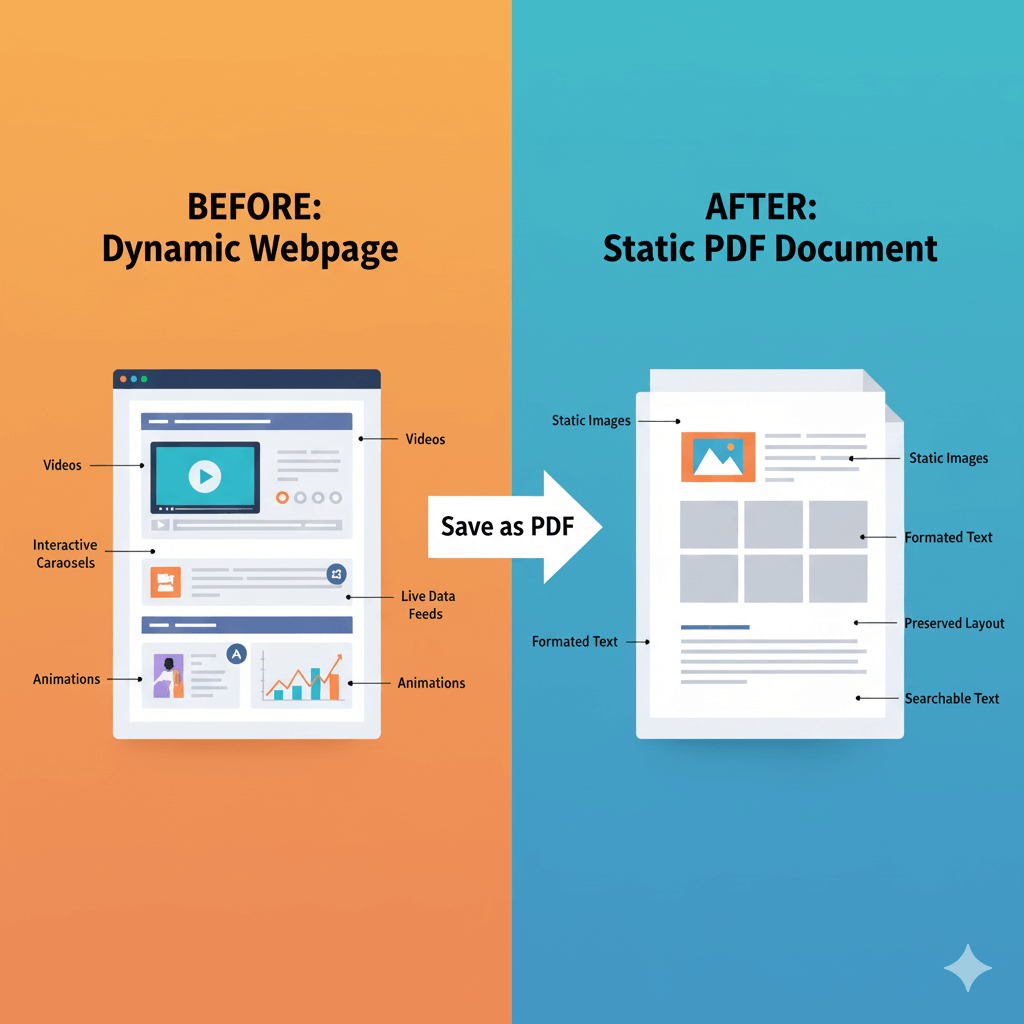
- Some dynamic content may not display correctly
- Cannot save videos and interactive elements
- Long webpages may have pagination issues
- Lacks advanced editing and batch conversion features
Expert Tip: If the webpage contains important images, make sure to check the "Background graphics" option, otherwise some decorative images might not be saved.
Method 2: Using Professional Online Conversion Tools
For users requiring higher quality output or batch processing, online webpage to PDF converters are the ideal choice.
Core Advantages of Online Tools
Professional webpage PDF converters typically offer these advanced features:
- Complete Page Rendering: Properly handles JavaScript dynamic content and complex CSS styling
- Custom Page Sizes: Supports A4, Letter, custom sizes, and multiple options
- Batch Conversion: Process multiple webpage URLs at once
- Watermarks and Encryption: Add watermarks or password protection to PDFs
- Cloud Storage Integration: Save directly to Google Drive, Dropbox, and other cloud services
Usage Steps
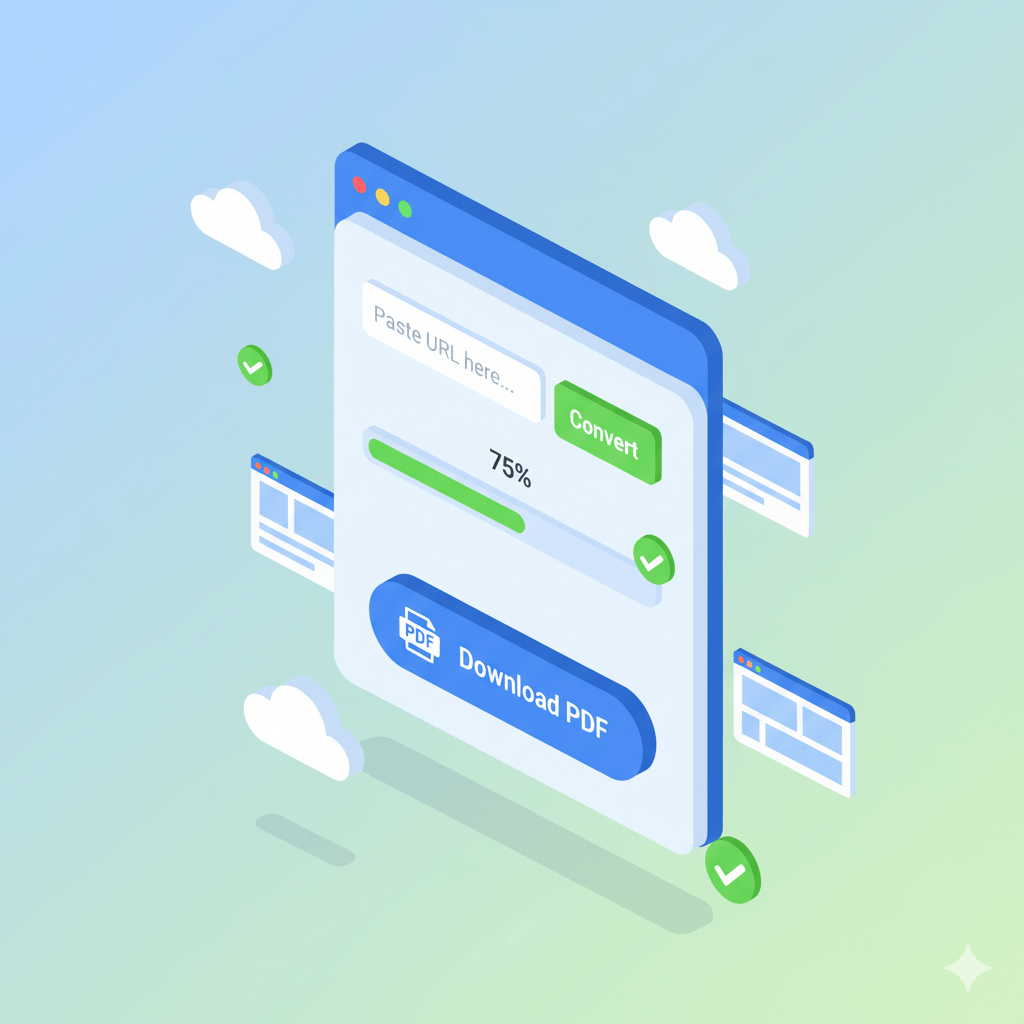
- Visit Conversion Tool Website: Open browser and access online conversion service
- Enter Webpage URL: Paste complete URL in input box
- Select Conversion Options:
- Page size (A4, Letter, etc.)
- Page orientation (portrait/landscape)
- Margin settings
- Include backgrounds and images
- Start Conversion: Click "Convert" or "Generate PDF" button
- Download File: Download to local storage after conversion completes
Considerations When Choosing Online Tools
- Privacy and Security: Choose reputable service providers, avoid uploading sensitive information
- File Size Limits: Free versions usually have file size or conversion count limitations
- Conversion Quality: Compare output from different tools, choose the one that best fits your needs
- Network Dependency: Requires stable internet connection, not suitable for offline use
For users who frequently need to download webpages and save as PDF, it's recommended to bookmark several reliable online tools for future use.
Method 3: Installing Browser Extensions
Browser extensions combine the convenience of built-in features with the power of professional tools.
Popular Extension Recommendations
1. Save as PDF (Chrome Extension)
- One-click save current page
- Supports custom page settings
- Can save selected areas
- User rating: 4.5/5 stars (over 1 million users)
2. FireShot (Cross-browser)
- Supports full page screenshot to PDF
- Provides annotation and editing features
- Can capture scrolling pages
- Supports upload to cloud storage
3. Print Friendly & PDF
- Automatically removes ads and irrelevant content
- Optimizes print format
- Supports editing and customization
- Generates cleaner PDF files
Installation and Usage
- Visit Extension Store: Chrome Web Store or Firefox Add-ons
- Search and Install: Enter extension name, click "Add to browser"
- Grant Permissions: Follow prompts to allow necessary access permissions
- Use Extension: Click extension icon in browser toolbar for quick save
Extensions are particularly suitable for users who frequently save webpages as PDF, greatly improving work efficiency.
Method 4: Using Desktop Professional Software
For enterprise users or professionals with advanced needs, desktop software provides the most comprehensive features.
Professional Software Recommendations
Adobe Acrobat Pro DC
- Industry-standard PDF solution
- Perfectly preserves all webpage elements
- Provides OCR text recognition
- Supports batch conversion and automation scripts
- Price: $14.99/month (subscription)
Wondershare PDFelement
- Comprehensive features at more affordable price
- Intuitive user interface
- Supports HTML to PDF conversion
- Includes editing and annotation tools
- Price: $69.95 (perpetual license)
Nitro PDF Pro
- Focused on business applications
- Powerful collaboration features
- Supports batch processing
- Cloud integration
- Price: $159.99 (one-time purchase)
Use Cases
Desktop software is most suitable for:
- Processing large volumes of webpage conversion tasks
- Requiring highest conversion quality and fidelity
- Needing subsequent PDF content editing
- Enterprise-level security and compliance requirements
- Offline work environments
Need Batch Conversion?
Our enterprise plan supports API integration and batch processing
Method 5: Saving Webpages on Mobile Devices
Saving webpages as PDF on mobile devices is equally important and convenient.
iOS (iPhone/iPad) Operations
- Use Safari Browser: Open the webpage you want to save
- Open Share Menu: Tap the share icon at the bottom
- Select Options: Tap "Options" to view full page options
- Generate PDF: Select "PDF" format
- Save File: Choose save location (Files App, iCloud Drive, etc.)
Alternative: Using Shortcuts
- Download "Webpage to PDF" shortcut
- Run from Safari share menu
- Automatically converts and saves to specified location
Android Operations
- Use Chrome Browser: Open target webpage
- Open Menu: Tap three-dot icon in upper right
- Select Share: Tap "Share..." option
- Print Option: Select "Print"
- Save as PDF: Choose "Save as PDF" in printer options
- Download File: Tap save button to complete
Mobile Best Practices
- Optimize Reading Experience: Turn device to landscape before saving for better page layout
- Check Content Integrity: Preview PDF to ensure all content is properly captured
- Cloud Sync: Save PDF to cloud storage for cross-device access
- File Management: Use folders to organize saved webpages for easy future retrieval
Advanced Tips: Preserving Complete Styles and Interactive Content
To achieve high-quality webpage to PDF conversion, pay attention to these technical details.
Handling Dynamic Content
Modern webpages heavily use JavaScript to generate dynamic content, which ordinary methods may not fully capture.
Solutions:
- Wait for complete page load: Ensure all content is displayed
- Use tools that support JavaScript rendering
- Manually trigger loading: Scroll to page bottom, expand collapsed content
- Use browser developer tools: Check for unloaded elements
Preserving Complete Styling
CSS Style Issue Fixes:
- Check "Background graphics" option
- Use "Scale" function to adjust content to fit page
- Check print preview and adjust settings promptly
- For complex layouts, consider using professional tools
Handling Long Pages
For very long scrolling webpages:
- Method 1: Use browser extensions that support full page capture
- Method 2: Select "No margins" in print settings
- Method 3: Use online tools' "Full page" option
- Method 4: Save in segments then use PDF merge tools
Saving Protected Content
Some websites may restrict right-click or print functions:
- Use browser's reader mode
- Try different browsers
- Use browser developer tools to copy HTML
- Use professional web archiving tools
Technical Tip: For single-page application (SPA) websites, ensure all dynamic content is fully loaded before starting conversion, otherwise you may only capture the initial state.
Frequently Asked Questions
1. Why does the saved PDF look different from the original webpage?
This is usually due to:
- Print Stylesheets: Many websites have optimized separate CSS for printing, hiding navigation bars, ads, etc.
- Background Images: If "Background graphics" option isn't checked, decorative backgrounds won't be saved
- Dynamic Content: JavaScript-generated content may not be properly captured
- Font Issues: Some custom fonts may not be embedded in PDF
Solution: Use professional tools that support complete page rendering, or adjust options in print settings to preserve more original styling.
2. How do I save webpages that require login to view?
For content requiring authentication:
- Login First: Log into the website normally in your browser
- Access Target Page: Ensure content is fully loaded
- Save Immediately: Use browser print function or extensions
- Mind Session Timeout: Some pages' session tokens may expire quickly
Important Note: Don't save pages containing sensitive personal information (like passwords, credit card numbers) unless you have complete security guarantees.
3. Can I batch save multiple webpages into one PDF?
Yes, there are several ways:
- Use Online Tools: Some services support inputting multiple URLs to generate a single merged PDF
- Browser Extensions: Like Tab to PDF, can merge multiple tabs to save
- Desktop Software: Professional software like Adobe Acrobat supports batch conversion and merging
- Manual Merging: Save separately first, then use PDF merge tools to combine
For large-scale batch processing, professional software or API services are recommended.
4. What if the saved PDF file is too large?
If the PDF file is too large, try:
- Compress Images: Use PDF compression tools to reduce image quality
- Remove Unnecessary Content: Manually collapse ads and irrelevant areas before saving
- Adjust Resolution: Lower DPI in conversion settings (from 300 to 150)
- Use Dedicated Tools: Some online services offer "Optimize file size" options
- Split Saving: Divide long pages into multiple smaller PDFs
Generally, text-only PDFs should stay within a few hundred KB, image-heavy ones may reach several MB.
5. Can I edit the content after saving as PDF?
PDF editability depends on how it was saved:
- Normal Save: Content is saved as layers, can be edited with tools like Adobe Acrobat
- Scanned with OCR: If saved as image format, needs OCR recognition before editing
- Text Selection: Test if you can select and copy text, if yes it means it's editable
For content requiring extensive editing, professional PDF editing software or saving in other formats (like Word) is recommended.
6. What is the quality of PDFs saved on mobile devices?
PDFs saved on mobile devices are usually slightly lower quality than desktop versions:
- Screen Size Limitations: May affect layout and pagination
- Processing Power: Complex pages may not render completely
- Format Adaptation: Some elements may be replaced by mobile styling
Best Practice: For important documents, desktop conversion is recommended for final quality assurance.
7. Can saved PDFs be searched?
Depends on save method:
- Text-based PDF: If saved using browser print or professional tools, text is selectable and searchable
- Image-based PDF: If saved as screenshot, requires OCR processing to be searchable
- Hybrid Format: Some tools automatically perform OCR processing
Test method: Open PDF and try using Ctrl+F (Windows) or Cmd+F (Mac) to search keywords.
8. How do I ensure saved PDF includes all links?
To preserve hyperlinks in webpages:
- Check Tool Options: Some tools have "Preserve hyperlinks" settings
- Test Clicking: After saving, open PDF and test if links are clickable
- Use Professional Tools: Software like Adobe Acrobat better preserves links
- Add Manually: If links are lost, you can re-add them using PDF editors
Note: Browser built-in print function usually preserves links, but some online tools may not.
9. Can I convert PDF back to webpage format?
While possible, it's usually not recommended:
- Conversion Quality: Reverse conversion loses much original code and interactive functionality
- Format Issues: Layout may be severely distorted
- Better Method: If you need editable webpage content, use web archiving tools (like HTTrack)
If you only need to extract text, PDF to Word conversion tools work better.
10. Is saving webpages as PDF legal?
Generally yes, but note:
- Personal Use: Saving for personal study and research is allowed
- Commercial Use: Cannot be used for commercial purposes without authorization
- Copyrighted Content: Respect original author's copyright, don't mass copy and distribute
- Paid Content: Don't save and share content requiring paid subscription
Recommendation: Check website's terms of use before saving to ensure your actions comply with relevant regulations.
Recommended Tool
After comparative testing, we especially recommend the URLtoAny Webpage to PDF Tool as the ideal solution for saving entire webpages as PDF.
Why Choose URLtoAny?
Core Advantages:
✅ Perfect Rendering: Supports JavaScript dynamic content, ensuring complete presentation of complex webpages
✅ Fast Conversion: Average 3-5 seconds to complete conversion, no long waits
✅ High-Quality Output: Preserves original styling, fonts, and layout, produces professional-grade PDFs
✅ No Registration Required: Use basic features for free without creating an account
✅ Privacy Protection: Files retained on server for only 24 hours, automatically deleted to ensure security
✅ Batch Processing: Premium version supports simultaneous conversion of multiple URLs
✅ Custom Options: Adjustable page size, margins, orientation, and other parameters
✅ API Integration: Developers can integrate functionality into their own applications via API
Use Cases
URLtoAny is particularly suitable for:
- Researchers saving academic articles and reference materials
- E-commerce users saving order confirmations and receipts
- Content creators archiving online works
- Enterprise users batch converting reports and documents
- Students saving online course materials
Quick Start
- Visit https://www.urltoany.com/url-to-pdf
- Paste webpage URL into input box
- Select conversion options (optional)
- Click "Convert to PDF" button
- Download generated file
Conclusion
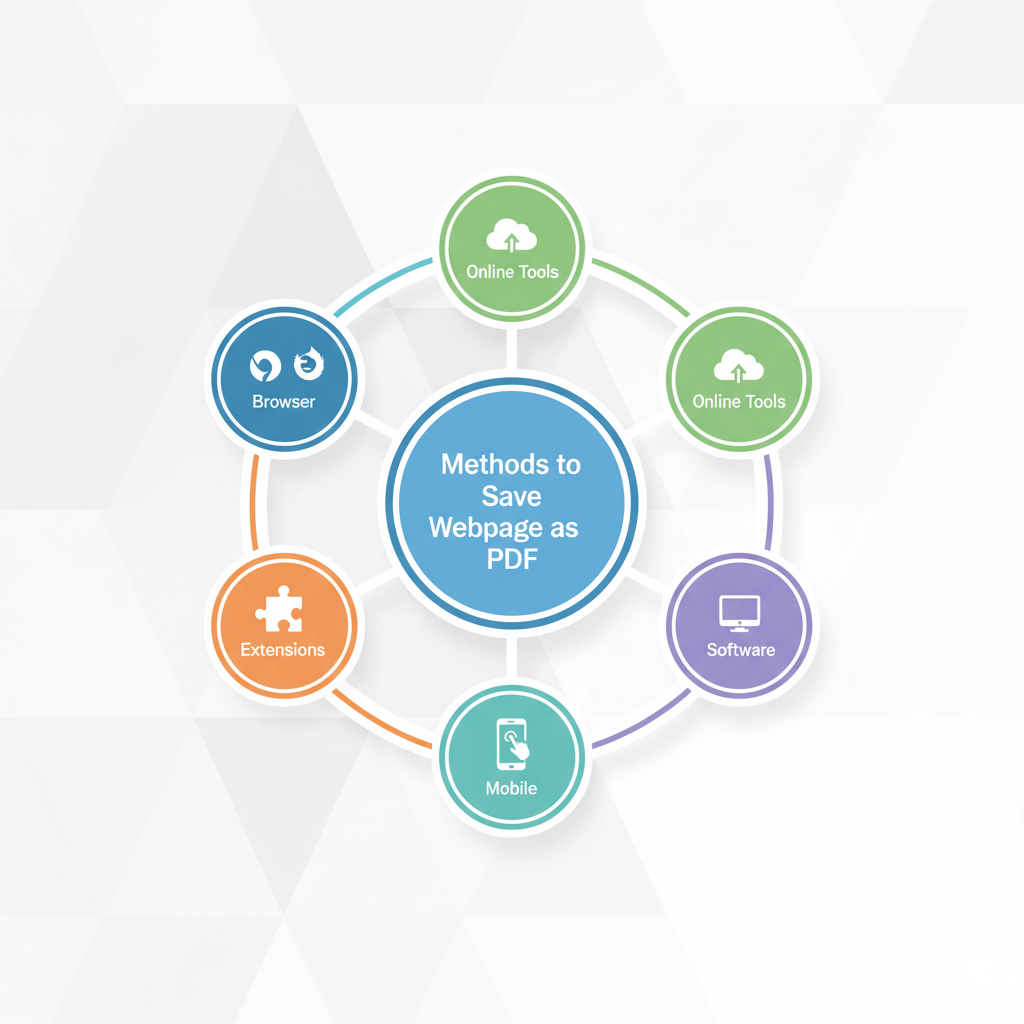
Saving webpages as PDF is a fundamental skill in the digital age. The 5 methods introduced in this article each have their advantages:
- Browser Built-in Function: Suitable for quick and simple conversion needs
- Online Tools: Balances convenience and functionality, recommended for daily use
- Browser Extensions: Provides one-click solution for frequent users
- Professional Software: Meets enterprise-level and high-quality requirements
- Mobile Devices: Complete conversion tasks anytime, anywhere
Whichever method you choose, the important thing is finding the solution that best fits your needs. For most users, we recommend starting with browser built-in functions, and when you need higher quality or more features, choose professional online tools like URLtoAny.
Start converting webpages to PDF now and permanently save valuable online content on your devices!