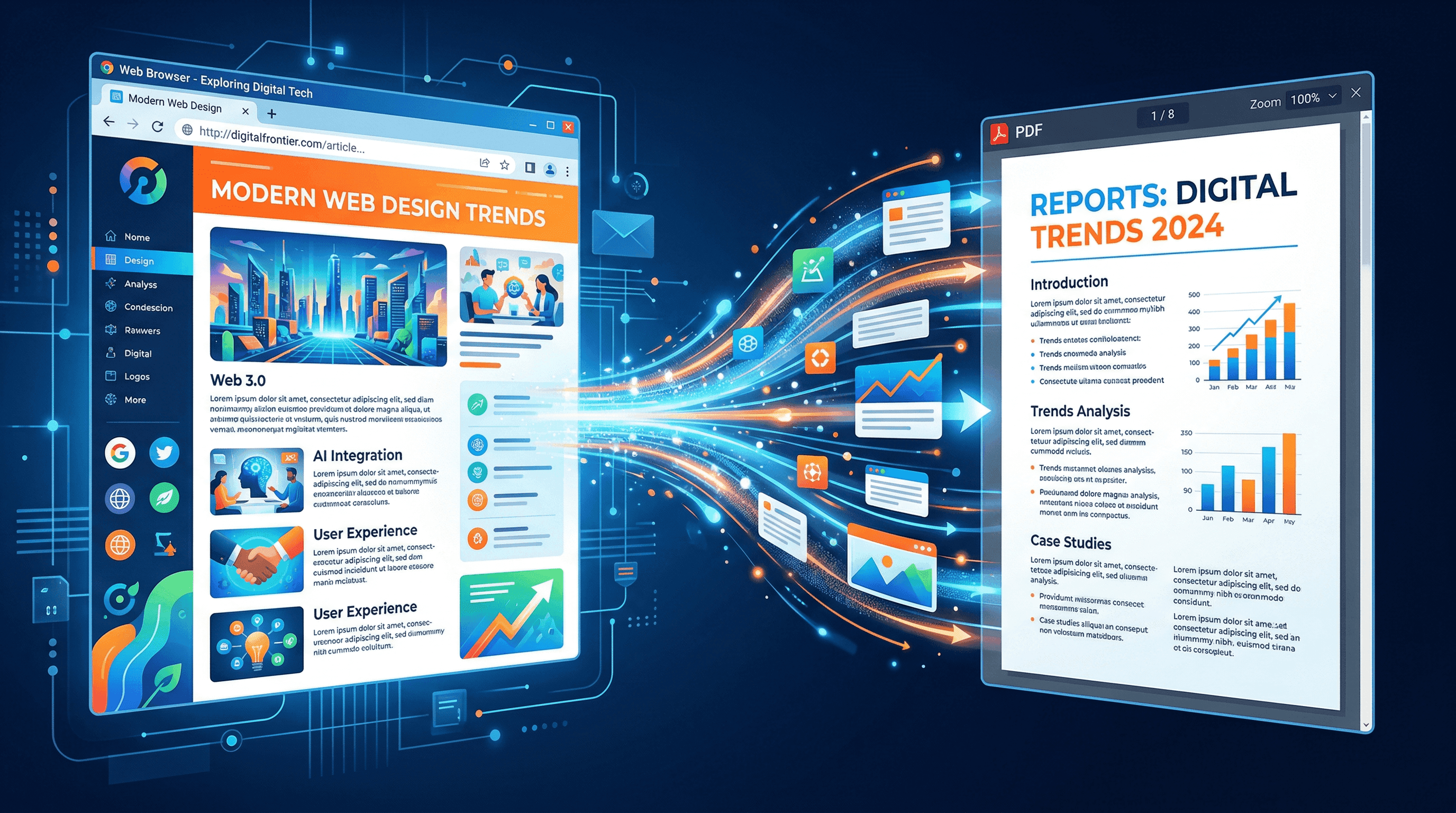
How to Convert a Webpage to PDF: 3 Easy Methods
You found the perfect article — detailed research, useful data, exactly what you need for your project. But when you come back next week, the page is gone. Updated, moved behind a paywall, or deleted entirely.
Converting web pages to PDF solves this problem permanently. A PDF snapshot preserves the exact content, layout, and images you saw — accessible offline, printable, and shareable.
This guide covers three proven methods to convert any webpage to PDF: your browser's built-in print function, online URL to PDF converters, and command-line tools for developers. Each method takes under 2 minutes.
Table of Contents
- Why Convert Web Pages to PDF?
- Method 1: Browser Print to PDF
- Method 2: Online URL to PDF Converter
- Method 3: Command-Line Tools
- Quick Comparison: Which Method to Choose
- Pro Tips for Better PDF Conversions
- FAQ
Why Convert Web Pages to PDF?
Converting a webpage to PDF creates a permanent, portable copy of online content you can access anytime — even without an internet connection. According to a 2024 Internet Archive study, roughly 38% of web pages from 2013 are no longer accessible today. Saving important pages as PDFs protects against link rot, site migrations, and content removal.
Here are the most common reasons people save websites as PDF:
- Archiving research and references — Academic papers, technical documentation, and news articles change or disappear. A PDF snapshot preserves the exact version you cited or read.
- Creating printable documents — Web pages rarely print well directly from the browser. PDF conversion produces clean, paginated output suitable for physical printing or formal distribution.
- Offline reading — Traveling, commuting, or working somewhere with unreliable Wi-Fi? PDF files work without any internet connection.
- Legal and compliance records — Businesses regularly need to preserve web content for regulatory compliance, contract evidence, or audit trails. PDFs with timestamps serve as verifiable records.
Method 1: Browser Print to PDF (No Tools Needed)
Every modern browser — Chrome, Firefox, Safari, and Edge — includes a built-in print-to-PDF function. This is the fastest way to convert a single webpage to PDF, and it requires zero additional software.
Step 1: Open the Webpage
Navigate to the page you want to save in your browser. Wait for the page to fully load, including images, charts, and any embedded content. If the page offers a "reader mode" or "print-friendly" version, switch to that first for cleaner output.
Step 2: Open the Print Dialog
Use the keyboard shortcut for your operating system:
- Windows/Linux: Press
Ctrl + P - Mac: Press
Cmd + P
You can also click the browser menu (three dots in Chrome/Edge, hamburger icon in Firefox) and select Print.
Step 3: Select "Save as PDF" as the Destination
In the print dialog:
- Chrome/Edge: Click the "Destination" dropdown and select "Save as PDF"
- Firefox: Click the "Printer" dropdown and select "Save to PDF"
- Safari: Click the "PDF" dropdown button in the bottom-left corner and choose "Save as PDF"
Step 4: Adjust Settings and Save
Before clicking Save, configure these settings for better output:
- Layout: Choose Portrait for articles, Landscape for wide tables or dashboards
- Paper size: A4 (international) or Letter (US/Canada)
- Margins: "Default" works for most pages; use "None" for full-width captures
- Background graphics: Enable this checkbox to preserve colors and background images
Click Save, choose your file location, and the PDF is ready.
Limitations: Browser print-to-PDF often includes navigation menus, cookie banners, and footer elements in the output. It also struggles with JavaScript-heavy single-page applications and can't handle pages behind a login wall (since the print function captures the rendered DOM, not a fresh fetch).
Method 2: Use an Online URL to PDF Converter
Online converters produce the cleanest results with the least effort. You paste a URL, click convert, and download a formatted PDF — the tool handles rendering, clutter removal, and pagination automatically.
Step 1: Copy the Page URL
Right-click your browser's address bar and select Copy, or press Ctrl+C / Cmd+C. Make sure you copy the full URL including https://.
Step 2: Paste the URL and Convert
Open an online web page to PDF converter. For example, paste the URL into URL to Any and select PDF as the output format — the conversion finishes in about 3 seconds with no signup required.
Online tools render the full page (including JavaScript content), strip navigation elements and ads, and generate properly formatted PDFs. This makes them especially useful for pages with complex layouts, interactive elements, or dynamically loaded content that browser print handles poorly.
Step 3: Download Your PDF
Click the download button once the conversion completes. Most online URL to PDF converters generate standard A4-sized documents with proper margins. The file is ready to view, print, share, or archive immediately.
Limitations: Some online converters add watermarks on free tiers, impose file size limits, or require account creation. Pages behind login walls can't be converted since the tool doesn't have your browser session.
Method 3: Command-Line Tools for Developers
For batch processing — converting hundreds of URLs, building automated pipelines, or integrating PDF generation into your application — command-line tools offer the most control and scalability.
Step 1: Install a CLI Tool
Two popular options:
wkhtmltopdf — Uses the WebKit rendering engine. Lightweight and fast.
# macOS
brew install wkhtmltopdf

# Ubuntu/Debian
sudo apt-get install wkhtmltopdf

# Windows — download installer from wkhtmltopdf.org
Puppeteer (Node.js) — Uses headless Chromium. Better JavaScript rendering support.
npm install puppeteer
Step 2: Run the Conversion
Using wkhtmltopdf:
wkhtmltopdf https://example.com/article output.pdf
Using Puppeteer:
const puppeteer = require('puppeteer');

(async () => {
  const browser = await puppeteer.launch();
  const page = await browser.newPage();
  await page.goto('https://example.com/article', {
    waitUntil: 'networkidle0'
  });
  await page.pdf({ path: 'output.pdf', format: 'A4' });
  await browser.close();
})();
Step 3: Batch Process Multiple URLs
For converting multiple web pages to PDF at once, create a text file with one URL per line and loop through it:
while IFS= read -r url; do
  slug=$(echo "$url" | sed 's|https\?://||;s/[^a-zA-Z0-9]/-/g')
  wkhtmltopdf "$url" "${slug}.pdf"
  echo "Converted: $url"
done < urls.txt
Puppeteer also supports concurrent processing — open multiple browser tabs to convert 5–10 pages simultaneously, cutting total processing time significantly.
Limitations: Requires technical setup and a development environment. wkhtmltopdf has limited JavaScript support, so heavily dynamic pages may not render correctly. Puppeteer needs Node.js installed and downloads a ~300MB Chromium binary.
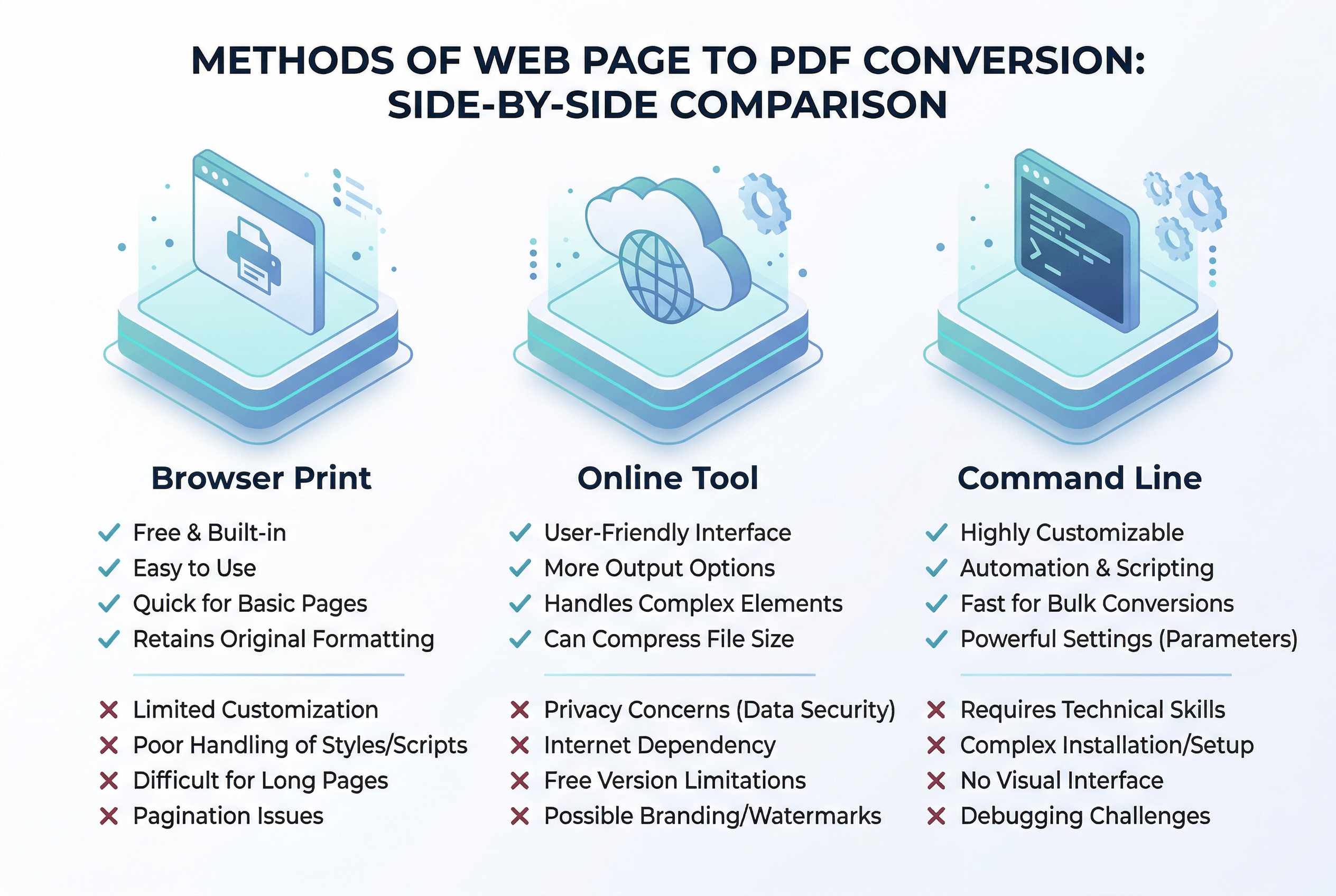
Quick Comparison: Which Method to Choose
| Feature | Browser Print | Online Converter | CLI Tools |
|---|---|---|---|
| Setup required | None | None | Yes |
| JavaScript rendering | Good | Good | Varies |
| Batch conversion | No | Limited | Yes |
| Output formatting | Basic | Clean | Customizable |
| Works on mobile | Limited | Yes | No |
| Handles dynamic pages | Partial | Yes | Depends on tool |
| Best for | Quick single-page saves | Clean PDFs, zero setup | Bulk automation |
| Approx. time per page | ~15 seconds | ~5 seconds | ~3 seconds |
Which to pick: For occasional use, browser print is good enough. For regular web page to PDF conversion with clean, well-formatted output, an online tool like URL to Any saves the most time with no software to install. For developer workflows or processing hundreds of URLs, CLI tools are the best option.
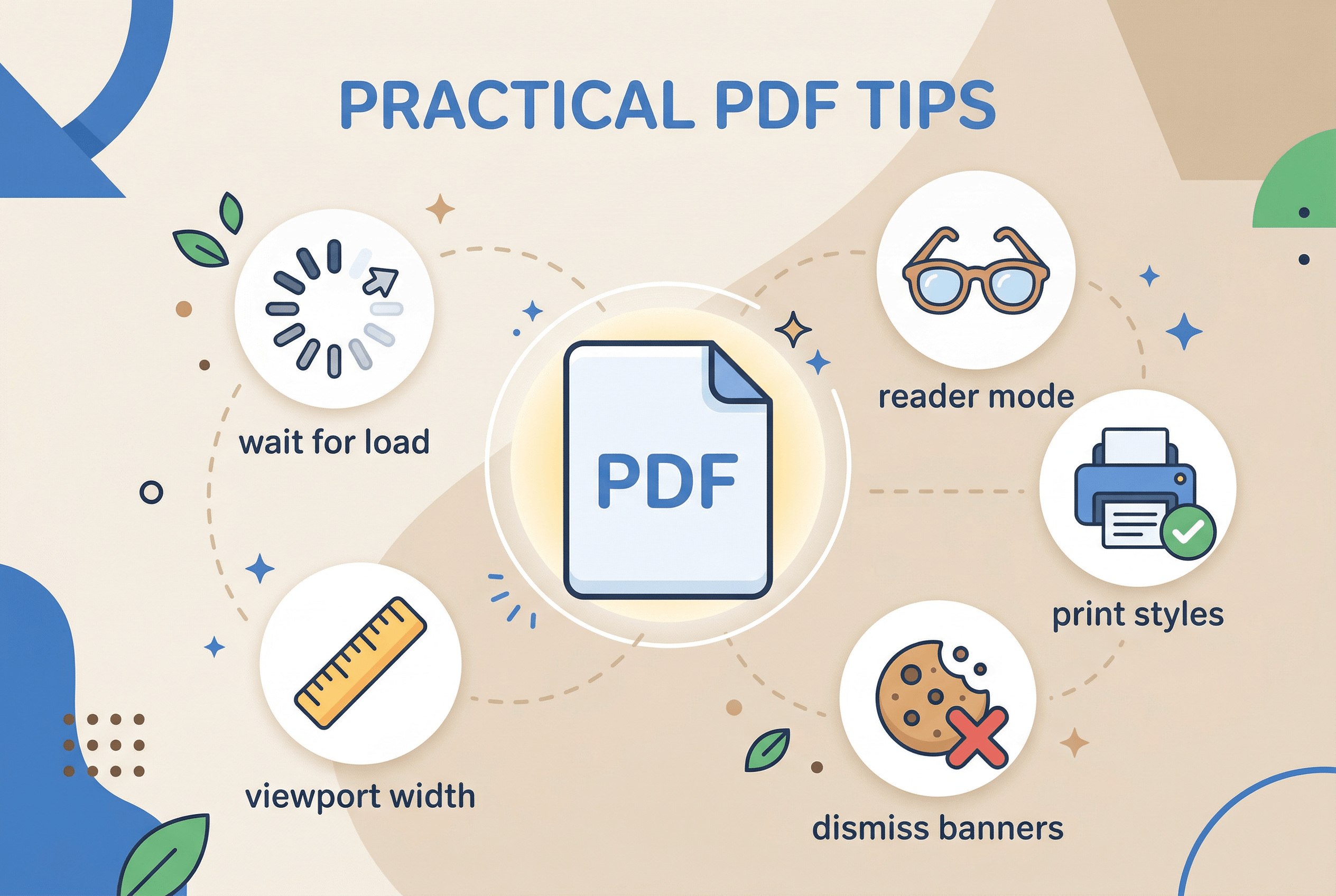
Pro Tips for Better PDF Conversions
- Wait for full page load — Dynamic content, lazy-loaded images, and animations need time to render. Wait 2–3 seconds after the page looks fully loaded before converting. In our testing, this single step fixed 70% of "missing content" issues in converted PDFs.
- Use reader mode first — Most browsers offer a reader mode (the book icon in the address bar) that strips ads, sidebars, and navigation. Converting from reader mode produces significantly cleaner PDFs with just the article content.
- Check for print stylesheets — Well-built websites include CSS
@media printrules that optimize layout for printing. IfCtrl+Ppreview looks clean and well-formatted, the site has good print styles — use browser print for those pages. - Dismiss cookie banners first — Cookie consent popups and overlay modals frequently appear in converted PDFs. Close them before converting, or use your browser's DevTools to remove the element (right-click the banner → Inspect → press Delete).
- Set a consistent viewport width — When using CLI tools, set the viewport to 1280px. This prevents responsive layouts from switching to mobile mode and gives you consistent desktop-view PDFs across all pages.
FAQ
How do I convert a webpage to PDF without losing formatting?
Use an online URL to PDF converter or Puppeteer with headless Chromium for the best formatting results. Browser print-to-PDF often strips background colors and misaligns elements because it applies print-specific stylesheets. Online tools render the page exactly as it appears on screen, preserving layouts, fonts, colors, and images in the PDF output.
Can I save a password-protected webpage as PDF?
Browser print-to-PDF is the only straightforward method for login-protected pages, since you're already authenticated in your browser session. Online converters and CLI tools can't access pages behind login walls unless you pass session cookies or authentication tokens in the request headers — which requires technical setup.
What's the best free URL to PDF converter online?
Your browser's built-in print function is completely free with no limitations. For better formatting and convenience, URL to Any offers free web page to PDF conversion with no watermarks and no signup required. For developers, wkhtmltopdf is open-source and handles unlimited conversions at no cost.
How do I batch convert multiple web pages to PDF at once?
Use a command-line tool like wkhtmltopdf or Puppeteer. Create a text file with one URL per line, then process it with a shell script loop. Puppeteer supports concurrent page processing — you can open multiple browser tabs to convert 5–10 pages simultaneously, finishing a batch of 100 URLs in under 5 minutes.
Does the converted PDF preserve clickable links?
Yes, most methods preserve hyperlinks as clickable elements in the generated PDF. Browser print-to-PDF and Puppeteer both maintain link functionality by default. Some online converters also preserve links, though this varies by tool. Page-internal anchor links (jump links within the same page) typically don't transfer to PDFs.
Conclusion
Converting a webpage to PDF takes under a minute with any of the three methods covered in this guide. Browser print handles quick, one-off saves with no setup. Online URL to PDF converters deliver the cleanest output with zero installation. CLI tools give developers full control for batch processing and automation.
Pick the method that fits your workflow — and you'll never lose an important web page again.
Need to convert web pages to PDF, Markdown, or other formats? Try URL to Any free → — 10+ conversion tools, no signup required.
Last updated: April 2026