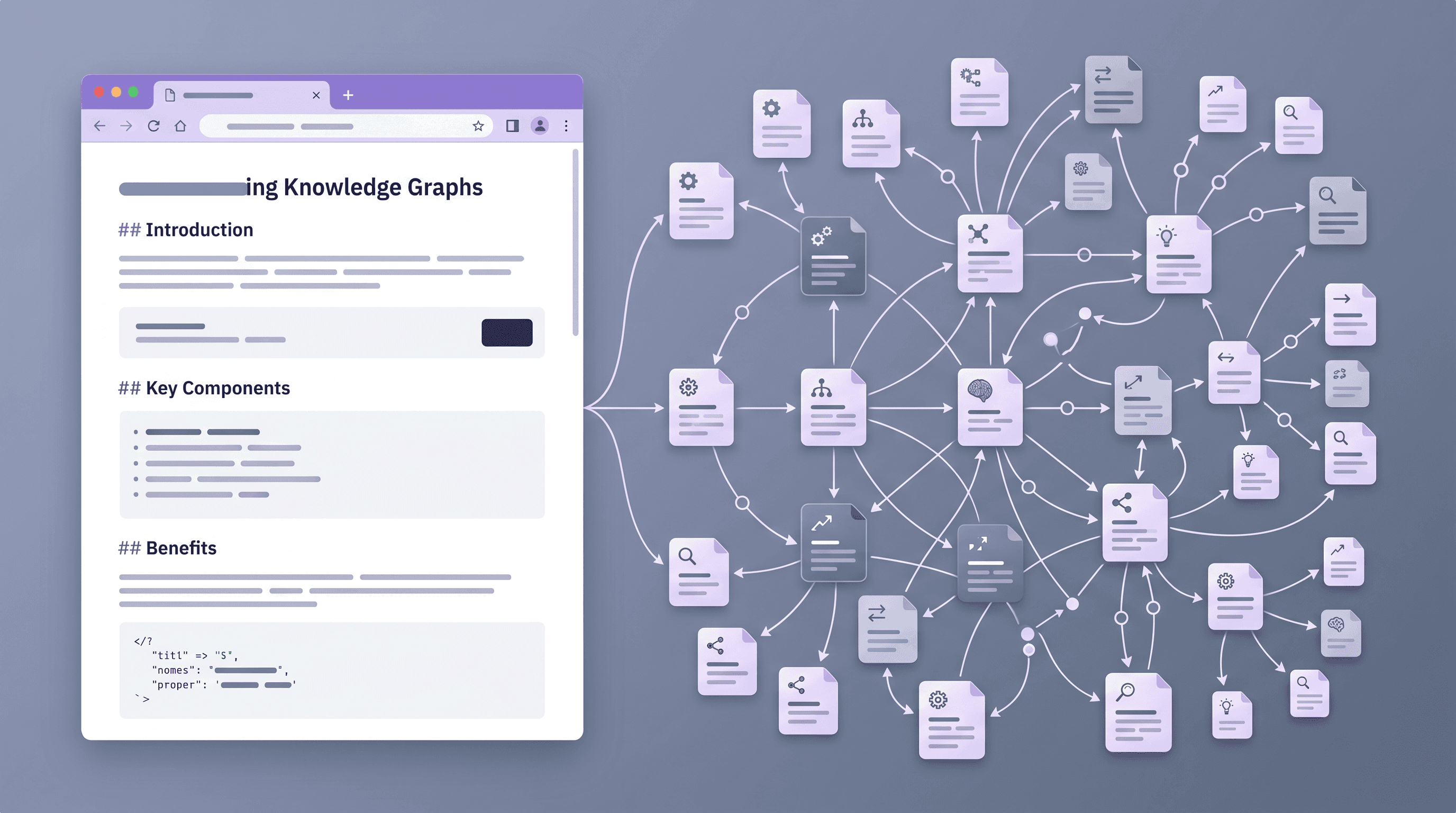
Import Web to Obsidian Markdown Knowledge Base Guide
You find a Hacker News thread with fifty good links. You want to keep those articles — not in a bookmarks folder that rots, not in a note-taking SaaS that might shut down next year, but in a Markdown knowledge base you actually own.
This guide walks through how to import web articles to Obsidian Markdown vaults (or Tolaria, or Logseq) with clean formatting, working images, and the frontmatter you need for long-term recall.
Last updated: April 2026
Table of Contents
- Why Local-First Markdown Knowledge Bases Are Having a Moment
- Three Paths From Web to Markdown
- Walkthrough: From a Hacker News Article to an Obsidian Note
- Import Differences: Tolaria vs Obsidian vs Logseq
- Batch Archiving: RSS and Read-Later Workflows
- A Live Demo With URL to Any
- FAQ
- Conclusion
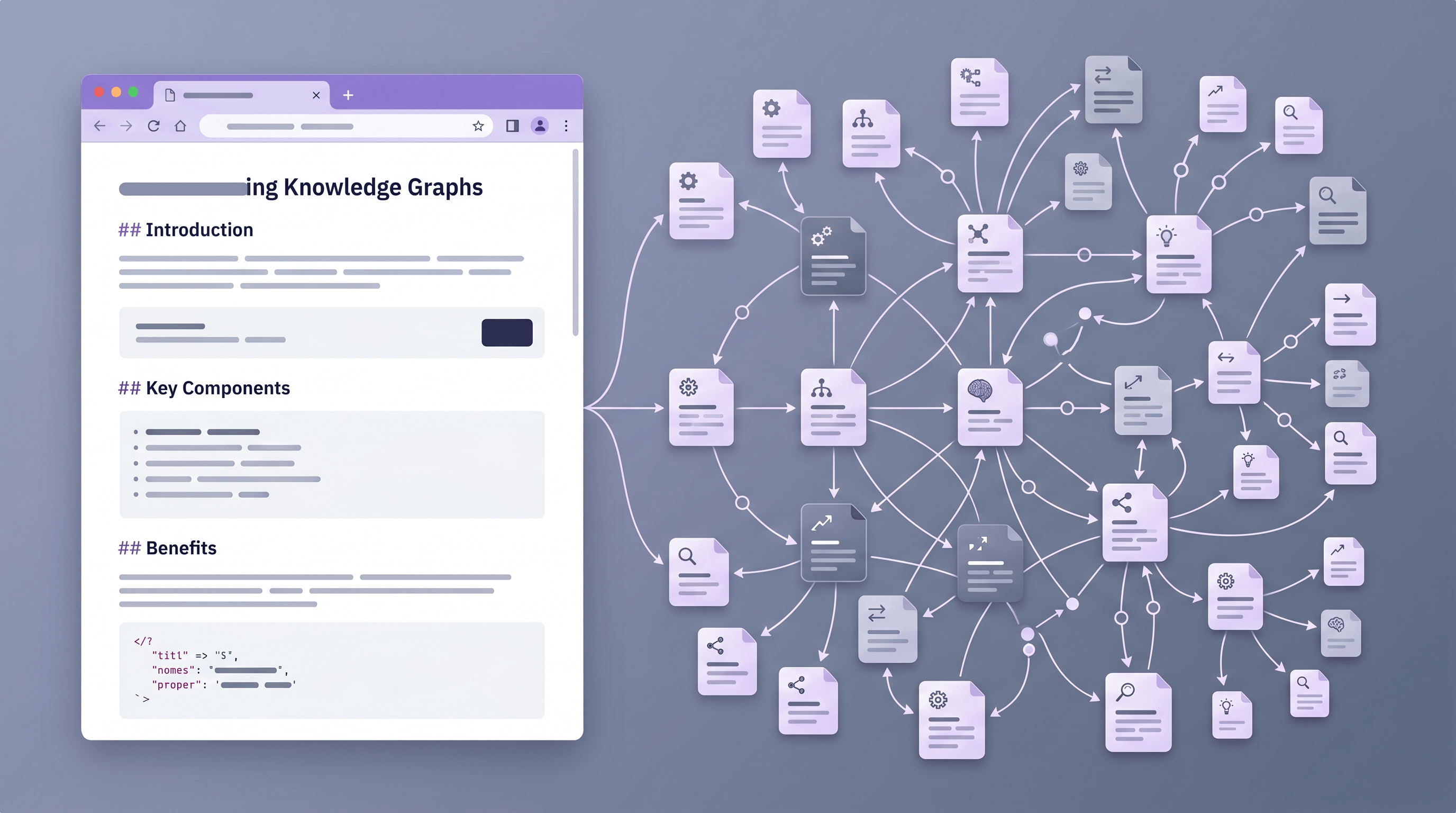
Why Local-First Markdown Knowledge Bases Are Having a Moment
Markdown knowledge management hit mainstream in 2024–2025, and the 2026 signal is how many new entrants keep appearing. The Show HN thread for Tolaria — a new open-source macOS Markdown manager — reached 74 points and the HN front page in April 2026, joining Obsidian and Logseq as a serious option.
The common thread across these tools:
- Plain
.mdfiles on your disk, not a proprietary database - Local-first — your vault works offline, on any machine
- Git-friendly — sync with GitHub, iCloud, or Syncthing; diff and roll back like code
- Interoperable — the same vault opens in multiple tools
When a web article enters this world as clean Markdown, it becomes a first-class citizen: searchable, linkable, durable. A link in your browser bookmarks doesn't survive a site redesign or a paywall. A Markdown file you own does. A 2024 Pew Research study found that 38% of web pages from 2013 are no longer accessible — the best hedge is a local copy in an open format.
Three Paths From Web to Markdown
There are three reliable ways to import a web page into a Markdown knowledge base, each with different trade-offs:
1. Browser web clippers
Install an extension, click a button, the page lands in your vault.
- Best for: daily clipping, one-click workflow
- Tools: Obsidian Web Clipper (official), MarkDownload, Markdownify
- Limits: JavaScript-heavy SPAs often clip poorly; desktop-only
2. Command-line tools
Run a converter from your terminal — perfect for automation.
- Best for: batch archiving, scripting, power users
- Tools: Pandoc, readable-cli, monolith (for full-page snapshots)
- Limits: setup overhead; raw Pandoc output needs cleaning
3. Online URL-to-Markdown converters
Paste a URL on a web page, copy the Markdown output.
- Best for: mobile, complex pages, zero-install situations
- Tools: URL to Any, a handful of smaller utilities
- Limits: needs internet; cannot reach paywalled pages
What we do after clipping 500+ articles: keep a browser clipper as the default and an online converter as a fallback. When a clipper chokes on a page, pasting the URL into URL to Any usually works — it renders server-side, which handles most SPAs cleanly.

Walkthrough: From a Hacker News Article to an Obsidian Note
Let's walk through importing a Hacker News article into Obsidian as clean Markdown, preserving images, code blocks, and metadata.
Step 1: Pick the article
We'll use a hypothetical URL: https://news.ycombinator.com/item?id=42000000. HN comment threads are a good stress test — the nested indentation breaks a lot of naive converters.
Step 2: Convert to Markdown
Paste the URL into URL to Any and select Markdown — the conversion takes about 2 seconds and preserves the comment nesting as indented lists. If you only want the linked article itself (not the thread), use the article's direct URL instead.
Step 3: Add frontmatter
Every imported note benefits from YAML frontmatter at the top:
---
title: "Show HN: Tolaria — Open-Source Markdown Manager for macOS"
source: "https://news.ycombinator.com/item?id=42000000"
author: "Unknown"
date_saved: "2026-04-24"
tags:
  - pkm
  - markdown
  - macos
status: unread
---
Obsidian renders this block as Properties, and Dataview queries can filter by any field. Tolaria and Logseq read the same fields with slightly different UIs.
Step 4: Fix images
Converters output image URLs as-is: . Two options:
- Keep as remote URLs — simpler, but breaks if the source site goes offline
- Download locally — in Obsidian, the "Local images plus" community plugin fetches every remote image into your
attachments/folder and rewrites the paths in one pass
For an archival knowledge base, download locally. For a short-term inbox, remote URLs are fine.
Step 5: Clean up code blocks
Most converters preserve fenced code blocks, but they sometimes drop the language tag. Scan the note for bare triple-backtick blocks and add the language (e.g., ```ts, ```python) — Obsidian's syntax highlighting depends on it, and so does searchability inside Dataview.
Step 6: Add your own context
Write one sentence at the top of the note: why you saved this and what it connects to. Then add 2–3 wikilinks to related notes in your vault. This 30-second investment is what turns an inbox of clippings into an active knowledge graph — without it, imported articles are just digital hoarding.
Import Differences: Tolaria vs Obsidian vs Logseq
All three tools read plain Markdown files, but the ergonomics of importing web content differ:
| Feature | Obsidian | Tolaria | Logseq |
|---|---|---|---|
| Official web clipper | Yes (2024+) | No (April 2026) | Yes |
| Frontmatter support | Full (Properties UI) | Full (file header) | Partial — maps to page properties |
| Wikilink syntax | [[Note]] | [[Note]] | [[Note]] (identical) |
| Block references | Obsidian-specific ^block-id | Not yet supported | Native — every bullet is a block |
| Platforms | macOS, Windows, Linux, iOS, Android | macOS only (April 2026) | macOS, Windows, Linux, mobile |
| License | Proprietary, free for personal use | Open source (MIT) | Open source (AGPL) |
Practical rule: if you import the same article into more than one tool, stick to plain Markdown with wikilinks. Skip Obsidian-specific block references (^id) and Logseq's outliner bullet syntax (- on every line). The portable common denominator works in all three.
Batch Archiving: RSS and Read-Later Workflows
Clipping articles one by one is fine. Archiving a week of reading is where automation earns its keep.
RSS → Markdown pipeline
Feed your RSS reader — Miniflux, Readwise Reader, Feedly — into a shell script that fetches starred items and pipes them to a Markdown converter:
#!/bin/bash
# Fetch starred entries from Miniflux API, convert each to Markdown
curl -s -u user:token "https://reader.example.com/v1/entries?starred=true" \
  | jq -r '.entries[].url' \
  | while read url; do
      slug=$(echo "$url" | sed 's|https://||; s|[/?&=]|-|g' | cut -c1-80)
      readable "$url" -o "$VAULT/Clippings/${slug}.md"
    done
Run it via cron or launchd once a day. A week of starred articles lands in your vault as clean Markdown without any manual work.
Read-later → Markdown
- Readwise Reader — native Markdown export via API
- Pocket / Instapaper — export the URL list from the web UI, then pipe each URL through URL to Any for the Markdown conversion
- Omnivore — open source, with a direct Obsidian plugin
Pro tip: archive the page, not just the text
For pages you really want to keep, use monolith to save a single-file HTML snapshot alongside the Markdown:
monolith "https://example.com/article" -o "$VAULT/Archive/article.html"
Each snapshot costs ~200 KB but preserves the fully rendered page — fonts, CSS, images — in case the Markdown conversion missed something. Store both and you have belt and suspenders.

A Live Demo With URL to Any
Here is what a clean conversion actually looks like end to end:
- Open URL to Any in any browser — desktop or mobile
- Paste a URL, for example
https://en.wikipedia.org/wiki/Knowledge_management - Select Markdown from the format list
- Wait ~2 seconds for the conversion
- Copy the output and paste it into a new note in your vault
The output preserves headings, lists, tables, and code blocks. Images are kept as remote URLs by default. No signup, no quota on the free tier, and it works on mobile browsers where extensions can't run.
If you need other formats for the same page — PDF, plain text, JSON, or a full-page screenshot — the same URL can be converted with one click using the other tools on the site. That makes it handy when a single article needs to end up in a Markdown vault and a PDF archive at the same time.
FAQ
How do I import a web article that requires login?
Login-gated pages block server-side fetchers because the server sees a login wall, not the article. Three workarounds: (1) use a browser clipper on your already-logged-in tab — the clipper reads the rendered DOM after authentication; (2) use your browser's "Reader Mode" to extract the article text, then copy-paste into your vault; (3) for paywalled news, check whether your library offers archival access through tools like Factiva or ProQuest. Online converters like URL to Any cannot reach content behind auth.
What YAML frontmatter should I include with clipped articles?
At minimum: source (original URL), date_saved (ISO date), and tags. Add title, author, and status: unread | processing | done if you run a review workflow. Obsidian, Tolaria, and Logseq all read this frontmatter for filtering and templating. Skip tool-specific keys (like Obsidian's cssclass) if you want your vault to stay portable across tools.
Should I download images locally or keep them as remote URLs?
For long-term archival, download locally — remote image URLs break when the source site redesigns, paywalls its media, or dies. For a short-term inbox of clippings, remote URLs are fine and keep your vault small. In Obsidian, the "Local images plus" plugin automates the download-and-rewrite step. Logseq users can install "Logseq Media-ts". Tolaria (April 2026) doesn't have an equivalent plugin yet — a small wget or shell script covers the gap.
Can I import web articles on mobile?
Yes. Online converters like URL to Any work in mobile browsers — paste the URL, copy the Markdown, paste it into your mobile notes app. Obsidian mobile supports the iOS Share Sheet: share any URL into Obsidian and use the ReadItLater or Web Clipper plugins to save it. Logseq has a similar share target on Android. Desktop-only browser clippers are the one path that does not work on phones.
How do I handle pages with heavy JavaScript?
Server-side converters usually run a headless browser that renders the full page before extracting content. URL to Any and similar tools handle Single Page Applications, Medium, Substack, and most modern sites this way. If a conversion still fails, fall back to running monolith locally — it bundles the fully rendered page into a single HTML file you can convert to Markdown afterward with Pandoc.
Conclusion
A Markdown knowledge base only works if content keeps flowing in. A setup that holds up over years:
- Default clipper — install the Obsidian Web Clipper (or your tool's equivalent) for one-click capture
- Online converter fallback — bookmark URL to Any for pages the clipper can't handle, and for mobile
- Batch pipeline — once you star three or more articles per week, spend 15 minutes wiring up an RSS-to-Markdown script; the time compounds
- Consistent frontmatter —
source,date_saved,tagson every note - Clip, then connect — every imported article gets one sentence of context and 2–3 wikilinks before it leaves the inbox
The tools will keep changing. Tolaria joined the Markdown-PKM conversation in April 2026; something new will show up next year. The files don't care. A vault of clean Markdown is portable across every tool that exists today and every tool that ships tomorrow.
Want to convert any web page to clean Markdown for your knowledge base? Try URL to Any free → — 10+ format converters, no signup, works on mobile.