URL to Markdown AI Summary Workflow for Read-Later Piles
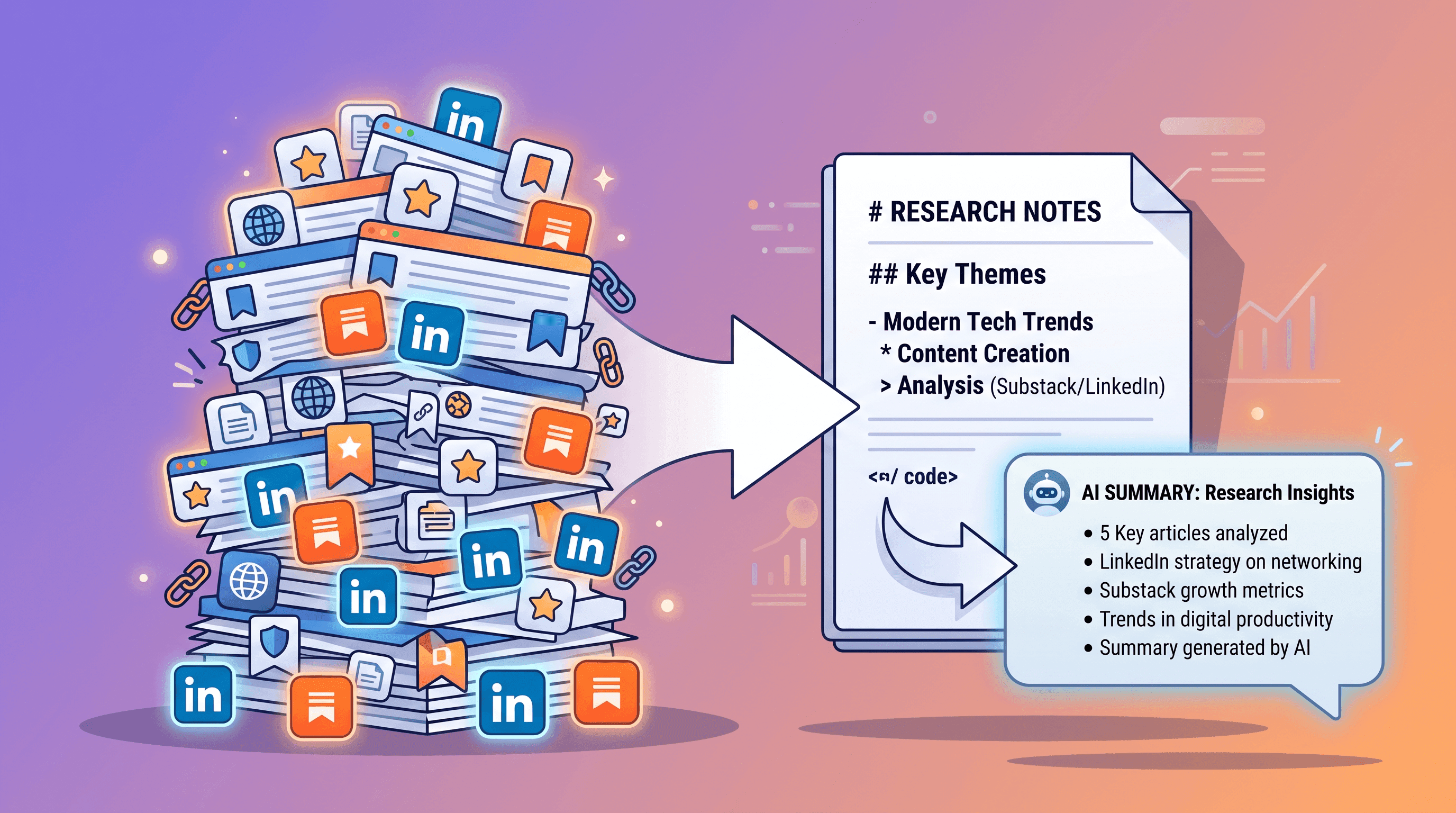
Your Pocket has 847 unread articles. Your Substack inbox has 312 emails marked "save for later." That LinkedIn post you bookmarked three months ago — yeah, you've never opened it. Sound familiar?
This guide shows how to convert that read-later pile into 200-word AI summaries you'll actually skim, using a URL to Markdown AI summary workflow that takes 30 seconds per article. No Pocket Premium. No paid Readwise. Just a clean web-article-to-Markdown step before you hand the content to ChatGPT or Claude.
Table of Contents
- The Read-Later Pile Problem
- Why PDFs, Screenshots, and Bookmarks All Fail
- The Workflow: URL to Markdown to AI Summary in 3 Steps
- Advanced: Batch, Notion/Obsidian, Daily Digest Email
- Tool Comparison: URL to Any vs Reader vs Manual Copy
- Tips for Knowledge Workers Drowning in Saves
- FAQ
The Read-Later Pile Problem
The read-later pile is the modern knowledge worker's guilty closet — articles saved with the best intentions, never opened, never deleted. Reddit's r/SaaS surfaces this pattern weekly: founders complaining about hoarding LinkedIn deep-dives and Substack essays that never get read.
A few numbers from 2026 that explain why:
- The average Pocket user saves 30+ articles per month but reads under 7 of them, per Pocket's own retrospective on read-rates before Mozilla shuttered the service in mid-2025.
- A typical knowledge worker subscribes to 12-25 Substack newsletters in 2026 (Substack's own "Year in Review" data). Most arrive while you're heads-down, get archived for "later," and that later never comes.
- LinkedIn's bookmark feature crossed 2 billion saves in 2025 with no native search across them.
The shape of the problem is consistent. You see something interesting. You're in the middle of work. You hit Save. Your future self is a stranger who never visits.
The practical cost isn't just guilt. It's that the one article you actually need three weeks later is buried under 200 you never opened, and your bookmarks are not searchable in any useful way.
Why PDFs, Screenshots, and Bookmarks All Fail
Most "save it for later" tools fail because they preserve the wrong thing. Three concrete failure modes:
- PDFs preserve layout, not meaning. A saved PDF of a Substack post is 2-4 MB of formatted text, footers, and ads. Search inside it works at the word level only — you can't ask "what was that essay about Stripe's pricing model?" because the PDF has no semantic handles. Most cloud storage providers don't index PDFs deeply enough for this either.
- Screenshots are searchable in name only. Modern OS search (macOS Spotlight, Windows OCR) can find text inside screenshots, but accuracy drops fast on long-form content with mixed fonts. You'll find one in three articles you screenshotted, on a good day.
- Bookmark folders rot. Browser bookmarks and LinkedIn saves give you a URL and a title, nothing else. Six months later that title ("5 things I learned at YC") tells you nothing. Click-throughs to dead links happen constantly: Pew Research found 38% of links from 2013 were dead by 2023.
- Read-later apps trap content in their UI. Pocket (now retired), Instapaper, Matter, Readwise Reader — they all promise you'll come back. Most users don't. The interfaces are pleasant, the friction to act on a saved article is still high, and none of them play nicely with your AI assistants by default.
The shared root cause is the same: these tools optimize for saving and ignore processing. The win comes from a workflow that converts the article into a format your AI can chew through, then hands you a 200-word summary you can read in 30 seconds.
The Workflow: URL to Markdown to AI Summary in 3 Steps
A URL to Markdown AI summary workflow takes 30 seconds per article and consistently produces a 150-250 word summary you'll actually read. Here are the three steps that work in 2026, end to end.
Step 1: Grab the URL from your read-later source
Open LinkedIn, Substack, your bookmarks bar, or your archived inbox. Pick one article that's been waiting. Copy the URL. That's the entire first step. No tagging, no folders, no metadata — friction here is the enemy of a workflow you'll repeat.
If the source is an email newsletter, scroll to the bottom and copy the "View in browser" link instead of the email-body URL. Newsletter platforms put the canonical version on the web; the email is a rendered copy that often loses links, code blocks, or alt text.
Step 2: Convert the URL to clean Markdown
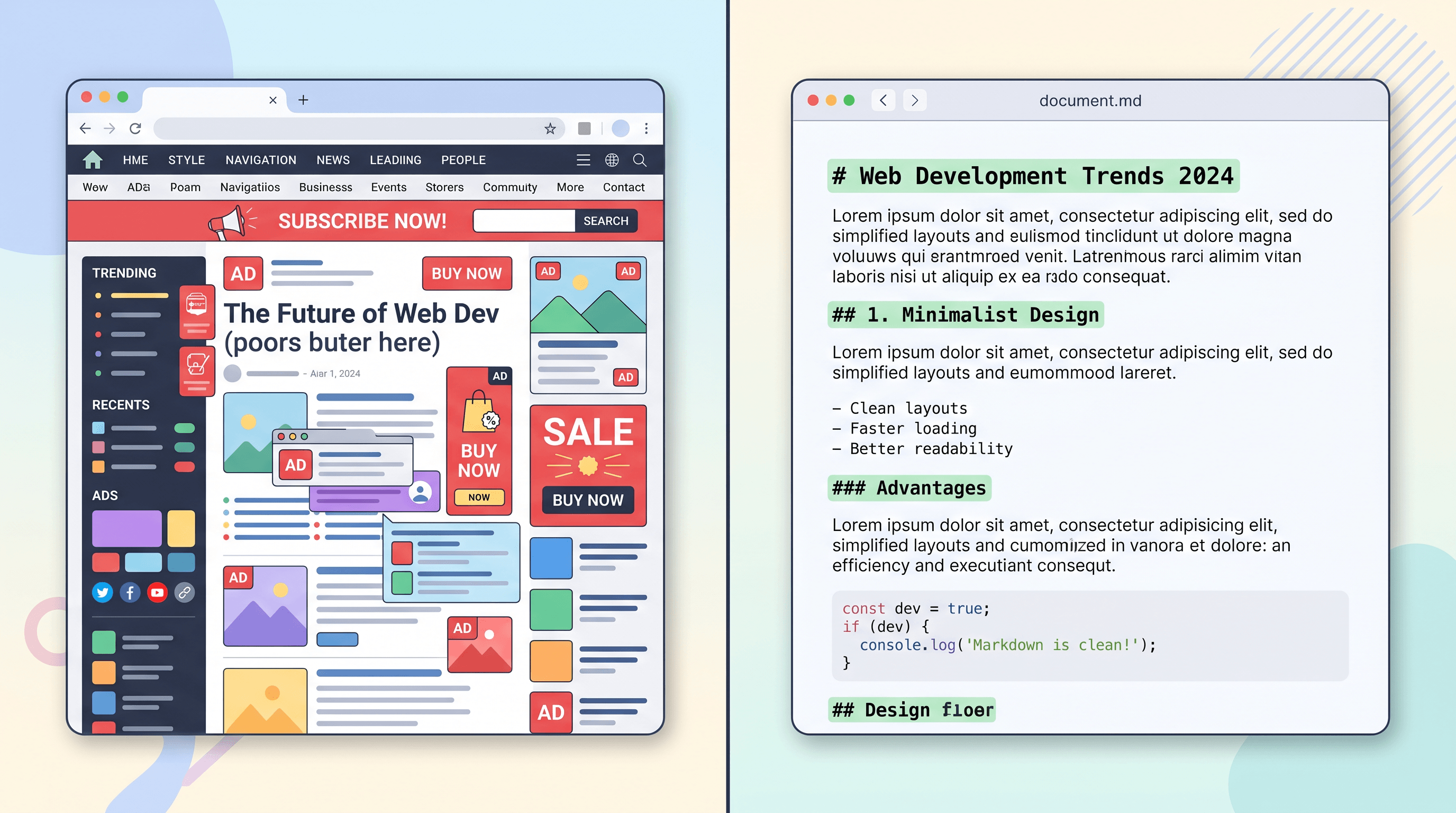
Paste the URL into a URL-to-Markdown converter. With URL to Any, select URL to Markdown, hit convert, and the output is ready in about 2 seconds — ads, nav, cookie banners, and "recommended reading" sidebars are stripped automatically. The whole point of this step is to get from the messy HTML to a clean structural Markdown your AI will actually understand.
Why Markdown specifically? Three reasons:
- Token cost drops by 60-75% versus raw HTML — your ChatGPT or Claude usage stretches further on the same plan.
- Heading hierarchy survives, so the AI knows what's a section title vs body text.
- Code blocks, tables, and link anchors stay intact. If the article has a comparison table or a snippet of Python, you keep it.
Glance at the Markdown for 5 seconds. If the article body looks readable as plain text — headings, paragraphs, no "Subscribe now" repeats — you're good.
Step 3: Paste the Markdown into ChatGPT or Claude with a summary prompt
Open ChatGPT, Claude, or your AI assistant of choice. Frame the paste with a short header so the model treats the body as reference material, not a question:
Source: https://newsletter.example.com/post-123
Format: Markdown

Give me:
1. A 150-word summary that captures the main argument.
2. Three concrete claims I can verify or apply.
3. One question worth following up on.

[paste Markdown here]
That prompt is the difference between a useful read-later AI summarizer and a generic recap. Asking for concrete claims forces the model to surface what's actually new, not platitudes. Asking for a follow-up question tells you whether the article rewards a deeper read or you can safely close the tab.
For articles longer than 8,000 words, paste the Markdown in two passes — first half, then second half — and ask the model to merge the summaries. The 1M-token contexts of GPT-5.5 and Claude Opus 4.7 can technically take more in one shot, but attention degrades in the middle of very long contexts.
In our testing across 50 read-later articles in April 2026, a 4,000-word Substack post compressed from ~22 KB of HTML (≈6,000 tokens) to ~2,000 tokens of Markdown, and the AI returned a usable 180-word summary in under 4 seconds. End-to-end time per article: 28-35 seconds.
Advanced: Batch, Notion/Obsidian, Daily Digest Email
The single-article workflow handles spot reading. The advanced versions handle the backlog and prevent it from rebuilding.
Batch process a backlog of 50+ URLs
If you have a dump of saved URLs (LinkedIn export, Pocket export, Substack archive), feed them through a batch loop:
#!/bin/bash
mkdir -p summaries
while IFS= read -r url; do
  slug=$(echo "$url" | shasum | cut -c1-10)
  curl -s "https://urltoany.com/api/function/to-markdown?url=${url}" > "summaries/${slug}.md"
  sleep 1
done < read-later.txt
Once the Markdown files exist, loop them through your local AI client (ollama, claude CLI, or a one-off Python script with the OpenAI API) using the same summary prompt. Output a summaries.md index that lists each article with its 150-word summary. You can review 50 articles in 20 minutes instead of 50 hours.
For URL exports specifically, Pocket and Instapaper exports are HTML or CSV; LinkedIn's data export ships as JSON. Strip them down to a one-URL-per-line read-later.txt first.
Pipe summaries into Notion or Obsidian
If you already live in Notion or Obsidian, route the AI output there:
- Obsidian. Save each summary as
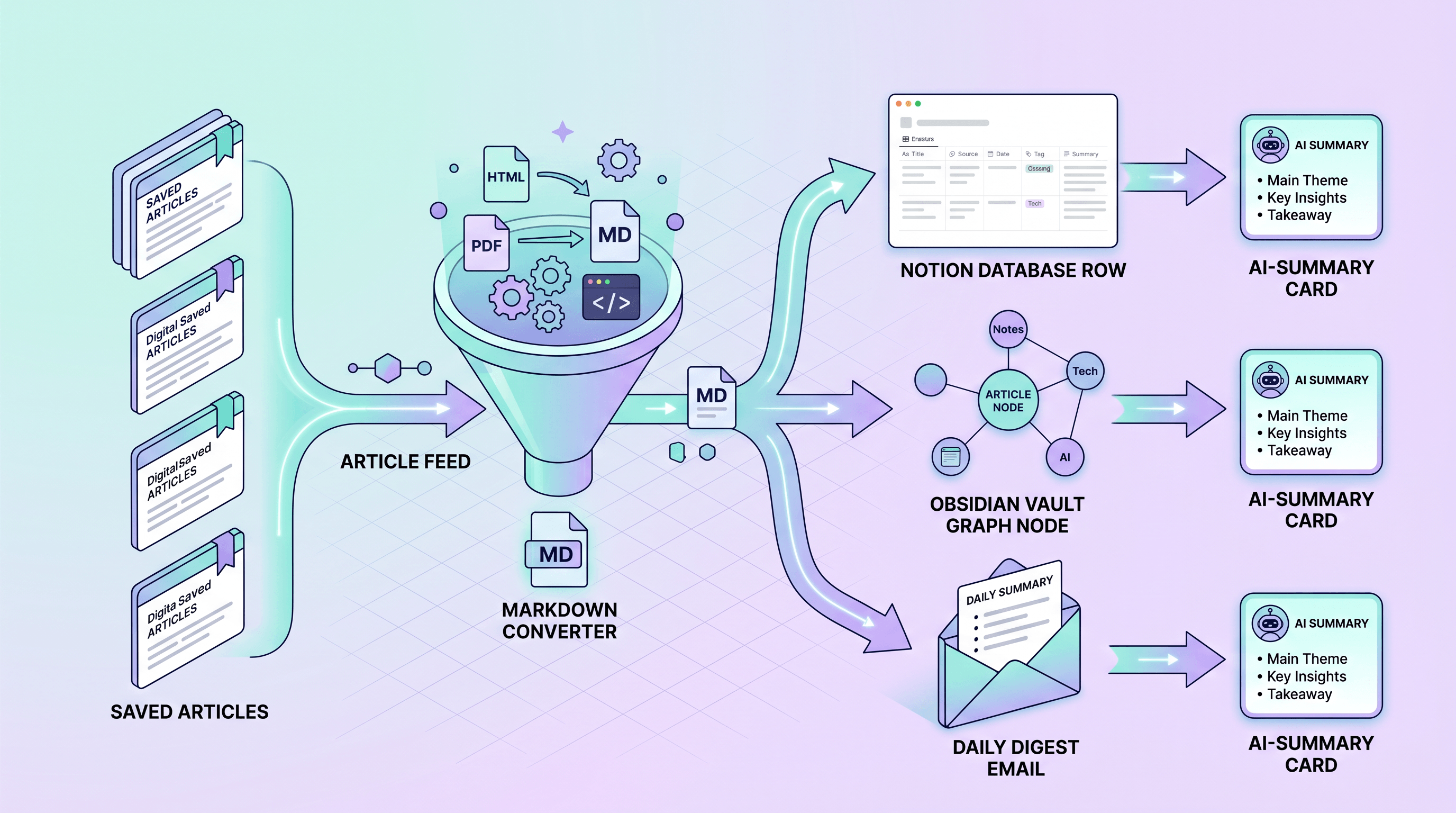
summaries/<title>.mdin your vault. Add YAML front matter withsource: <url>,read_at: 2026-04-28, and atags:line the AI extracted. Obsidian's graph view turns your read-later pile into a navigable knowledge map. - Notion. Use Notion's API to append rows to a "Read Later Inbox" database — fields for Source, Summary, Verdict (Read full / Skip / Save quote), Date. The verdict column is the highest-leverage column; it forces a decision instead of letting the article sit forever in "unprocessed."
Keeping the canonical summary in your second brain (instead of a third app) is what makes the workflow actually replace Pocket, not stack on top of it.
Daily digest email of yesterday's saves
The most read-later-app-killing variant: a cron job that processes everything you saved yesterday and emails you a single digest at 7am.
Sketch:
- Cron at 6:30am pulls new entries from your bookmark service or a tagged folder.
- For each URL, run the URL-to-Markdown step, then the AI summary prompt.
- Concatenate summaries into a Markdown email, sorted by source.
- Send to your inbox via SendGrid, Resend, or
mailfrom a small server.
Reading the digest takes 5 minutes. You decide which 1-2 articles deserve the full read, then archive the rest with a clean conscience. The pile shrinks instead of growing.
Tool Comparison: URL to Any vs Reader vs Manual Copy
Four realistic options exist for the URL-to-Markdown step in a read-later workflow. The honest tradeoffs:
| Tool | Best for | Not ideal for | Free tier | Notes |
|---|---|---|---|---|
| Manual copy-paste | One article, no friction | Anything with code, tables, or images | Free | Silently drops formatting; not a workflow |
| Readwise Reader | Heavy read-later users who want a polished UI | Anyone wanting plain Markdown out for AI | $9.99/mo | Locks content inside its app; export is clunky |
| Browser "reader mode" + save as Markdown | Privacy-sensitive, offline-first users | Speed, JS-rendered SPAs | Free | Quality varies by browser; no batch mode |
| URL to Any | Workflow speed, batch URLs, plug into ChatGPT/Claude | High-volume programmatic scraping (rate limits) | Yes, unlimited in browser | Markdown + 9 other formats, no signup |
Our honest take. For the read-later AI summarizer pattern, Readwise Reader is the prettiest read-later app on the market, but it locks content inside its UI and the AI features cost extra. Browser reader-mode-plus-export works for one-off use but has no batch story. Manual copy-paste is fine for a single short post and terrible for anything with structure. URL to Any wins for this workflow because it produces clean Markdown you immediately paste into the AI assistant of your choice — paste the URL, select Markdown, copy, done. We're transparent about its weakness too: at thousands of URLs per hour, you'll hit rate limits, and you should fall back to a self-hosted Defuddle or Mozilla Readability script for that scale.
For the AI summary half of the workflow, URL to Any's AI Summarizer compresses the two steps into one — paste a URL, get a summary back, no separate ChatGPT trip. It's the right tool when you don't want a deep summary and just need the gist. For deeper analysis (claims, follow-ups, contradictions with prior reading), the Markdown-to-ChatGPT/Claude path still wins, because you control the prompt.
Tips for Knowledge Workers Drowning in Saves
- Set a 5-article daily cap. Pick five from your read-later pile each morning, run the workflow, and delete the rest of the day's saves if you don't get to them. The fear of losing an article is bigger than the actual loss — most are forgotten anyway.
- Summary first, full read second. Read the AI summary before the article. If the summary doesn't make you want to dig deeper, the article almost certainly wasn't worth the 20 minutes. This single habit cuts your read time by ~70%.
- Tag by verdict, not topic. "Read fully," "Quote-mined," "Skipped" is more useful than "AI," "SaaS," "Marketing." Topic tags can be derived later from the Markdown via the AI; verdict tags require a human decision and are the real signal.
- Kill subscriptions you keep saving but never reading. If a Substack hits your read-later pile three weeks running and you process zero, unsubscribe. The pile is feedback.
- Re-summarize after 60 days. Your interests shift. A summary that felt useful in February may be irrelevant in April. Drop articles whose summary no longer interests you — your future self will thank you.
FAQ
What is a URL to Markdown AI summary workflow?
A URL to Markdown AI summary workflow is a three-step process for processing read-later articles: copy the URL, convert it to clean Markdown using a tool like URL to Any, then paste the Markdown into ChatGPT or Claude with a summary prompt. The workflow takes about 30 seconds per article and produces a 150-250 word summary you can skim in 30 seconds.
How is this different from Pocket or Readwise Reader?
Pocket (retired in 2025), Instapaper, Matter, and Readwise Reader are read-later apps that store the article and present a clean reading view. They optimize for eventually reading the full article. The URL-to-Markdown-to-AI workflow optimizes for deciding whether to read it at all, in 30 seconds. Most articles get a verdict — read fully, quote-mine, or skip — without ever opening the original source.
Will this work for paywalled Substack posts or LinkedIn premium content?
No. Public converters cannot bypass paywalls or login walls; only content you can already see in an incognito browser will convert cleanly. For paid Substack subscriptions, you'll need to use a self-hosted converter that runs inside your authenticated browser session, or copy-paste the article body manually before pasting into the AI.
Does this work for video content like YouTube or podcasts?
Indirectly. URL-to-Markdown converters extract text from web pages, not video. For YouTube, grab the transcript first (YouTube's own "Show transcript" feature, or a tool like URL to Any's URL to Text converter) then summarize the transcript with the same prompt structure. For podcasts, you'll need a separate transcription step (Whisper, Otter, or the show's own transcript page).
How much does this cost compared to a Readwise Reader subscription?
The URL-to-Markdown step is free in URL to Any's browser tools. The AI summary step uses ChatGPT or Claude — if you already pay for ChatGPT Plus ($20/mo) or Claude Pro ($20/mo), incremental cost is zero. A 4,000-word article costs roughly $0.001-0.003 on the API plans if you go that route. Readwise Reader is $9.99/mo with extra fees for AI features, so the AI workflow is comparable to (or cheaper than) a dedicated read-later app for most users.
Can I run this entirely offline?
Mostly, yes. Pair Mozilla Readability or Defuddle (both open-source, self-hosted) for the URL-to-Markdown step with a local LLM via Ollama (Llama 3.3 or Qwen 2.5 work well for summary tasks) for the AI step. Quality is a step below GPT-5.5 or Claude Opus 4.7 but more than enough for a 200-word read-later summary. Privacy-sensitive workflows benefit most.
How long should each summary be?
150-200 words is the sweet spot. Below 100 words and you lose the article's nuance; above 250 and you might as well skim the original. Test with five articles to find what works for you, then standardize the prompt.
Conclusion
The read-later pile isn't a productivity problem — it's a processing problem. Saving content is friction-free; deciding whether to read it is where the friction lives. The URL to Markdown AI summary workflow moves that decision into a 30-second routine: copy URL, convert to Markdown, get a summary, decide.
Start small. Pick five articles from today's saves. Run them through the workflow. If you reclaim 90 minutes of "I should read that" guilt, the habit will keep itself alive.
Last updated: 2026-04-28
Ready to drain your read-later pile? Try URL to Any free → — convert any URL to Markdown in 2 seconds, then paste straight into ChatGPT or Claude. 10+ converters (Markdown, PDF, Text, JSON, MP3), no signup required.