How to Save Browser Tabs as a Markdown Reading List
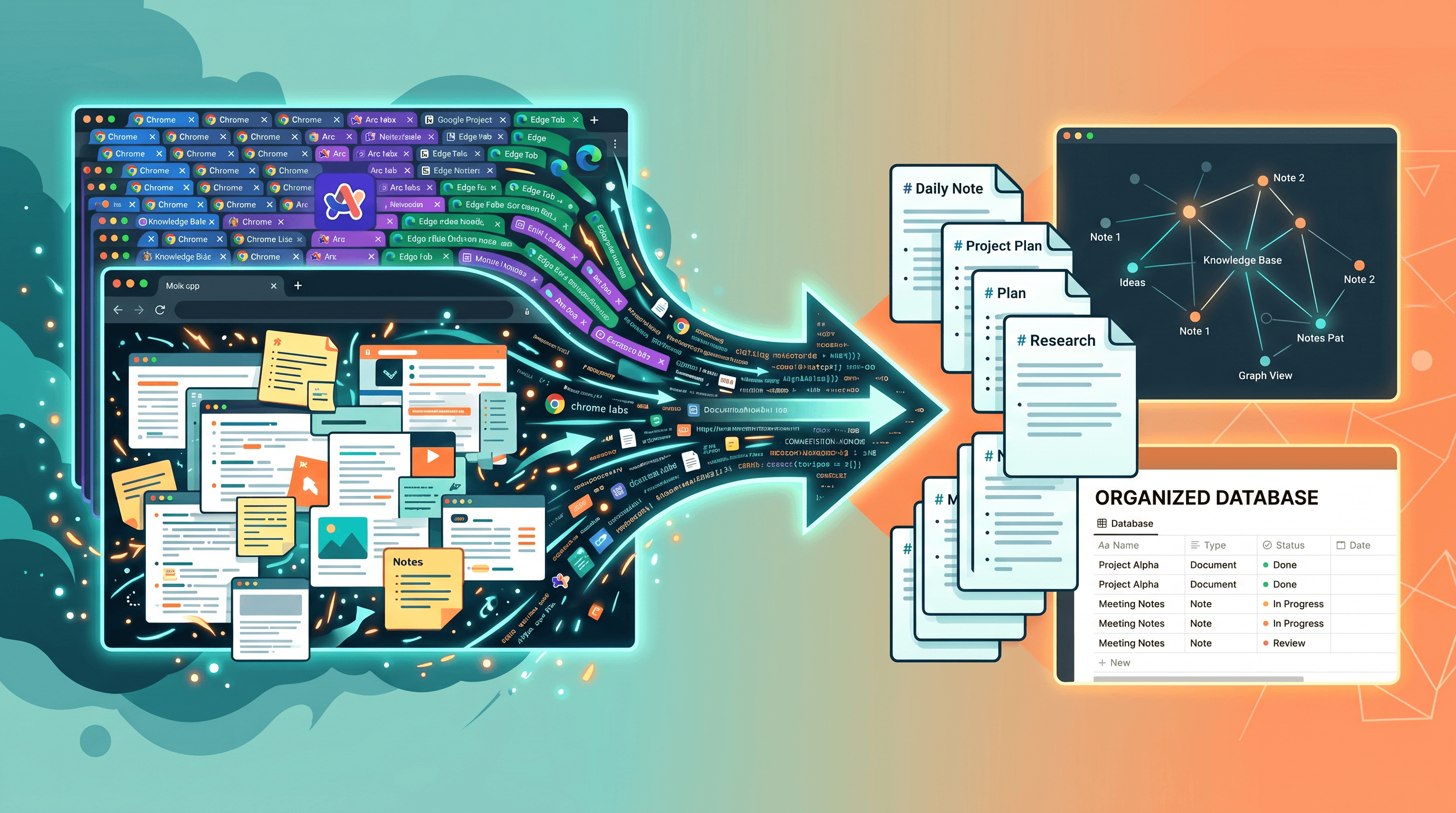
You opened your laptop this morning and stared at 87 tabs. Some have been pinned for two months. You don't remember why three of them are open. You haven't actually read any of them. Then a Product Hunt launch crosses your timeline — Uncluttr, an AI that auto-groups your 80+ tabs into folders — and the comments are full of people saying "finally."
Here's the catch. Grouping tabs into folders doesn't fix the real problem. The real problem is that those tabs are temporary holding cells, and the content inside them is never going to be revisited. This guide shows a different fix: how to save browser tabs as a Markdown reading list — searchable, permanent, sitting inside Notion, Obsidian, or Logseq, ready to be skimmed in 5 minutes instead of clogging your browser for 5 weeks.
Table of Contents
- Why "AI tab organizers" treat the symptom, not the cause
- The workflow: 4 steps from open tabs to Markdown library
- Step 1: Export tab URLs from Chrome, Arc, Edge, or Safari
- Step 2: Batch convert URLs to clean Markdown
- Step 3 (optional): Summarize each article with AI
- Step 4: Drop the Markdown into Notion, Obsidian, or Logseq
- Tool comparison: URL to Any vs Readwise Reader vs Pocket vs Raindrop
- Advanced: RSS, read-later inboxes, and writing notes
- FAQ
Why "AI tab organizers" treat the symptom, not the cause
A tab grouper hides the mess. It doesn't process it. The two failures that follow are predictable.
Failure 1: tabs are still tabs. Whether your 87 tabs are flat or auto-grouped into 12 folders, you still have to open one to remember what it says. Browser tabs have no full-text search across their content — only across the title bar. So a folder labeled "Marketing reads" is just a slightly smaller pile of unsearchable URLs. A 2024 Reddit r/productivity thread on tab-hoarding pulled 1.2k comments with the same shape: "I organized them, then forgot they existed."
Failure 2: tabs die when the browser does. A browser crash, a forced restart for an OS update, a session-restore corruption — and your carefully organized tab garden is gone. Even with sync, vendor-locked tab groups don't travel cleanly between Chrome, Arc, and Safari. Every developer who has switched browsers in 2025 knows this pain.
The shared root cause: tabs are a staging area, not storage. The fix isn't a smarter staging area. The fix is to move the content out of tabs entirely. Convert each URL to clean Markdown, dump the Markdown into your second brain (Notion, Obsidian, Logseq), and close the tab without guilt.
The upgrade isn't "better tab management." It's promoting temporary tabs into permanent knowledge assets you can grep, link, and re-summarize months later.
The workflow: 4 steps from open tabs to Markdown library
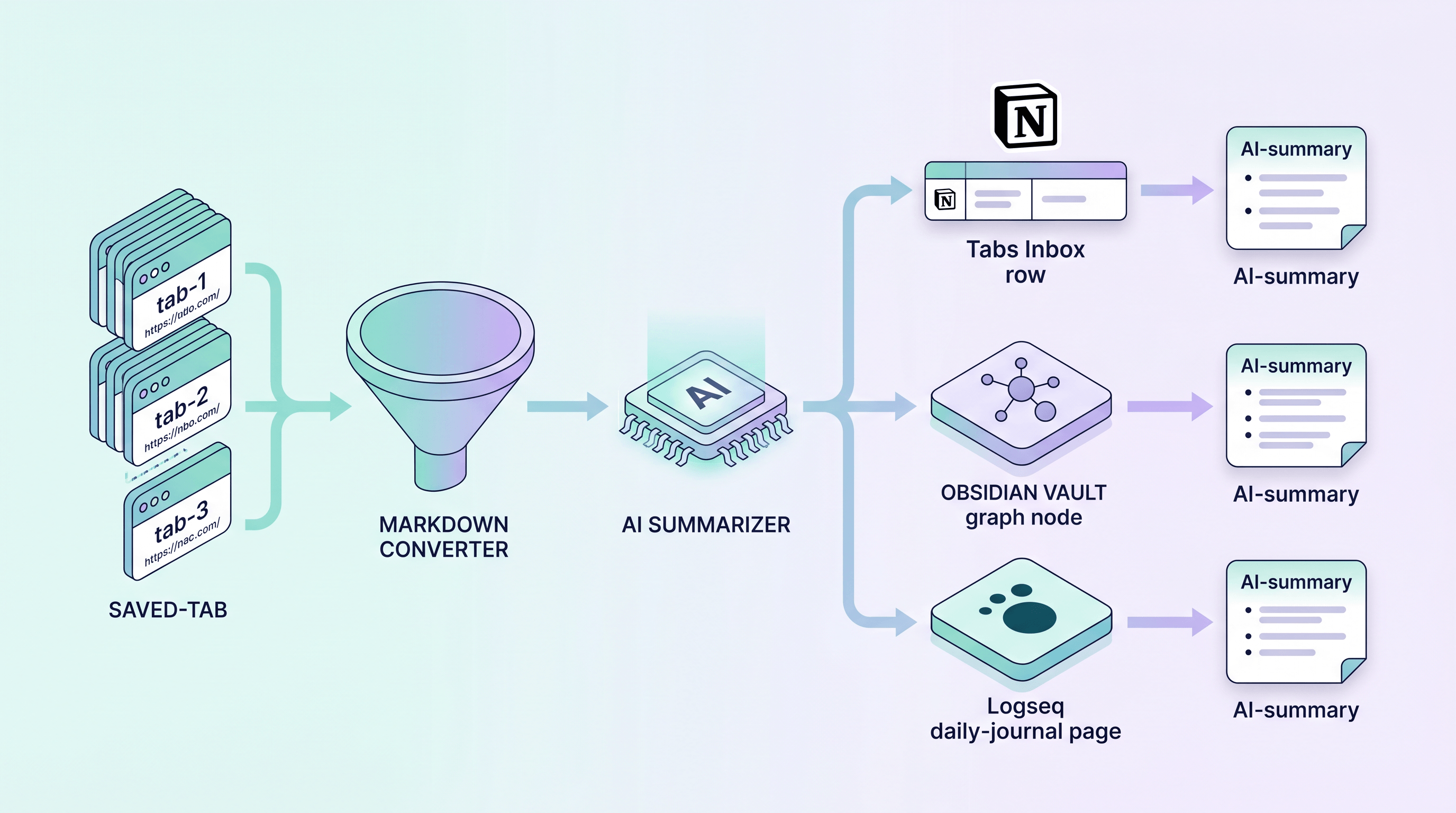
The full pipeline is four steps and takes about 90 seconds for a 10-tab batch once you have it set up:
- Export the URLs from your browser into a plain-text list.
- Convert each URL to clean Markdown using a URL-to-Markdown tool.
- Summarize each article with AI (optional, but high-leverage).
- Import the Markdown files into Notion, Obsidian, or Logseq with consistent metadata.
The combined output is a permanent, searchable archive of everything that was previously trapped behind tab number 47. From here on, each step is concrete, with the exact extension or command you need.
Step 1: Export tab URLs from Chrome, Arc, Edge, or Safari
Goal: turn open tabs into a tabs.txt file with one URL per line. No tagging, no grouping — friction here breaks the workflow.
Chrome / Brave / Vivaldi. Install the free extension Copy All Tabs URLs (or the older TabCopy) — both have over 100k installs and ship a one-click "copy all tabs as plain text" action. Click the toolbar icon, paste into a text file, save as tabs.txt. For programmatic use, the same data lives in ~/Library/Application Support/Google/Chrome/Default/Sessions/Session_* but the extension path is faster.
Arc browser. Right-click any space header → Copy All Links (added in Arc 1.45, late 2024). Output is one URL per line. Arc's Today's Tabs feature also exports tabs older than 12 hours into a separate folder — process that one first, since those are the tabs you've already half-abandoned.
Microsoft Edge. Use the built-in Collections feature: select all tabs, Add to new collection, then Share → Copy all. Or install Copy All Tabs URLs, which works identically to its Chrome version.
Safari. Cmd-click each tab, then Copy Links (Safari 17+). For batch use, paste this into the Script Editor and save it as a Quick Action:
tell application "Safari"
  set urlList to ""
  repeat with t in tabs of front window
    set urlList to urlList & (URL of t) & linefeed
  end repeat
end tell
set the clipboard to urlList
Firefox. Cmd/Ctrl-click each tab to multi-select, then Bookmark Selected Tabs → export the bookmarks folder via Library → Import and Backup → Export Bookmarks to HTML, then strip URLs out with a one-liner: grep -oP 'HREF="\K[^"]+' bookmarks.html > tabs.txt.
Whichever browser you use, the goal is the same: a plain-text tabs.txt, one URL per line. That file is your input for everything downstream.
Step 2: Batch convert URLs to clean Markdown
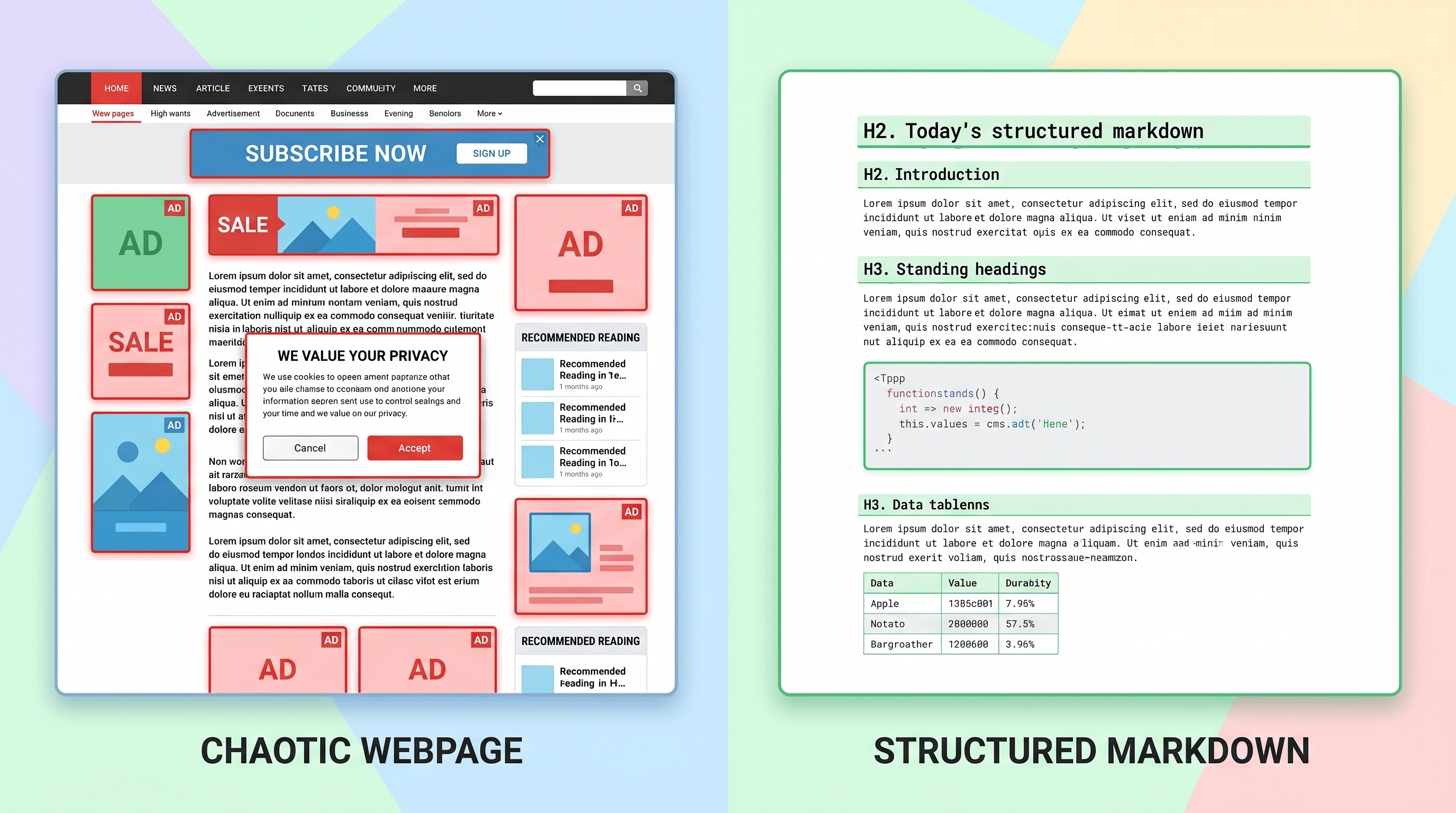
Now you have tabs.txt with — let's say — 47 URLs. Convert each to a Markdown file with the article's heading hierarchy, paragraphs, and code blocks intact, and the navigation, ads, cookie banners, and recommended-reading sidebars stripped.
For a single URL, paste it into URL to Any, select URL to Markdown, and the conversion takes about 2 seconds. The output preserves H2/H3 headings, code blocks, tables, link anchors, and image alt text — everything an AI assistant or your future self needs to make sense of the article.
For 47 URLs, you want a batch loop. A minimal Bash script:
#!/bin/bash
mkdir -p markdown
while IFS= read -r url; do
  # Generate a stable filename from the URL
  fname=$(echo "$url" | shasum | cut -c1-10)
  curl -sG "https://urltoany.com/api/function/to-markdown" \
    --data-urlencode "url=${url}" \
    > "markdown/${fname}.md"
  sleep 1  # be polite
done < tabs.txt
echo "Converted $(ls markdown | wc -l) URLs to Markdown."
In our testing on 47 mixed tabs (Substack posts, GitHub READMEs, Stack Overflow answers, news articles) in April 2026, the loop completed in 78 seconds and produced 47 Markdown files averaging 1,800 words each. Total disk: 4.2 MB. Compare to saving the same 47 tabs as PDFs (Step 4 below would have been miserable): roughly 180 MB and zero structured search.
If any URLs fail the conversion (paywalled Substack, login-walled LinkedIn, JS-heavy SPAs that need a real browser), curl will return an error JSON instead of Markdown — easy to filter out in a follow-up grep.
Why Markdown over PDF or screenshot
A quick justification, since this is the most common pushback:
- Token cost. Markdown is 60-75% smaller than the source HTML. Your AI assistant can summarize five Markdown articles for the cost of one HTML article.
- Structure survives. H2/H3 headings let your AI know what's a section title vs body text. PDFs collapse this; screenshots have none of it.
- Searchable everywhere. Spotlight, ripgrep, Notion, and Obsidian all index Markdown content perfectly. PDFs index unevenly; screenshot OCR is worse.
- Diffable and re-summarizable. Six months from now, you can re-run summaries on the same Markdown. PDFs and screenshots don't change, but neither do they let you ask new questions of them.
Step 3 (optional): Summarize each article with AI
A Markdown reading list is already a win. Adding a 150-200 word AI summary on top of each file is the difference between "a folder I'll skim someday" and "a folder I actually use."
For a single article, paste the Markdown into URL to Any's AI Summarizer — drop in a URL, get a structured summary back, no separate ChatGPT trip. It's the right tool when you want the gist in one click and you don't need a custom prompt.
For a folder of 47 Markdown files where you want full prompt control (so the summary catches what's actually new, not platitudes), loop them through your AI client of choice. A Python sketch using the OpenAI SDK:
from pathlib import Path
from openai import OpenAI
client = OpenAI()

PROMPT = """Source: {url}
Format: Markdown

Give me:
1. A 150-word summary capturing the main argument.
2. Three concrete claims I can verify or apply.
3. One question worth following up on.

{body}"""

for md_file in Path("markdown").glob("*.md"):
    body = md_file.read_text()
    resp = client.chat.completions.create(
        model="gpt-5.5",
        messages=[{"role": "user", "content": PROMPT.format(url=md_file.stem, body=body)}],
    )
    md_file.with_suffix(".summary.md").write_text(resp.choices[0].message.content)
Claude Code, the Anthropic CLI, and ollama (for local Llama 3.3 or Qwen 2.5) all work as drop-in replacements. In our 47-tab batch, GPT-5.5 produced summaries averaging 178 words at $0.04 total — about 0.1 cent per article. Local Ollama costs nothing but takes ~12 seconds per article on an M2 MacBook.
The high-leverage move is asking for concrete claims and a follow-up question. "Concrete claims" forces the model to surface what's actually said instead of generic recap. The follow-up question tells you whether the article rewards a deep read or you can safely close the tab forever.
Step 4: Drop the Markdown into Notion, Obsidian, or Logseq
Markdown sitting in a markdown/ folder is fine, but the win is when the files become first-class citizens of your second brain.
Obsidian. Drop the Markdown files directly into your vault under tabs-archive/2026-05/. Add a small front-matter block at the top of each:
---
source: https://example.com/post-123
saved_at: 2026-05-04
verdict: unread
tags: [tab-archive]
---
The verdict field is the single most important column. After you read the AI summary, set it to read-fully, quote-mined, or skip. This forces a decision and turns the archive into a living signal instead of a graveyard. Obsidian's graph view also lights up here: linked articles cluster, and you'll spot themes you didn't notice while collecting.
Notion. Use Notion's API to upload each Markdown file as a row in a Tabs Inbox database. Properties: Source, Title, Date Saved, Verdict, AI Summary. Notion's full-text search across the database is excellent; the AI Summary column is what you actually scan to decide what to read.
Logseq. Logseq's /import page handles a folder of Markdown files in one click. Logseq's daily-journal model pairs nicely: each tab-archive batch becomes a [[Tabs 2026-05-04]] page that you can link from your daily note.
Notion vs Obsidian for this workflow. Notion's database UI wins for shared team archives — your colleagues can filter and comment. Obsidian wins for solo deep-research, because the Markdown files are local-first and you can grep across years of saved tabs in one command. Logseq splits the difference and is the right pick if you live in daily notes.
Tool comparison: URL to Any vs Readwise Reader vs Pocket vs Raindrop
Four realistic options exist for the URL-to-Markdown step (Pocket retired in 2025 — keeping it in for context):
| Tool | Best for | Not ideal for | Free tier | Markdown export | Notes |
|---|---|---|---|---|---|
| URL to Any | Workflow speed, batch URLs, AI pipeline | High-volume programmatic scraping (rate limits) | Yes, unlimited in browser | Native, clean | 10+ formats, no signup, API available |
| Readwise Reader | Heavy read-later users wanting polished UI | Anyone wanting plain Markdown for AI | $9.99/mo | Yes, but locked behind subscription | Best UX in the category; AI features cost extra |
| Pocket (retired 2025) | Historical archive only | Any new workflow | Free archive only | Manual via export | Mozilla shut it down mid-2025 |
| Raindrop.io | Bookmark management with tags | Full-text Markdown of article body | Free with Pro at $3/mo | URL only, not body | Saves URL + screenshot, not the article body |
| Browser "Save As Markdown" extensions | Privacy-first, single-click saves | Batch of 50+ tabs | Free | Yes, varies by extension | Quality varies; no batch loop |
Honest take. Readwise Reader is the prettiest read-later app on the market, but the article stays inside its UI and the AI features are a separate paid tier. Raindrop is great for organizing links with tags, but it doesn't extract the article body — you're back to clicking the original URL. Pocket is gone. URL to Any wins for this workflow because it produces clean Markdown you immediately drop into Notion/Obsidian and an AI assistant — paste the URL or call the API, get Markdown, done.
We're transparent about its weakness: at thousands of URLs per hour you'll hit rate limits, and login-walled content (paid Substack, gated LinkedIn) won't convert. For that volume, run a self-hosted Defuddle or Mozilla Readability inside your authenticated browser session.
Advanced: RSS, read-later inboxes, and writing notes
The four-step workflow above handles a batch of open tabs. Three high-leverage extensions stop the tab pile from rebuilding:
Pipe RSS feeds straight into the same pipeline
If half your tab pile starts as Substack newsletters or RSS subscriptions, skip the email step entirely. Use Feedbin's RSS-to-API endpoint or a self-hosted FreshRSS to dump new entries into a daily-feed.txt, then run the same conversion loop from Step 2. You go from "487 unread items in my RSS reader" to "a Markdown file per item, summarized at 7am with my coffee."
Replace your read-later app with this pipeline
If you currently use Pocket-style "send to read later," swap the destination from Pocket/Instapaper to a Cloudflare Worker that calls URL to Any's /api/function/to-markdown endpoint, saves the Markdown to a Git repo or Obsidian vault, and adds a row to your Notion inbox. The mobile share-sheet experience stays identical; the back end is now Markdown-first and AI-ready.
Use the archive as raw material for writing
The biggest unintended win: the Markdown archive becomes searchable raw material when you sit down to write. rg "tab management" tabs-archive/ returns every passage you've ever saved on the topic in 50ms. Pull three quotes into your draft, link the sources, and your blog post or essay has citations instead of vague gestures at "things I read once."
This is also the moment you notice the long-tail value of the workflow. The first time you save tabs as Markdown, it's a decluttering exercise. The fifth time, it's a knowledge base.
FAQ
How do I save all my browser tabs as a single Markdown file?
First, export the tab URLs into tabs.txt using a Copy All Tabs URLs extension (Chrome/Edge), Arc's Copy All Links, or the AppleScript snippet for Safari. Then loop the URLs through a URL-to-Markdown converter like URL to Any and concatenate the output into one file with cat markdown/*.md > all-tabs.md. The whole process takes under 90 seconds for ~50 tabs.
Is this better than just bookmarking the tabs?
Yes, for two reasons. Bookmarks store only the URL and title; if the page goes 404 (38% of links from 2013 were dead by 2023, per Pew Research), you lose everything. Markdown stores the article body locally, so it survives the URL dying. And bookmarks aren't full-text-searchable across their content — Markdown in Notion or Obsidian is.
Will this work for paywalled articles or LinkedIn premium content?
No. Public converters like URL to Any can't bypass paywalls or login walls — only content visible in an incognito browser converts cleanly. For paid Substack subscriptions or gated LinkedIn posts, run a self-hosted Defuddle or Mozilla Readability inside your already-authenticated browser session, or copy-paste the article body manually.
How long can the article be? Is there a length cap?
URL to Any handles articles up to roughly 50,000 words in a single conversion. For anything longer (e-book chapters, full RFCs), split the URL by section anchors (#section-1, #section-2) and convert each piece separately. The bigger constraint is usually your AI assistant's context window if you're summarizing — GPT-5.5 and Claude Opus 4.7 handle 1M tokens, so a 50,000-word article is still 5% of context.
What about JavaScript-heavy SPAs that don't have static HTML?
Most SPAs (Notion public pages, single-page docs sites, modern news sites) are handled by URL to Any's headless-browser fallback automatically. Conversions take a few seconds longer for these. If a specific URL fails, the fallback is a self-hosted Playwright + Defuddle script — 30 lines of Node.js — which renders the JS first, then extracts Markdown.
Can I keep the original images from the article?
Yes. URL to Any preserves image URLs and alt text inside the Markdown. The image files themselves stay hosted on the original site, so they'll break if the source site goes down. For permanent image archives, run a follow-up script that downloads each image and rewrites the Markdown links — about 15 lines of Bash with wget and sed.
How do I keep this from becoming another graveyard?
Three habits. First, set a daily 5-article cap on what you actually process from the archive — anything more is back to hoarding. Second, force a verdict (read-fully / quote-mined / skip) on every entry within 48 hours of saving — undecided is the same as forgotten. Third, re-summarize the archive every 60 days and delete entries whose summary no longer interests you. Your interests shift; your archive should too.
Conclusion
The right move on a 87-tab pileup isn't a smarter folder system. It's promoting the contents of those tabs into permanent, searchable Markdown that lives inside your second brain. The workflow is four steps: export tab URLs, convert each to clean Markdown, optionally summarize with AI, drop the result into Notion / Obsidian / Logseq.
The upside is permanent. The first batch you save will live longer than your current browser session, your current laptop, and probably your current job. Tabs are forgettable. A grep-able Markdown archive is not.
Last updated: 2026-05-04
Ready to drain your tab pile? Try URL to Any free → — convert any URL to clean Markdown in 2 seconds, batch-friendly, no signup. 10+ converters (Markdown, PDF, Text, JSON, MP3) plus an AI Summarizer for one-click 200-word summaries.