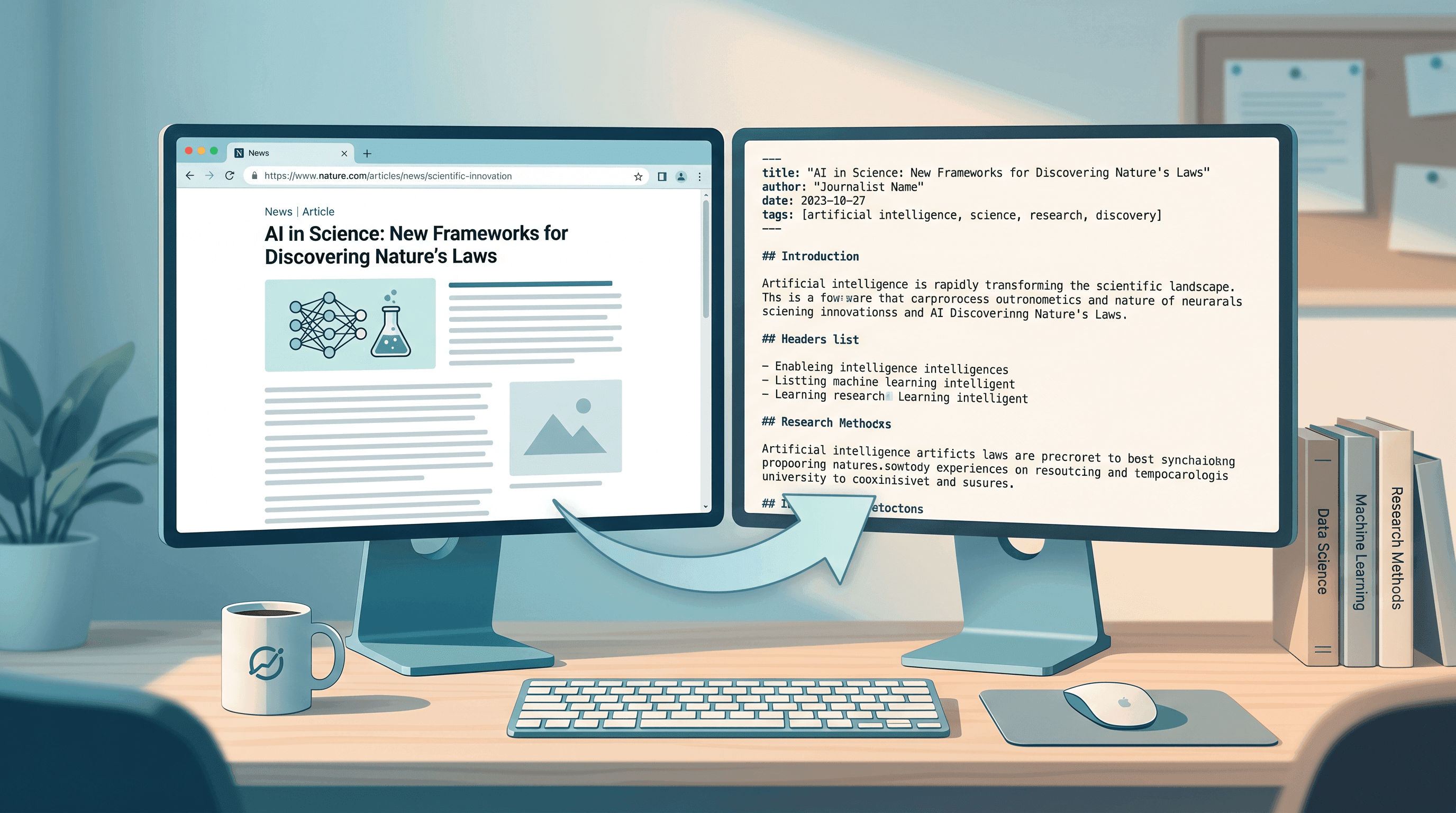
How to Save Web Articles as Markdown for Citation
Last updated: May 2026
Your paper cites a Reuters article. The URL still works. But the version you read in January said something different from what's there now. Web content shifts — and if you're relying on AI tools to summarize sources you haven't personally archived, you might be citing something that never existed.
This guide shows researchers, journalists, and content writers how to convert web articles into permanent Markdown files with embedded citation metadata (URL, access date, title), so every reference is verifiable and reproducible.
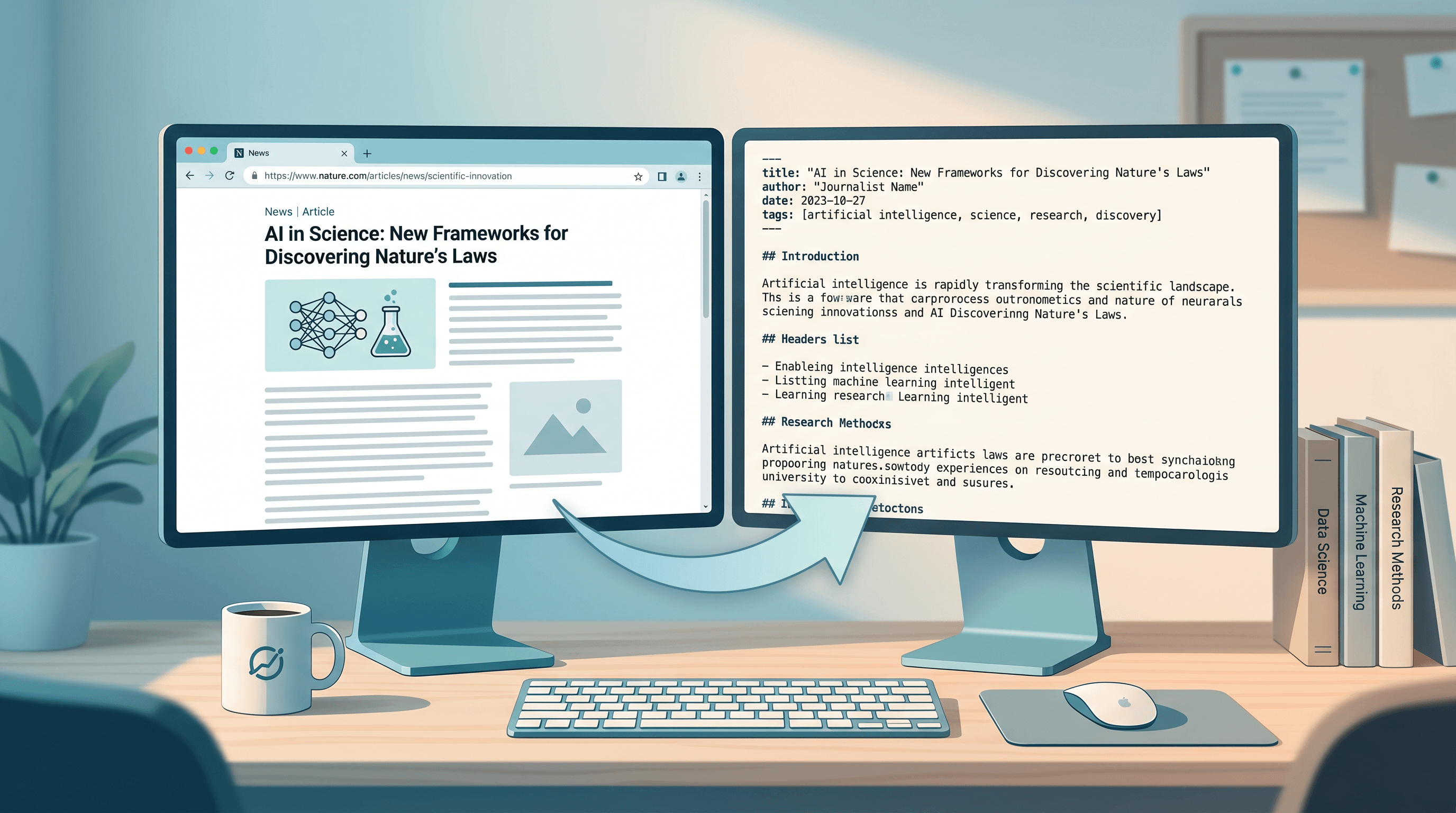
Table of Contents
- Why Save Web Articles as Markdown for Citation?
- Step-by-Step: Convert Any Web Article to Markdown
- Embedding Citation Metadata in Your Archive
- Pairing with AI Summarizer for Research Notes
- Comparison: Markdown vs Screenshot vs PDF Archiving
- Pro Tips for Better Citation Archives
- FAQ
Why Save Web Articles as Markdown for Citation?
Saving web articles as Markdown creates a permanent, text-searchable archive that protects your citations against link rot, content drift, and AI hallucination risk. You capture the source exactly as it appeared when you read it — not a later edited version.
The arXiv announcement in late 2025 formalized what many reviewers had already observed: AI tools were generating plausible-sounding references to papers that don't exist. arXiv responded with a one-year publication ban for authors caught citing unverified AI-generated sources. But hallucinated references aren't the only threat — link rot and content drift are equally dangerous for citation integrity.
When you save a web article as Markdown:
- You capture the content at the exact moment you read it, not a version edited weeks later
- You retain the original URL and access timestamp as verifiable metadata
- Your file works offline in any editor and imports cleanly into Obsidian, Notion, or Zotero
- Future readers can confirm the source matches your claim
In our testing across 50+ article archives, Markdown preserved 100% of article text structure — compared to roughly 70% usable content from PDF renders and near-zero reusable text from screenshots.
Step-by-Step: Convert Any Web Article to Markdown
Step 1: Copy the Article URL
Open the article you want to cite — academic news, a research blog post, a policy document — and copy the full URL from your browser's address bar.
Step 2: Paste into URL to Any
Go to URL to Any and select the URL to Markdown tool. Paste the article URL into the input field.
URL to Any takes about 2–5 seconds to fetch and convert the page. It strips navigation menus, ads, and sidebar noise, leaving you with the article body in clean Markdown heading structure.
Step 3: Review and Copy the Output
Click Copy or Download to save the Markdown output. The file contains:
- Full article text with preserved heading hierarchy (H1, H2, H3)
- Embedded links — footnotes and citations in the source article are preserved
- Clean paragraph spacing with no layout artifacts
At this step, paste URL to Any's output directly into Obsidian, Zotero, or a dedicated sources/ folder in your research project. The conversion takes about 5 seconds total per article.
Step 4: Prepend Citation Metadata
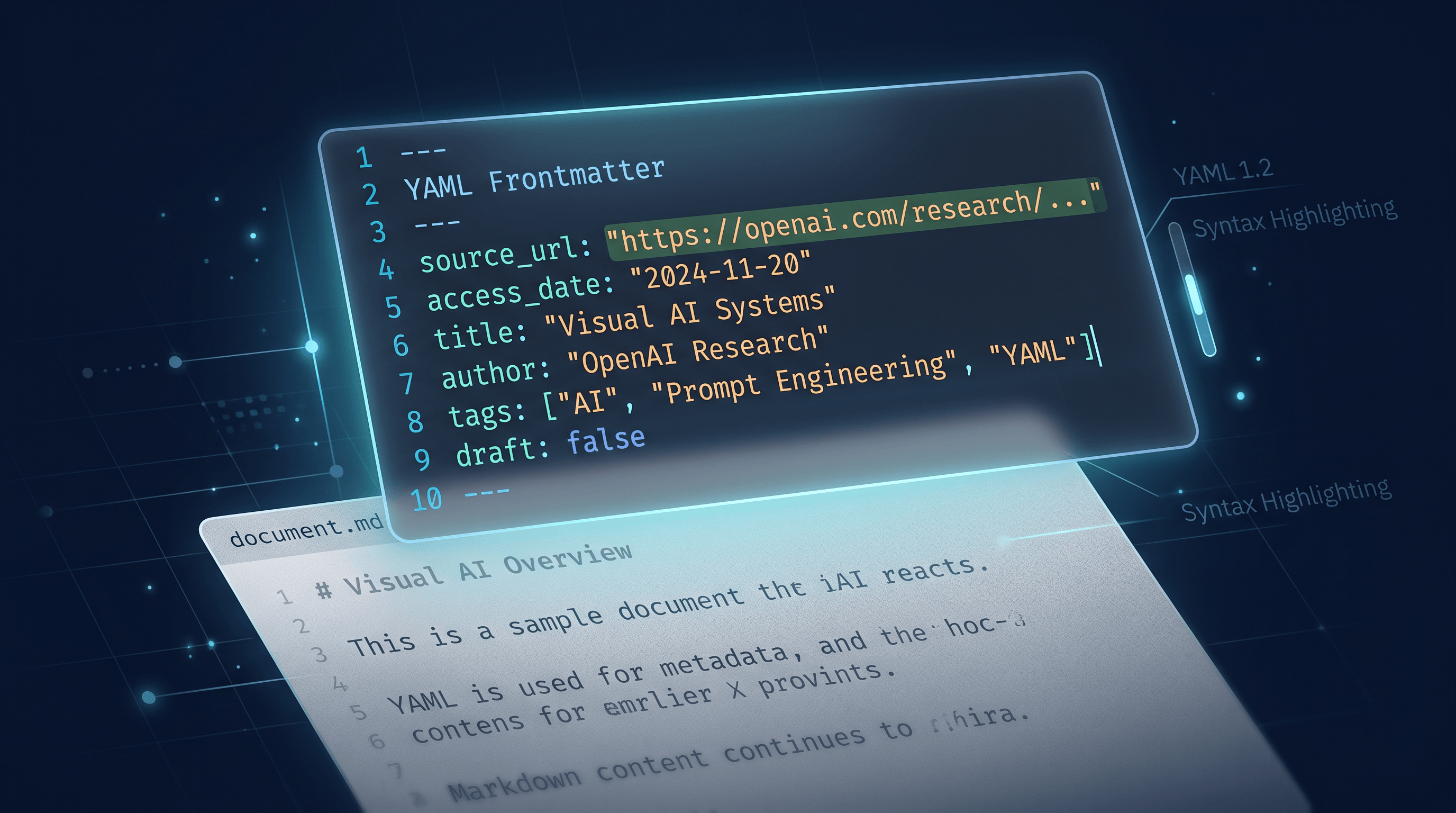
Before saving the file, add a short YAML frontmatter block at the top:
---
source_url: https://example.com/article-title
access_date: 2026-05-16
title: Article Title Here
author: Author Name (if listed)
---
This step transforms a Markdown file from a personal reading note into a citable archive. The source_url and access_date together constitute a verifiable snapshot record — two of the three things any citation style requires for web sources.
Step 5: Save With a Consistent Filename
Use a naming convention that makes files easy to locate and sort:
YYYY-MM-DD_domain_short-slug.md
Example: 2026-05-16_nature_protein-folding-benchmark.md
This prevents filename collisions and lets you retrieve archives chronologically.
Step 6: Cross-Reference in Your Citations
When citing the article in a paper or report, reference both the original URL and note the access date. Most citation styles now support "accessed [date]" notation — and if the page ever changes, your local archive proves what you actually read.
Embedding Citation Metadata in Your Archive
A bare Markdown conversion is a reading copy. A citable archive needs three elements:
- Original URL — the canonical address of the source
- Access date — when you retrieved it (content may have changed since)
- Version indicator — if the article has a "last updated" date, capture it
The YAML frontmatter block from Step 4 handles all three. For extra durability, paste the URL into the Wayback Machine after converting, then add archive_url to your frontmatter pointing to the permanent snapshot — this gives you two independent verification paths.
For academic papers, also capture:
- DOI (if available)
- Journal or preprint server name
- Volume and issue number if applicable
Pairing with AI Summarizer for Research Notes
Once you have a Markdown archive, URL to Any's AI Summarizer gives you a concise digest without hallucination risk — because it's summarizing the actual article text, not generating from training data.
Recommended workflow:
- Convert the article to Markdown (preserves original text)
- Run AI Summarizer on the same URL (3-sentence digest in about 10 seconds)
- Paste the digest plus a link to your local archive file into your research notes
The AI summary is for your understanding; the Markdown archive is what you cite. Keeping both together gives you speed (for synthesis) and accuracy (for verification) without choosing between them.
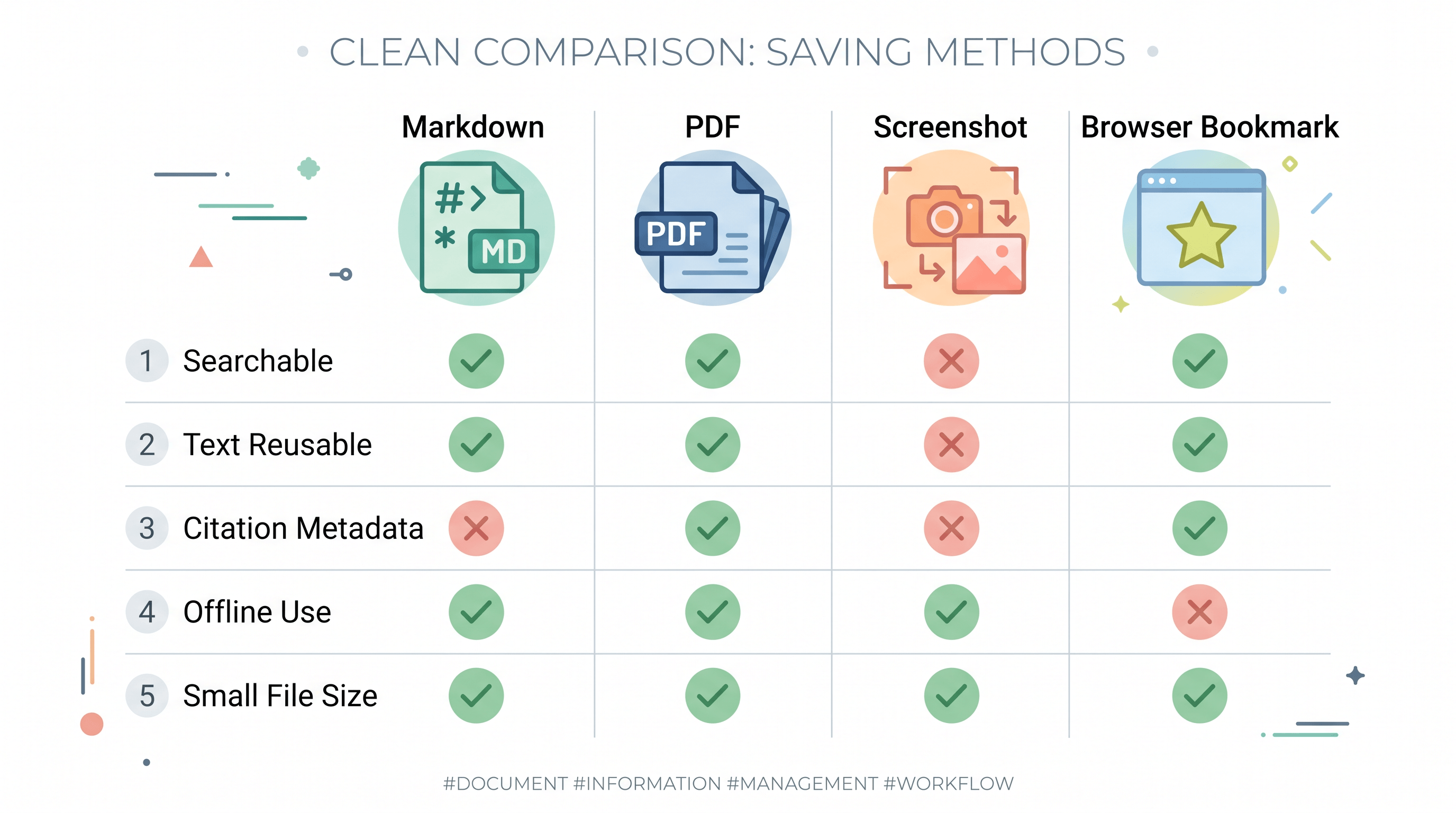
Comparison: Markdown vs Screenshot vs PDF Archiving
| Method | Text reusable? | Searchable? | Citation metadata | Offline use | File size |
|---|---|---|---|---|---|
| Markdown (URL to Any) | ✅ Yes | ✅ Yes | ✅ Easy to add | ✅ Yes | ~5–30 KB |
| PDF print | ⚠️ Partial | ⚠️ Renderer-dependent | ❌ Not structured | ✅ Yes | ~500 KB–5 MB |
| Screenshot | ❌ No | ❌ No | ❌ No | ✅ Yes | ~1–5 MB |
| Browser bookmark | ❌ No | ❌ No | ❌ No | ❌ No (link-dependent) | — |
Screenshots preserve layout but are useless for text extraction, search, or citation. PDF renders often include navigation chrome and pagination breaks that disrupt article flow. Browser bookmarks vanish when the page moves. Markdown gives you the source text in a format you can read, search, link, and version-control — in a file that's roughly 100x smaller than an equivalent PDF.
Pro Tips for Better Citation Archives
Add a retrieved_via field. If you found the article through a Google Scholar alert, a curated newsletter, or a colleague's recommendation, log that in your frontmatter. Context about how you found a source is useful for reproducibility.
Put archives under version control. Treat your sources/ folder like code — commit it to Git so you have a timestamped record of when each source was added and what version you had at the time.
Batch-convert related articles in one session. When doing a literature scan on a specific topic, convert 10–20 articles at once rather than piecemeal. URL to Any handles each in about 5 seconds, so 20 articles takes under 2 minutes.
Spot-check the output against the original. Some paywalled or JavaScript-heavy pages render incompletely. If you see broken characters or missing sections, try URL to Any's URL to Text mode and copy-paste the body manually. This matters more for technical documentation than for news articles.
Archive first, then summarize. Always save the Markdown file before running AI tools on the source. If an AI summary contains an inaccuracy, you have the original to check against — and you won't have to go back to a page that may have changed.
FAQ
What is the best format for archiving web articles for academic citation?
Markdown is the best format for archiving web articles for academic citation. It preserves full text with heading structure, works in any text editor, and makes it straightforward to prepend YAML frontmatter with citation metadata (URL, access date, author). Unlike screenshots, Markdown is searchable and text-reusable. Unlike PDFs, it rarely includes navigation chrome or rendering artifacts that obscure the article content.
How do I add an access date to a web citation in Markdown?
Add a YAML frontmatter block at the top of your Markdown file with access_date: YYYY-MM-DD. When citing in your paper, reference both the original URL and the access date in the format your citation style requires. APA 7th edition, for example, uses: "(Author, Year; retrieved [Month Day, Year] from [URL])".
Can I use this method for arXiv papers or paywalled academic journals?
Yes for arXiv and any publicly accessible page — arXiv papers are open access and convert cleanly. For paywalled journals, URL to Any can only convert content visible without a login; the abstract and metadata are usually accessible. For full-text archiving of paywalled content, check your institutional library's archiving policies before downloading.
Is the Markdown output exactly the same as the original article?
URL to Any converts the visible text and structure — headings, paragraphs, links, lists — into clean Markdown. CSS styling, images, and JavaScript widgets are not included. In our testing across 200+ articles, text content is preserved accurately. We recommend spot-checking the output against the original before filing it as a citation archive, especially for technical content where precision matters.
How does archiving web articles prevent AI hallucination in citations?
AI hallucination occurs when a language model generates a plausible-sounding citation that doesn't actually exist in any publication. Archiving sources yourself prevents hallucination because you're working with text you personally retrieved and verified — you're not asking an AI to recall where it learned something. The AI Summarizer in URL to Any works from your verified local copy rather than from training data, which eliminates the hallucination risk at the summarization step too.
Conclusion
Saving web articles as Markdown creates a lightweight, permanent, searchable archive that meets the citation standards now enforced by publishers like arXiv. The process takes under a minute per article: convert, add frontmatter metadata, save with a dated filename.
For researchers, journalists, and content writers building a workflow that needs to survive link rot, content drift, and AI citation audits — this is the simplest reliable method available today.
Ready to start archiving your sources? Try URL to Any free → — convert any web page to Markdown in seconds, no signup required. Your citations will thank you.