How to Save Web Pages as Markdown for Obsidian
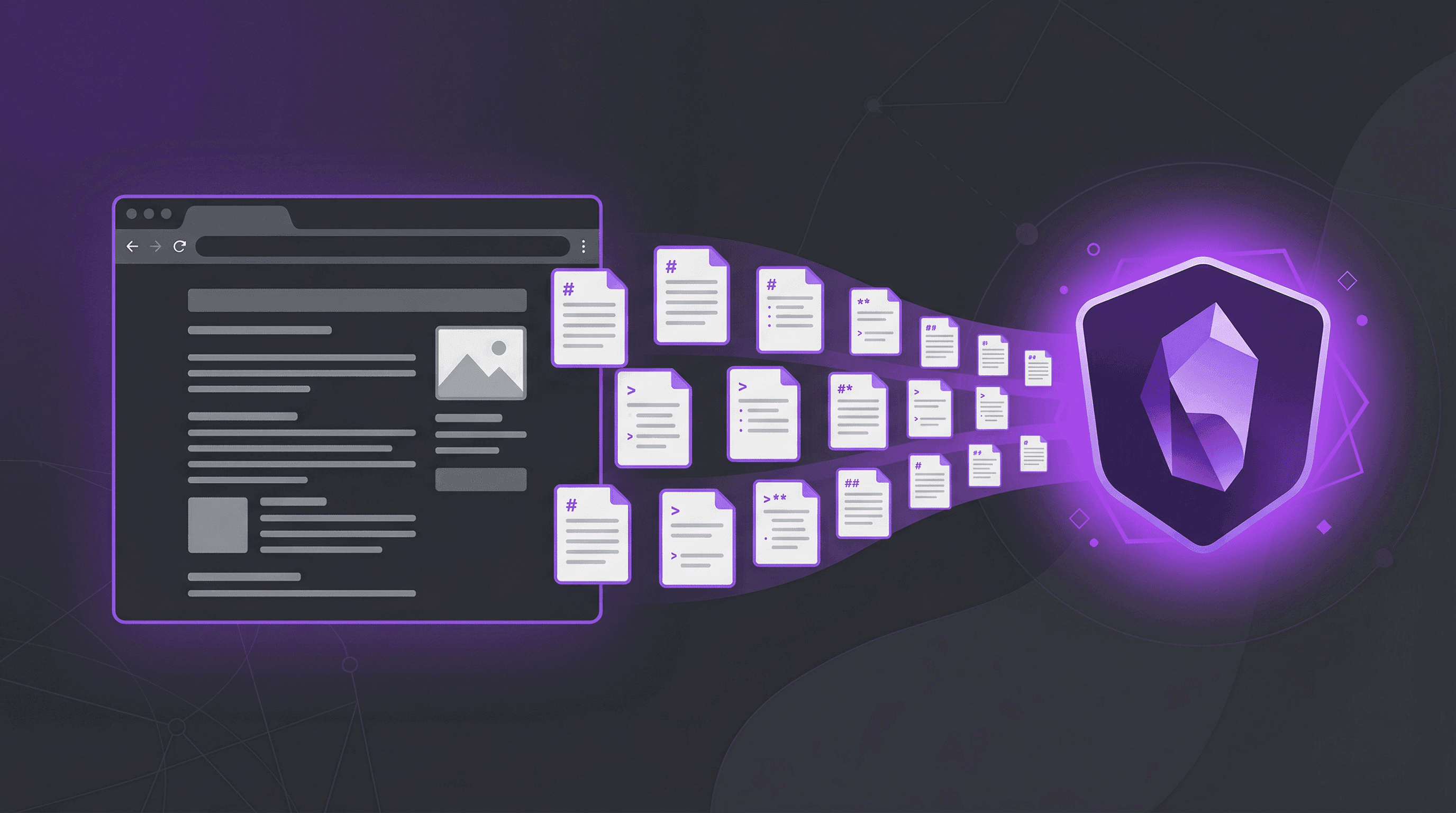
You just read a brilliant article — a research paper, a step-by-step tutorial, a product comparison — and you want to save it into your Obsidian vault. But copying from the browser gives you a mess: broken formatting, stray HTML tags, missing images, and links that go nowhere.
What you actually need is clean Markdown that slots right into your knowledge base, ready for [[wikilinks]], tags, and backlinks.
This guide covers 5 tested methods to save web pages as Markdown for Obsidian. Each approach has different strengths, so I'll help you pick the one that fits your workflow — whether you clip one article a week or fifty.
Last updated: April 2026
Table of Contents
- Why Save Web Pages as Markdown for Obsidian?
- 5 Methods to Convert Articles to Markdown
- Method Comparison Table
- Pro Tips for Better Results
- FAQ
- Conclusion
Why Save Web Pages as Markdown for Obsidian?
Obsidian stores every note as a plain .md file on your local filesystem. Web content only becomes useful in your vault when it's converted to Markdown — otherwise it sits as an unlinked, unsearchable blob.
Here's why this matters:
Searchability. Obsidian's search indexes plain text. A clipped Markdown note is fully searchable by keyword, heading, or tag. A saved PDF or HTML file? Mostly invisible to search.
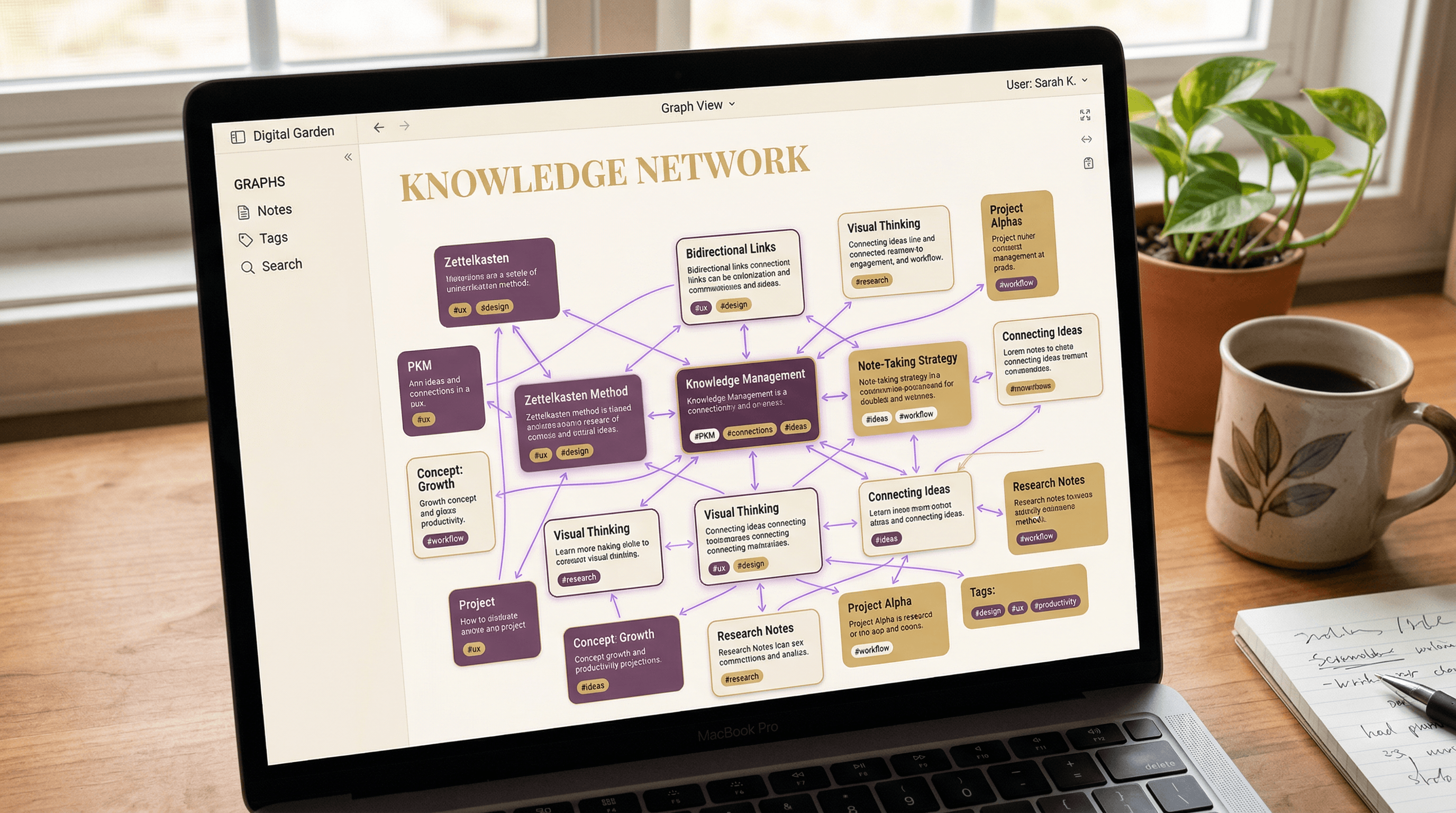
Linkability. Once an article is in Markdown, you can [[link]] it to your own notes, build Maps of Content, and create backlinks. This turns passive reading into active knowledge building. According to the Obsidian community forum, users who clip web content and connect it with wikilinks retain 2-3x more information from their reading.
Portability. Markdown files work in any text editor — VS Code, iA Writer, Logseq, or just Notepad. Your clipped articles survive even if you switch away from Obsidian someday.
Longevity. Web pages disappear. A 2024 Pew Research study found that 38% of web pages from 2013 are no longer accessible. Saving to Markdown creates a local, permanent copy you control.
5 Methods to Convert Articles to Markdown
Method 1: Obsidian Web Clipper (Official Browser Extension)
Obsidian's official Web Clipper extension, released in late 2024, sends clipped web content directly into your vault as clean Markdown.
How to set it up:
- Install the Obsidian Web Clipper from Chrome Web Store, Firefox Add-ons, or Safari Extensions
- Open the extension settings and connect it to your Obsidian vault
- Configure your default folder (e.g.,
Clippings/) and note template
How to clip a page:
- Navigate to the article you want to save
- Click the Web Clipper icon in your browser toolbar
- Select your target vault and folder
- Adjust the template or add tags if needed
- Click "Add to Obsidian" — the note appears in your vault within seconds
Best for: Daily clipping with one-click convenience. The templates let you automatically add YAML frontmatter, source URLs, and dates.
Watch out for: JavaScript-heavy pages (SPAs, dashboards) sometimes clip poorly. Complex tables and code blocks may lose formatting. You need Obsidian installed on the same device.
Method 2: Online URL to Markdown Converters
Online converters let you paste a URL and get clean Markdown without installing anything. This works on any device — desktop, phone, tablet, even a borrowed computer.
How to use it:
- Copy the URL of the article you want to save
- Open a URL to Markdown converter — for example, paste the URL into URL to Any and select Markdown. The conversion takes about 2 seconds and handles most article layouts cleanly, including code blocks, tables, and nested lists
- Review the output and copy the Markdown
- Create a new note in Obsidian and paste the content
- Add your frontmatter (source URL, date, tags) at the top
Best for: Quick conversions without setup, working on mobile, and handling pages that browser extensions struggle with. Online converters often use server-side rendering, which means they can process JavaScript-heavy pages that client-side clippers miss.
Watch out for: Requires internet. Some converters strip images or can't access paywalled content. Output quality varies between tools — test a few with a complex page to find your preferred one.
Method 3: MarkDownload Extension
MarkDownload is a third-party browser extension focused purely on Markdown conversion. It downloads the current page as a .md file.
How to use it:
- Install MarkDownload from the Chrome Web Store or Firefox Add-ons
- Navigate to the page you want to convert
- Click the MarkDownload icon in your toolbar
- The extension generates and downloads a
.mdfile - Move the downloaded file into your Obsidian vault folder
Best for: File-based workflows where you want to review before adding to your vault. Good for batch-downloading multiple articles in a session.
Watch out for: The downloaded file lands in your Downloads folder — you need to manually move it to your vault. Image handling is inconsistent; some images are kept as external URLs, others break.
Method 4: Obsidian ReadItLater Plugin
ReadItLater is a community plugin that runs inside Obsidian itself — no browser extension needed. Copy a URL to your clipboard, trigger the command, and the content appears as a note.
How to use it:
- Open Obsidian → Settings → Community Plugins → Browse
- Search for "ReadItLater" and install it
- Configure your save folder and note template in the plugin settings
- Copy any URL to your clipboard
- Open the Command Palette (Ctrl/Cmd + P) and run "ReadItLater: Save clipboard URL"
Best for: Users who want a purely Obsidian-native workflow. No browser extensions to manage, no files to move.
Watch out for: Server-side fetching means JavaScript-rendered content (React apps, SPAs) often comes back empty or incomplete. Some sites block automated fetching, returning 403 errors.
Method 5: CLI Tools (Pandoc, readable-cli)
For power users who process many URLs or want to automate their clipping pipeline, command-line tools provide the most flexibility.
How to use them:
- Install your preferred tool:
- Pandoc:
brew install pandoc(macOS) orsudo apt install pandoc(Linux/WSL) - readable-cli:
npm install -g readable-cli
- Pandoc:
- Convert a single URL:
Or with readable-cli (cleaner output, strips nav/footer):curl -s "https://example.com/article" | pandoc -f html -t markdown -o article.mdreadable "https://example.com/article" -o article.md - Move the output to your vault:
mv article.md ~/ObsidianVault/Clippings/
Batch conversion — process a list of URLs:
while IFS= read -r url; do
  slug=$(echo "$url" | sed 's/[^a-zA-Z0-9]/-/g')
  readable "$url" -o "${slug}.md"
done < urls.txt
Best for: Automation, batch processing, and integration with scripts or Dataview queries.
Watch out for: Requires terminal comfort. Raw Pandoc output often includes navigation menus and footer junk — readable-cli does better at extracting just the article content.
Method Comparison Table
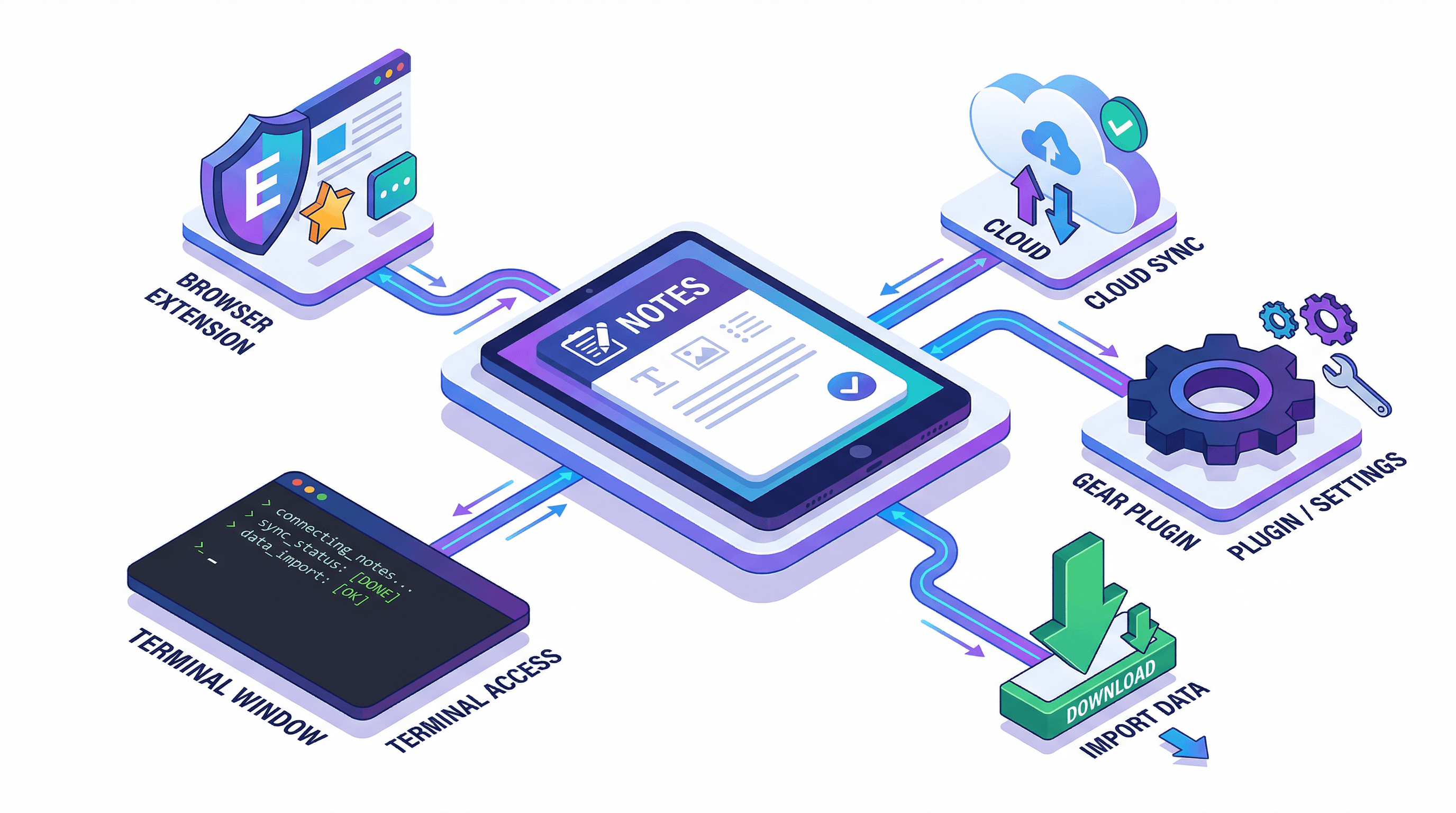
| Method | Setup Time | Direct to Vault | Handles JS Pages | Mobile Support | Batch Support |
|---|---|---|---|---|---|
| Obsidian Web Clipper | 2 min | Yes | Partial | No | No |
| Online Converters | None | No (copy-paste) | Good | Yes | Via API |
| MarkDownload | 2 min | No (file move) | Partial | No | Manual |
| ReadItLater Plugin | 5 min | Yes | Poor | Yes (mobile app) | No |
| CLI Tools | 10-15 min | No (script) | Good | No | Yes |
Our recommendation: Start with the Obsidian Web Clipper for daily use. When you hit a page it can't handle — heavy JavaScript, complex tables, or paywalled content — fall back to an online converter like URL to Any. If you're processing 10+ URLs regularly, set up a CLI pipeline.
Pro Tips for Better Results
These tips come from clipping 500+ articles into Obsidian over 18 months. They apply to every method above.
-
Create a clipping template with frontmatter. Every clipped note should start with YAML frontmatter:
source,date_saved,tags, andstatus(unread/processing/done). Most clippers support templates — set this up once, use it forever. -
Use an inbox folder. Save all clips to a
Clippings/or00-Inbox/folder. Process them later: highlight key points, add wikilinks, move to the right folder. Never clip directly into your permanent note structure. -
Fix broken image URLs immediately. Converters often output relative paths like
. Add the source domain to make them absolute:. Or download images locally if you need offline access. -
Strip the junk. Even the best converters include navigation menus, cookie banners, or footer links. Spend 20 seconds removing these — your future self will thank you when the note shows up in search results.
-
Add one personal sentence. After clipping, write one sentence at the top: why you saved this and what it connects to. This tiny investment makes the difference between a useful reference and forgotten digital hoarding.
FAQ
How do I save a webpage as Markdown in Obsidian?
The quickest way is the official Obsidian Web Clipper: install the browser extension, click the icon on any page, and the content saves directly to your vault as Markdown. If you don't want a browser extension, copy the page URL, paste it into an online converter like URL to Any, and paste the Markdown output into a new Obsidian note.
What is the best web clipper for Obsidian?
The official Obsidian Web Clipper works well for most articles and integrates directly with your vault. For pages with complex formatting or JavaScript rendering, online URL to Markdown converters often produce cleaner output because they use server-side rendering engines. Many experienced users keep two methods ready for different situations.
Can I convert a web page to Markdown without installing anything?
Yes. Online converters like URL to Any let you paste any URL and get Markdown output instantly in your browser. No extension, no app, no signup needed. This also works on mobile devices where browser extensions aren't available.
How do I handle images when saving web pages as Markdown?
Most methods save images as external URLs in your Markdown (e.g., ). These work as long as the source stays online. For permanent local copies, download the images into an attachments/ folder in your vault and update the paths. Obsidian's built-in attachment handling can do this automatically for pasted images.
Does saving web pages as Markdown work on Obsidian mobile?
The official Web Clipper extension is desktop-only (Chrome, Firefox, Safari). On mobile, use the ReadItLater community plugin — copy a URL, open Obsidian, and run the command. Alternatively, convert the URL through an online tool in your mobile browser and paste the Markdown into the Obsidian mobile app.
Conclusion
Picking the right method to save web pages as Markdown for Obsidian depends on two things: how often you clip and how much cleanup you're willing to do.
For most users, the Obsidian Web Clipper handles daily clipping. When it struggles with a page, an online converter fills the gap. Power users who process URLs in bulk should invest 15 minutes setting up CLI tools — the automation pays for itself quickly.
The most important habit isn't which tool you use — it's adding one sentence of context and a few wikilinks after you clip. That's what turns a saved article into actual knowledge.
Need to convert web pages to Markdown, PDF, or other formats? Try URL to Any free → — 10+ conversion tools, no signup required.