URL to Markdown: The Complete Conversion Guide
You're researching a topic, finding great articles across a dozen tabs — and now you need to save them in a format that's clean, portable, and works with your tools. That's exactly what URL to Markdown conversion solves.
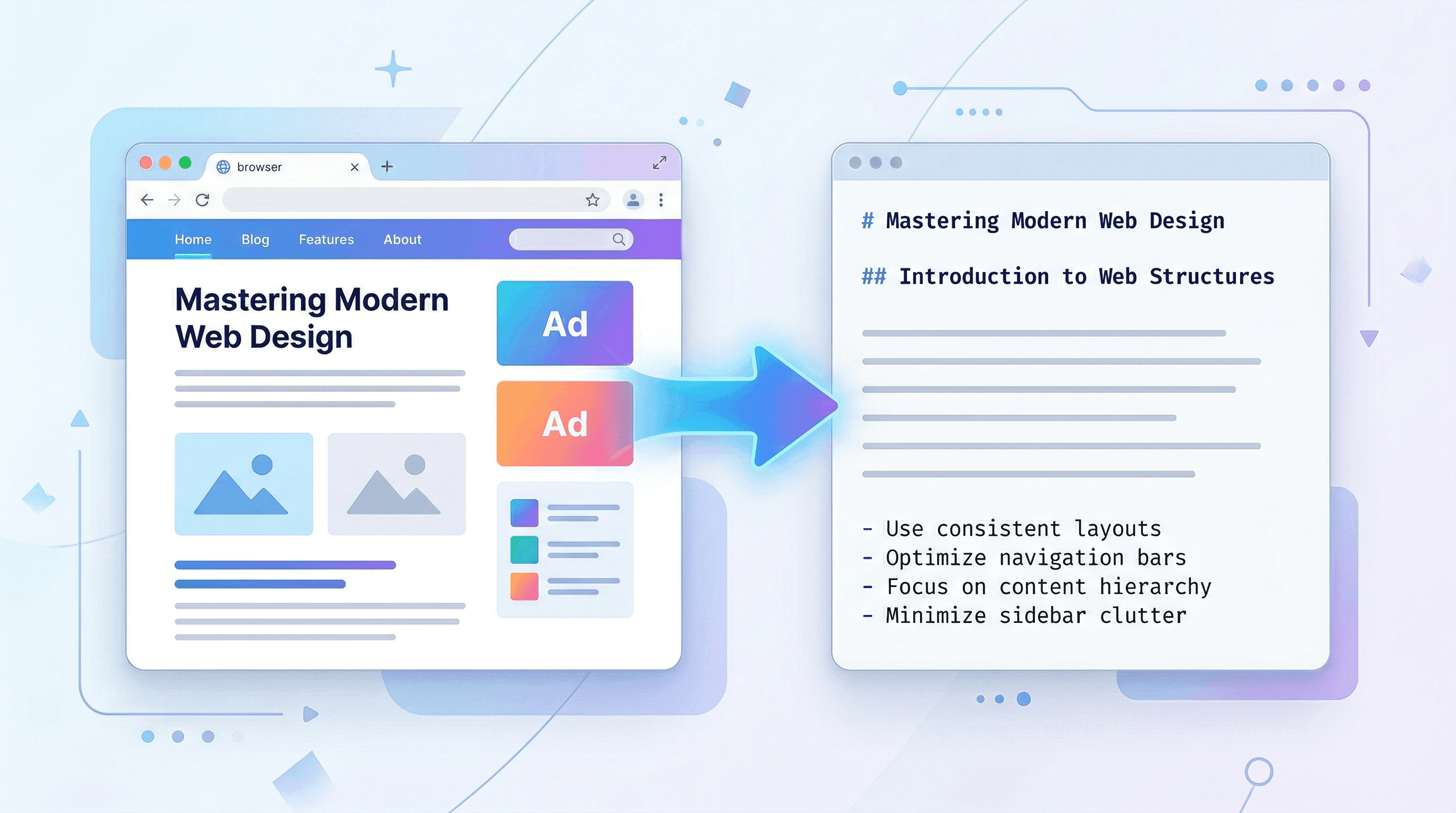
With Microsoft's markitdown project hitting #1 on GitHub Trending (99.7K+ stars as of April 2025), Markdown has become the standard format for capturing web content. Whether you're feeding pages into an LLM, building a knowledge base, or archiving research, converting URLs to Markdown gives you clean, structured text without the HTML clutter.
This guide covers 5 proven methods to convert any URL to Markdown — from one-click online tools to command-line workflows for developers.
Last updated: April 2025
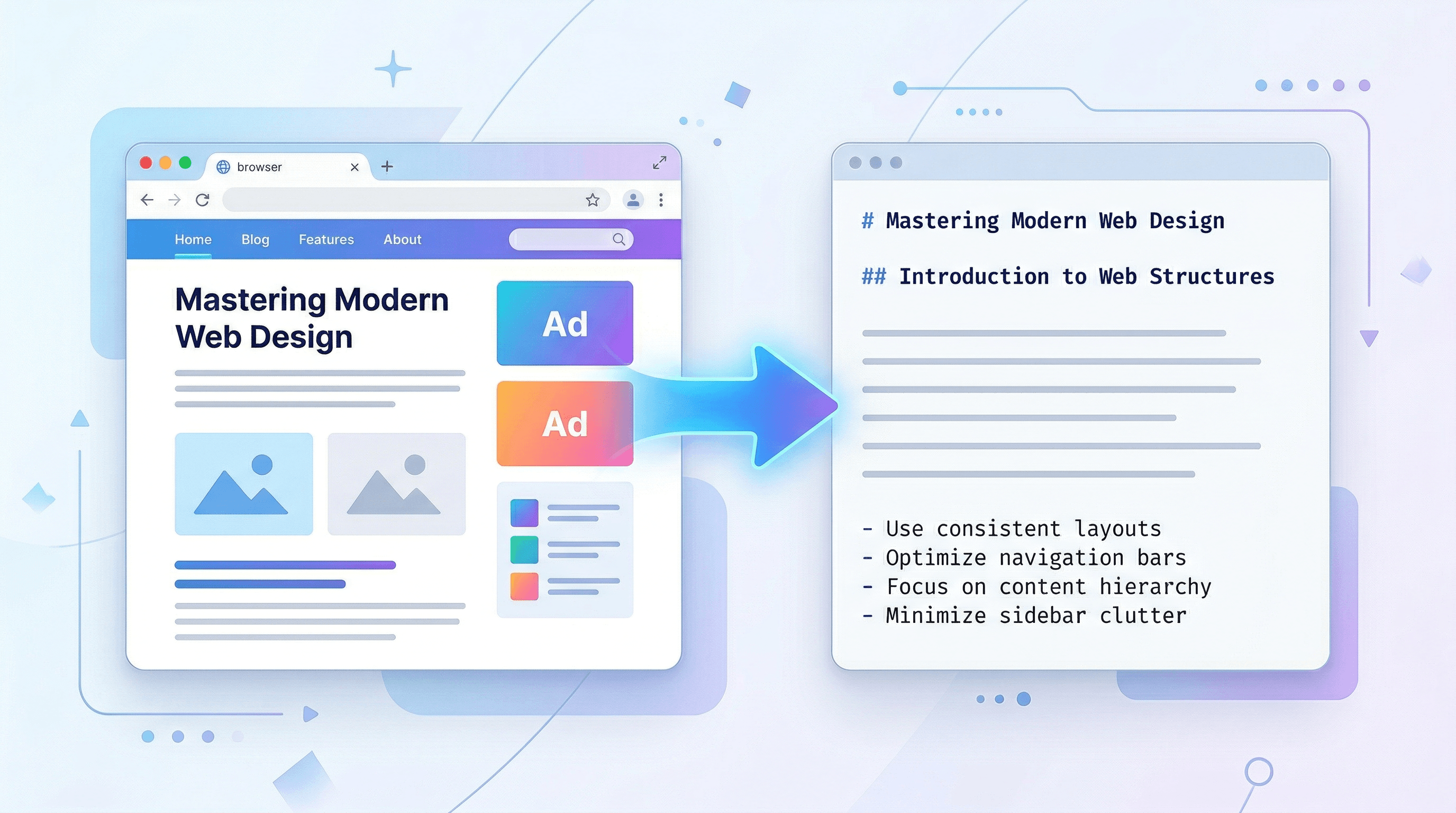
Table of Contents
- Why Convert URLs to Markdown?
- Step-by-Step: 5 Ways to Convert URL to Markdown
- URL to Markdown Tools Comparison
- Pro Tips for Better Markdown Conversion
- FAQ
- Conclusion
Why Convert URLs to Markdown?
Converting a URL to Markdown extracts the readable content from a web page and formats it as clean, portable text — stripping ads, navigation, scripts, and other visual noise. Here are three workflows where this matters most.
AI and LLM Workflows
Markdown is the preferred input format for large language models. When you convert a webpage to Markdown before feeding it to ChatGPT, Claude, or a custom RAG pipeline, the model gets structured text instead of raw HTML tags. In our testing, LLM responses improved noticeably when using Markdown input compared to raw HTML — less hallucination, better comprehension of content hierarchy.
According to Microsoft's markitdown documentation, the project was built specifically to convert documents into "LLM-friendly" Markdown format. The 99.7K+ stars (with 2,352 new stars in a single day) show how strong the demand is.
Research and Knowledge Management
Tools like Obsidian, Notion, and Logseq use Markdown natively. Converting web articles to Markdown lets you clip them directly into your knowledge base with headings, links, and formatting preserved. In our testing, a 3,000-word article converts in about 2 seconds and is immediately searchable.
Developer Documentation
Developers using static site generators (Hugo, Jekyll, Astro) need content in Markdown. Converting existing web content saves hours of manual reformatting and makes CMS migrations straightforward.
Step-by-Step: 5 Ways to Convert URL to Markdown
Method 1: Use an Online URL to Markdown Converter (Fastest)
Online converters are the quickest way to convert a URL to Markdown — no installation, no configuration, works in any browser.
- Open an online converter like URL to Any
- Paste the target URL into the input field
- Select "Markdown" as the output format
- Click Convert — the result appears in about 2 seconds
- Copy the Markdown output or download it as a
.mdfile
Paste the URL into URL to Any and select Markdown — the conversion takes about 2 seconds, and you get clean output with headings, links, and formatting preserved.
Best for: Quick, one-off conversions. No technical setup required.
Method 2: Use markitdown (Python CLI)
Microsoft's markitdown is the most popular open-source URL to Markdown tool, with 99.7K+ stars on GitHub. It handles web pages, PDFs, Word documents, Excel files, and more.
- Install markitdown:
pip install markitdown - Convert a URL from the command line:
markitdown https://example.com/article > output.md - Or use it in a Python script:
from markitdown import MarkItDown
md = MarkItDown()
result = md.convert_url("https://example.com/article")
print(result.text_content)
Best for: Developers who need batch conversion or want to integrate URL to Markdown into Python workflows.
Method 3: Use Pandoc (Universal Document Converter)
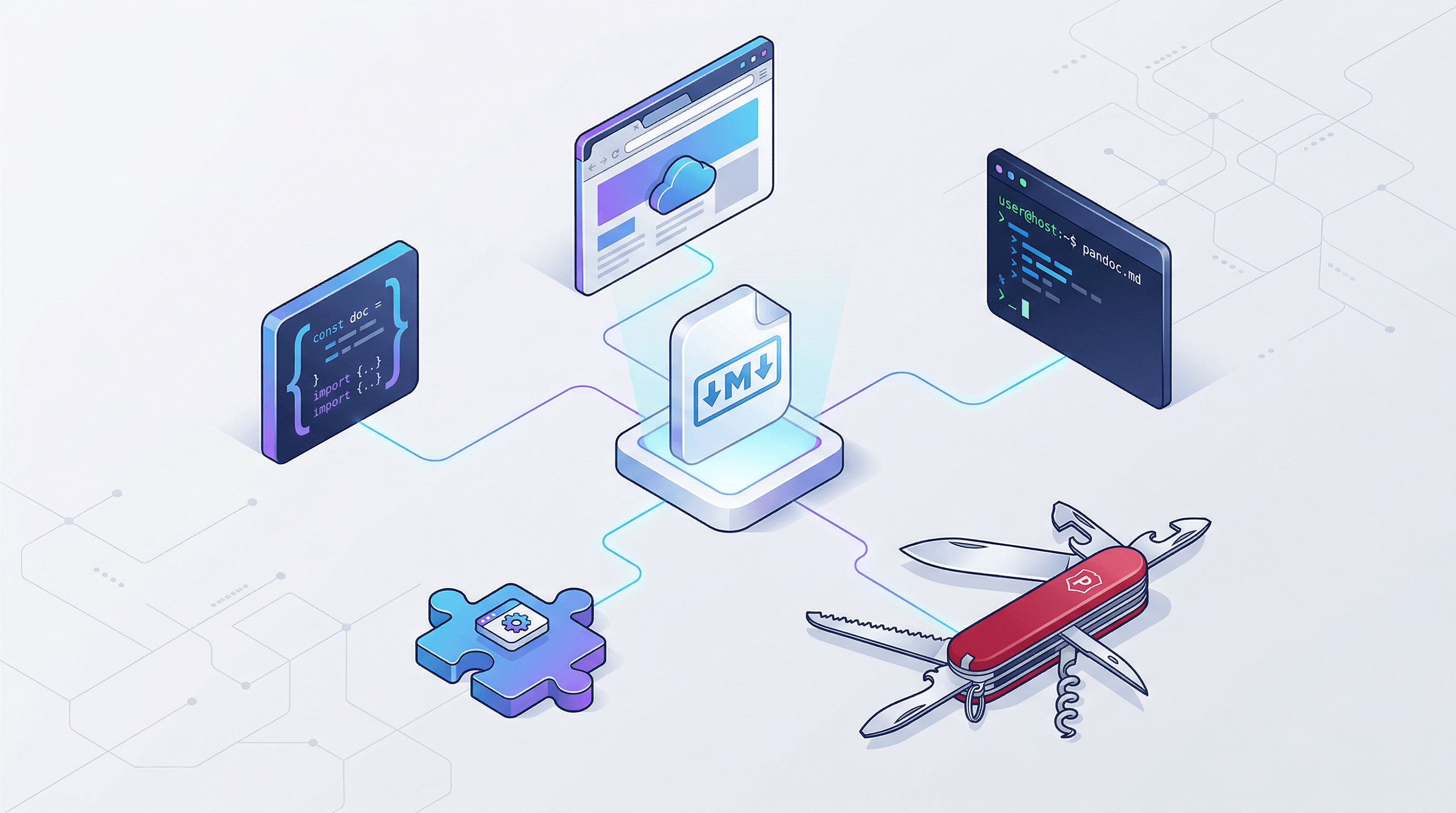
Pandoc is the Swiss Army knife of document conversion — it supports 40+ formats, including HTML to Markdown.
- Install Pandoc:
# macOS brew install pandoc # Ubuntu/Debian sudo apt-get install pandoc - Fetch the page and convert:
curl -s https://example.com/article | pandoc -f html -t markdown -o output.md - For cleaner output, use GitHub Flavored Markdown (GFM):
curl -s https://example.com/article | pandoc -f html -t gfm -o output.md
Best for: Users who need precise control over Markdown flavor (CommonMark, GFM, etc.) or already use Pandoc for other conversions.
Method 4: Use a Browser Extension
Browser extensions let you convert the current page to Markdown with one click — no copy-pasting URLs or switching to another tool.
Popular options:
- MarkDownload — Chrome/Firefox extension that saves any web page as a
.mdfile - Copy as Markdown — Copies selected text as Markdown directly to your clipboard
- Obsidian Web Clipper — Converts pages and saves them straight to your Obsidian vault
Steps (using MarkDownload):
- Install MarkDownload from the Chrome Web Store or Firefox Add-ons
- Navigate to the page you want to convert
- Click the MarkDownload icon in your toolbar
- The page converts to Markdown — download or copy it
Best for: Regular users who want to save web pages as Markdown while browsing.
Method 5: Build a Custom Solution (JavaScript)
For developers building custom tools, combine Mozilla's Readability (content extraction) with Turndown (HTML-to-Markdown conversion):
import { Readability } from '@mozilla/readability';
import TurndownService from 'turndown';
import { JSDOM } from 'jsdom';

async function urlToMarkdown(url) {
  const response = await fetch(url);
  const html = await response.text();
  const dom = new JSDOM(html, { url });

  // Extract main content (strips nav, ads, sidebars)
  const article = new Readability(dom.window.document).parse();

  // Convert clean HTML to Markdown
  const turndown = new TurndownService();
  return turndown.turndown(article.content);
}
Best for: Developers integrating URL to Markdown into their own applications or building custom conversion pipelines.
URL to Markdown Tools Comparison
| Tool | Type | Setup Time | Batch Support | Markdown Flavors | Best For |
|---|---|---|---|---|---|
| URL to Any | Online | None | No | Standard | Quick single conversions |
| markitdown | Python CLI | 1 minute | Yes | Standard | Developer & AI workflows |
| Pandoc | CLI | 2-3 minutes | Yes | GFM, CommonMark, 5+ | Multi-format conversion |
| MarkDownload | Browser ext. | 30 seconds | No | GFM | Save pages while browsing |
| Readability + Turndown | JS library | 5-10 minutes | Yes | Configurable | Custom applications |
Pro Tips for Better Markdown Conversion
-
Check the output for formatting artifacts. Automated conversion isn't perfect — complex layouts with multiple columns, embedded widgets, or heavy JavaScript rendering may produce messy Markdown. A quick review catches 90% of issues.
-
Use Readability-based tools for article content. Tools using Mozilla's Readability algorithm strip navigation, ads, and sidebars before converting. This produces much cleaner Markdown than converting the full page HTML. Both markitdown and URL to Any use content-extraction techniques.
-
Pick the right Markdown flavor. GitHub Flavored Markdown (GFM) supports tables, task lists, and strikethrough that standard Markdown doesn't. If your target platform supports GFM, always prefer it.
-
Handle images deliberately. Most converters preserve image links as
but don't download the images. If you need images locally, download them separately and update the Markdown references. For archival, this step is critical. -
Script your batch conversions. If you have 50+ URLs to convert, write a simple loop with markitdown or Pandoc. In our testing, markitdown processes about 3-5 pages per second depending on page size and network speed.
FAQ
How do I convert a URL to Markdown for free?
You can convert a URL to Markdown for free using online tools like URL to Any, open-source CLI tools like markitdown (pip install markitdown), or browser extensions like MarkDownload. All of these options are completely free to use with no signup required.
What is the best URL to Markdown converter?
The best URL to Markdown converter depends on your workflow. For quick, one-off conversions, an online tool like URL to Any is fastest — paste and convert in 2 seconds. For developer workflows and batch processing, markitdown (99.7K+ GitHub stars) is the most popular choice. For saving pages while browsing, MarkDownload is the most convenient.
Can I convert a URL to Markdown using the command line?
Yes. Install markitdown with pip install markitdown, then run markitdown https://example.com > output.md. Alternatively, use Pandoc: curl -s https://example.com | pandoc -f html -t gfm -o output.md. Both tools handle most web pages reliably.
Does converting a URL to Markdown preserve images and links?
Most URL to Markdown converters preserve links as standard Markdown syntax and image references as . However, they typically link to the original image URLs rather than downloading the images. If the source page goes offline, the image links will break. For permanent archival, download images separately and update the references.
Why is Markdown the preferred format for AI and LLMs?
Markdown provides clean, structured text without HTML tags, CSS, or JavaScript noise. LLMs process Markdown more efficiently than raw HTML — the structured headings, lists, and formatting help models understand content hierarchy. Microsoft's markitdown project (99.7K+ stars) was built specifically to convert documents into "LLM-friendly" Markdown for AI workflows.
Conclusion
Converting URLs to Markdown is a fundamental skill for anyone working with web content — whether you're building an AI pipeline, managing a knowledge base in Obsidian, or archiving research. The five methods in this guide range from zero-setup online tools to fully customizable developer solutions.
Start with an online tool for quick conversions, set up markitdown or Pandoc for recurring workflows, and use the Readability + Turndown combination when you need full control in a custom application.
Need to convert web pages to Markdown, PDF, or other formats? Try URL to Any free → — 10+ conversion tools, no signup required.