
Webpage to PPT Outline: Turn Articles into Slides
Last updated: June 23, 2026
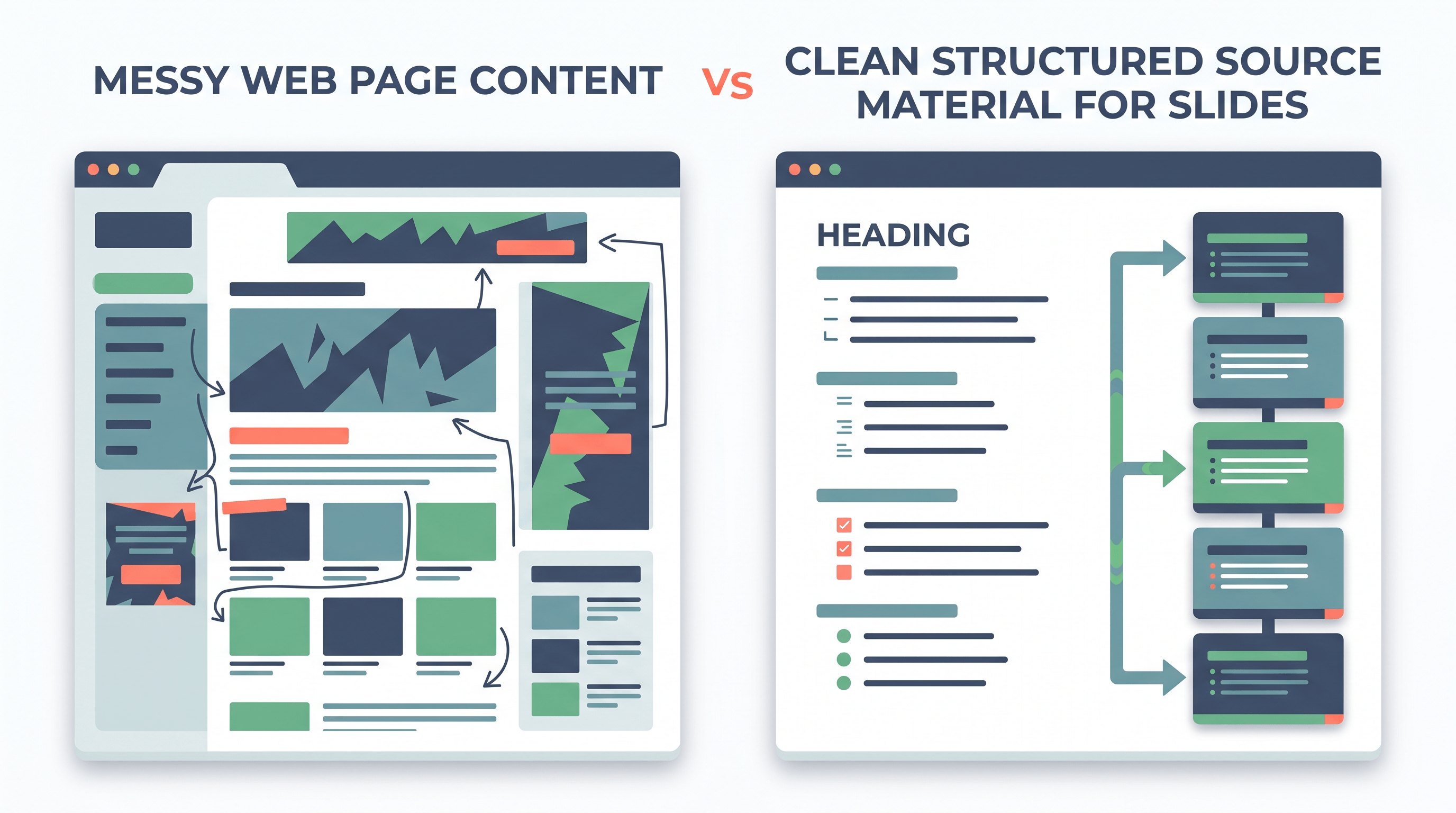
You found a strong article, report, or documentation page and need slides by the end of the day. An AI PPT tool can draft a deck, but a raw URL often gives it too much clutter: menus, ads, cookie banners, author boxes, comments, and unrelated links. A clean webpage to PPT outline fixes that upstream problem by turning the article into structured Markdown or Text first, then reshaping it into slide-ready points.
This guide shows a practical webpage to PPT outline workflow for creators, marketers, researchers, teachers, and product teams. You will learn how to extract the article, clean the structure, create an AI PPT outline, and feed that outline into PowerPoint Copilot, Gemini in Slides, ChatGPT, Claude, Canva, or another slide workflow.
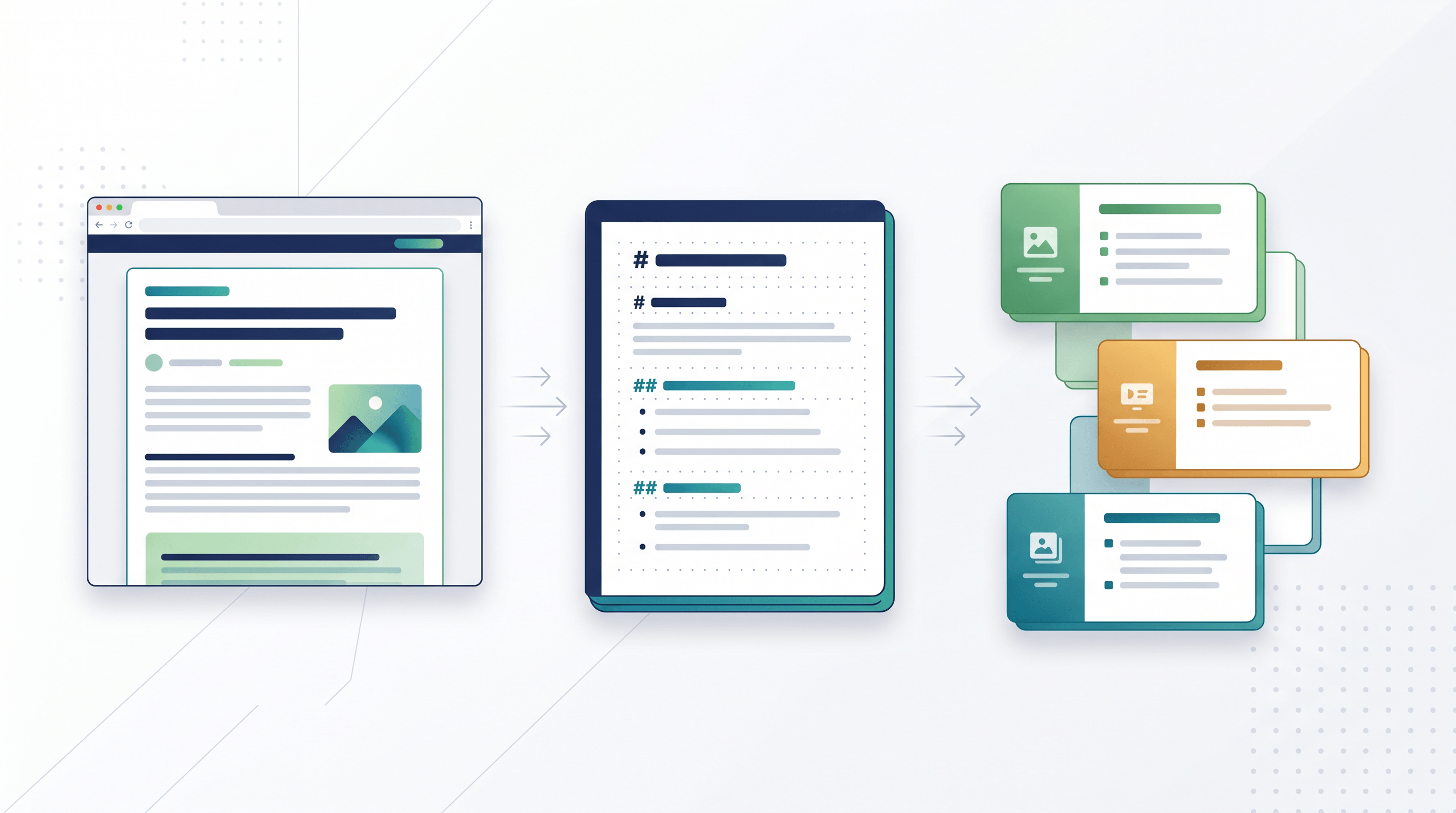
Table of Contents
- Why create a webpage to PPT outline first?
- Step-by-step webpage to PPT outline workflow
- Copy-ready webpage to PPT outline template
- Pro tips for cleaner AI PPT outlines
- Which AI PPT workflow should use the outline?
- FAQ
- Conclusion
Why create a webpage to PPT outline first? {#why-create-a-webpage-to-ppt-outline-first}
A webpage to PPT outline gives your AI slide tool clean source material, a clear hierarchy, and a defined slide sequence before design starts. Instead of asking an AI tool to read a messy page and invent structure, you provide a trimmed source with headings, bullets, citations, and speaker-note cues.
The reason this works is simple: slide tools are good at drafting from organized inputs. Microsoft says Copilot in PowerPoint can create a presentation from a prompt or referenced file, and it may generate an outline before making slides. Microsoft also documents that PowerPoint can import outlines where Level 1 content becomes slide titles and Level 2 content becomes bullet points. Google says Gemini in Slides can generate and edit slides, write or rewrite content, summarize a presentation, and reference Drive files.
That means the quality of your webpage to PPT outline matters more than the length of the original page. A 2,500-word article can become a useful 8-slide outline if the extraction keeps the article body and drops everything else. A raw webpage pasted into an AI PPT prompt can waste tokens on navigation, newsletter boxes, and footer links.
| Input method | What the AI sees | Typical result | Best use |
|---|---|---|---|
| Raw URL | Page content plus layout clutter | Unpredictable sections and weak slide titles | Quick summaries of simple pages |
| Clean Markdown/Text | Article body with headings and lists | Better slide logic and fewer off-topic bullets | Most webpage to PPT outline workflows |
| Hand-edited outline | Slide titles, bullets, citations, and notes | Strongest first draft | Client decks, lessons, reports |
The practical goal is not to automate the whole presentation blindly. The goal is to give the AI enough structure to draft fast while keeping you in control of the message.
Step-by-step webpage to PPT outline workflow {#step-by-step-webpage-to-ppt-outline-workflow}
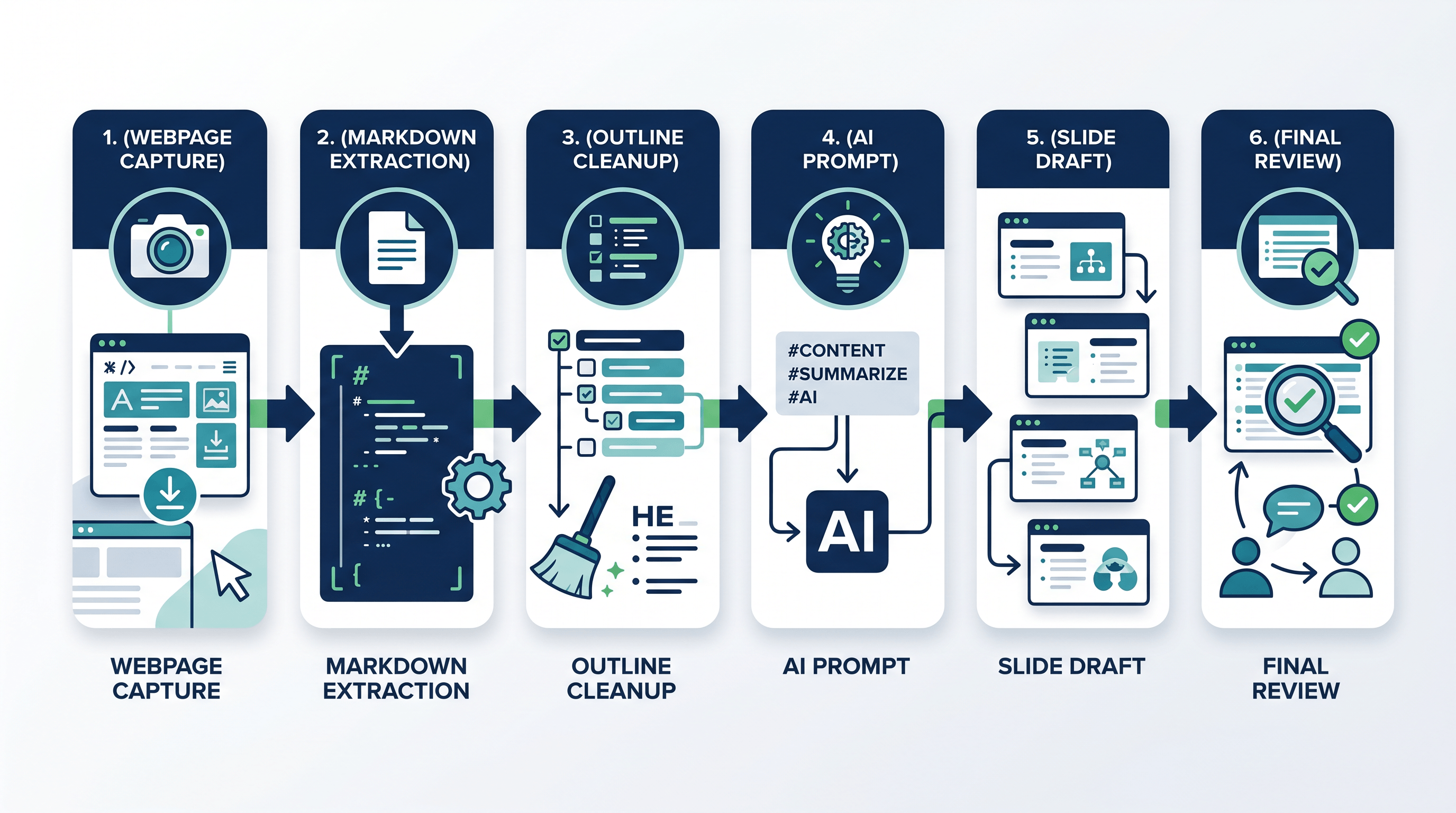
The best webpage to PPT outline workflow has 6 steps: define the deck goal, extract the article as Markdown or Text, clean the source, map sections to slides, prompt the AI PPT tool, and review the draft. Each step removes ambiguity before the AI creates slides.
Step 1: Define the deck goal before extraction
Start with one sentence: "This deck should help [audience] understand [topic] so they can [action]." This sentence prevents the webpage to PPT outline from becoming a plain article summary. A sales deck, classroom lesson, investor update, and internal briefing need different slide choices even when they start from the same article.
Use these 4 fields before you touch the URL:
| Field | Example |
|---|---|
| Audience | Product marketing team |
| Slide count | 8 to 10 slides |
| Outcome | Explain why this trend matters and what to do next |
| Tone | Practical, direct, light on jargon |
When you write the goal first, the webpage to PPT outline can cut details that do not serve the presentation. That saves time later because you are not asking the AI to decide what matters without context.
Step 2: Convert the web article to Markdown or Text
Copy the article URL and convert it before sending anything to an AI PPT tool. Markdown is usually the best format for a webpage to PPT outline because it preserves heading levels, lists, links, and code blocks. Plain Text is better when you want a short, distraction-free source.
Paste the URL into URL to Any and select Markdown. If the page is highly visual or the heading structure is broken, try URL to Text as a second pass. The goal is to get the article body in a format an AI tool can parse without also reading the site's navigation.
For an AI PPT outline, keep:
- The title and subtitle
- H2 and H3 headings
- Short lists and tables
- Source links and dates
- Definitions, statistics, and examples
Remove:
- Menus, footer links, share widgets, and author-bio clutter
- Duplicate related-article blocks
- Comments, ads, and promotional sidebars
- Long image galleries unless the deck needs visuals from them
Step 3: Clean the extracted source into slide logic
After extraction, spend 2 minutes making the Markdown easier to turn into a webpage to PPT outline. Rename vague headings, shorten paragraphs, and add notes for claims that need citation. This is the point where a little editing saves a lot of AI cleanup.
For example, change a heading like "Background" into "Why the trend matters for B2B buyers." Change a long paragraph into 3 bullets. If a statistic supports a slide, keep the source URL next to it. If a section is interesting but not needed for the presentation goal, delete it.
Mid-workflow CTA: Paste your source URL into URL to Any and choose Markdown or Text before prompting your slide tool. It gives you clean webpage content for a webpage to PPT outline without signup, so the AI sees the article structure instead of page noise.
Step 4: Map article sections into a slide outline
Now turn the cleaned source into slide order. A good webpage to PPT outline is not "one article section equals one slide." Slides need a story arc: context, problem, evidence, method, implications, and next steps.
Use this 8-slide map for most how-to or trend articles:
| Slide | Purpose | What to extract |
|---|---|---|
| 1 | Title and promise | Article title plus your deck goal |
| 2 | Problem | Pain point or market context |
| 3 | Why now | Recent trend, data point, or user behavior |
| 4 | Core idea | Main framework or thesis |
| 5 | Process | 3 to 5 steps from the article |
| 6 | Example | One concrete case or use case |
| 7 | Risks or limits | What the article warns against |
| 8 | Next actions | Checklist, decision, or recommendation |
This step is where the webpage to PPT outline becomes presentation material. Each slide should have one job, one main point, and 2 to 4 supporting bullets.
Step 5: Feed the AI PPT outline into your slide tool
Once your webpage to PPT outline is structured, paste it into the AI tool with explicit output rules. For PowerPoint users, Microsoft's outline guidance matters: when using a Word outline, Heading 1 or Level 1 content becomes slide headings, while Level 2 content becomes bullet points. Microsoft also notes that Copilot in PowerPoint can build a draft presentation from a Word document, including images and speaker notes, and that Copilot works best with Word documents under 24 MB.
For Google Slides users, Gemini in Slides can generate and edit slides and write or rewrite content, but you still get better results if you provide a concise AI PPT outline instead of a full article dump. For ChatGPT, Claude, or Gemini chat workflows, ask for a slide outline first, then paste the approved outline into your slide builder.
Use this prompt:
Create a presentation outline from the source below.

Audience: [who will see the deck]
Goal: [what the audience should understand or do]
Slide count: [8-10]
Tone: [practical / executive / classroom / technical]

Rules:
- Use the webpage to PPT outline structure below.
- Each slide needs one title, 2-4 bullets, and optional speaker notes.
- Keep claims tied to the source link when possible.
- Do not add facts that are not in the source.
- Mark any missing context as [needs verification].

Source:
[paste cleaned Markdown or Text here]
Step 6: Review facts, flow, and visual fit
Do not treat the first draft as finished. Review the webpage to PPT outline and the generated slides for 3 things: factual accuracy, narrative flow, and slide density. AI tools can over-compress important details or turn caveats into confident claims, so keep the original article open while checking.
Use this 5-minute review:
- Check every statistic and quote against the source.
- Delete duplicate bullets.
- Make each slide title a claim, not a label.
- Move dense details into speaker notes.
- Add one closing slide with a clear action.
If the deck feels generic, go back to the webpage to PPT outline and strengthen the audience, goal, and example slides. Better source structure usually beats more prompting.
Copy-ready webpage to PPT outline template {#copy-ready-webpage-to-ppt-outline-template}
Use this template when you want a fast, repeatable webpage to PPT outline from any article. It works for URL to markdown presentation workflows, AI PPT outline drafting, and "convert article to slides" prompts because it separates source extraction from slide planning.
# Webpage to PPT Outline

Source URL:
Article title:
Published or last updated:
Deck audience:
Deck goal:
Slide count:

## Key message
- One sentence that the audience should remember.

## Slide plan
### Slide 1: [Title]
- Main promise:
- Speaker note:

### Slide 2: [Problem / context]
- Bullet 1:
- Bullet 2:
- Source:

### Slide 3: [Why this matters now]
- Data point:
- Implication:
- Source:

### Slide 4: [Core idea]
- Framework:
- Example:

### Slide 5: [Step or method]
- Step 1:
- Step 2:
- Step 3:

### Slide 6: [Example or use case]
- Situation:
- Result:

### Slide 7: [Risks, limits, or mistakes]
- Risk 1:
- Risk 2:

### Slide 8: [Next actions]
- Action 1:
- Action 2:
- Action 3:
For a short article, keep the webpage to PPT outline to 6 slides. For a long report, use 10 to 12 slides, but avoid turning every heading into a slide. The best AI PPT outline reads like a planned talk, not like a copied table of contents.
Pro tips for cleaner AI PPT outlines {#pro-tips-for-cleaner-ai-ppt-outlines}
A cleaner webpage to PPT outline comes from stronger constraints, not longer prompts. Use fewer source chunks, clearer slide roles, and explicit verification rules so the AI can draft slides without inventing details or repeating the article.
-
Use Markdown headings as your first filter. H2 headings usually become sections; H3 headings often become bullets or speaker notes. If the extracted Markdown has weak headings, rewrite them before prompting.
-
Keep one source per first draft. Mixing 5 URLs in the first webpage to PPT outline often creates a fuzzy deck. Build one outline per source, then merge the best slides.
-
Ask for slide titles as claims. "Three reasons AI PPT tools need clean source content" is stronger than "Benefits." Claim-style titles make the deck easier to scan.
-
Separate citations from slide copy. Keep source links in notes, not every bullet. This gives reviewers a fact trail without crowding slides.
-
Use Text when Markdown is too noisy. If the original page has broken headings or heavy layout artifacts, URL to Text can produce a cleaner source for the webpage to PPT outline.
-
Export or save a backup. If you need an offline copy of the source article, URL to PDF can preserve the page before you turn the extracted text into slides.
Which AI PPT workflow should use the outline? {#which-ai-ppt-workflow-should-use-the-outline}
Most AI slide workflows benefit from a webpage to PPT outline, but the best handoff format depends on the tool. Use Markdown for chat-first drafting, Word or RTF for PowerPoint outline import, and concise bullets for Gemini or other slide-side assistants.
| Workflow | Best handoff format | Why it works | Watch out for |
|---|---|---|---|
| Microsoft Copilot in PowerPoint | Word document or concise outline | Copilot can draft from prompts or files and refine an outline before slides | Requires eligible Copilot access and human review |
| PowerPoint desktop outline import | Word, RTF, or TXT outline | Microsoft documents Level 1 as slide titles and Level 2 as bullets | PowerPoint for the web does not support outline import |
| Gemini in Google Slides | Short outline plus prompt | Gemini can generate/edit slides and rewrite content inside Slides | Availability depends on eligible Workspace or AI plans |
| ChatGPT, Claude, or Gemini chat | Markdown source plus slide-template prompt | Good for turning article logic into speaker notes and bullets | You still need to paste into a slide app |
| Canva or other AI deck builders | Summary plus slide-by-slide outline | Works well when visual polish is the main need | Can over-design weak source material |
The pattern is the same: create the webpage to PPT outline first, verify it, then ask the AI to design or draft. You get better slides when the AI starts from a structured plan instead of a long webpage.
FAQ {#faq}
What is a webpage to PPT outline?
A webpage to PPT outline is a slide-ready plan created from a web article or page. It extracts the useful article body, keeps headings and key points, and turns them into slide titles, bullets, citations, and speaker notes before an AI PPT tool creates the deck.
Can AI create a PowerPoint directly from a web article?
Sometimes, but a direct web article prompt is less reliable than a clean outline. Many AI PPT tools can draft from prompts or files, but a webpage to PPT outline gives them better structure, fewer irrelevant details, and clearer slide roles.
Should I convert the article to Markdown or Text first?
Use Markdown when the article has meaningful headings, lists, tables, and links. Use Text when the page extraction is noisy or the deck only needs plain ideas. For most webpage to PPT outline workflows, Markdown is the better first choice.
How many slides should one article become?
Most articles work best as 6 to 10 slides. A short blog post may need 5 slides, while a detailed report may justify 12. If the webpage to PPT outline needs more than 12 slides, split it into multiple decks or create an appendix.
What should I remove before prompting the AI?
Remove menus, cookie banners, comments, author bios, related-post blocks, repeated CTAs, and unrelated footers. Keep the title, headings, examples, statistics, source links, and practical steps. The cleaner the source, the stronger the webpage to PPT outline.
Do I need screenshots from the original page?
Only keep screenshots if the visual itself is part of the message, such as a chart, interface, or before-and-after example. For most article-to-slide workflows, clean text and source links matter more than screenshots.
Conclusion {#conclusion}
A strong webpage to PPT outline is the missing step between "I found a useful article" and "I have a usable slide draft." Convert the URL to Markdown or Text, clean the structure, map sections into slide roles, prompt the AI with clear constraints, and review the output against the original source.
This workflow keeps AI presentation tools focused on structure and design instead of asking them to clean messy webpages at the same time. Whether you use Copilot, Gemini in Slides, ChatGPT, Claude, or another AI PPT workflow, the source-prep step gives you more control and fewer rewrites.
Need clean Markdown, Text, PDF, or other formats before creating your next deck? Try URL to Any free -> - 10+ URL conversion tools, no signup required.