How to Save ChatGPT Chats as PDF for Backup
We’ve all had that perfect ChatGPT session—packed with code, ideas, and research. But cloud history isn’t infallible: outages happen, and deleted threads don’t come back. A PDF backup gives you a secure, offline, and shareable record.
This guide walks through the three most effective ways to save ChatGPT conversations as PDF—from the quick-but-messy approach to the professional, clean-format method.
Table of Contents
- Why "Print to PDF" Often Fails with ChatGPT
- Method 1: Shared Link + UrlToAny (Cleanest Formatting)
- Method 2: Official Export Data (Bulk Backup)
- Method 3: Browser Extensions (Hit or Miss)
- Summary: Which Method Should You Use?
- FAQ
- Conclusion
Why "Print to PDF" Often Fails with ChatGPT
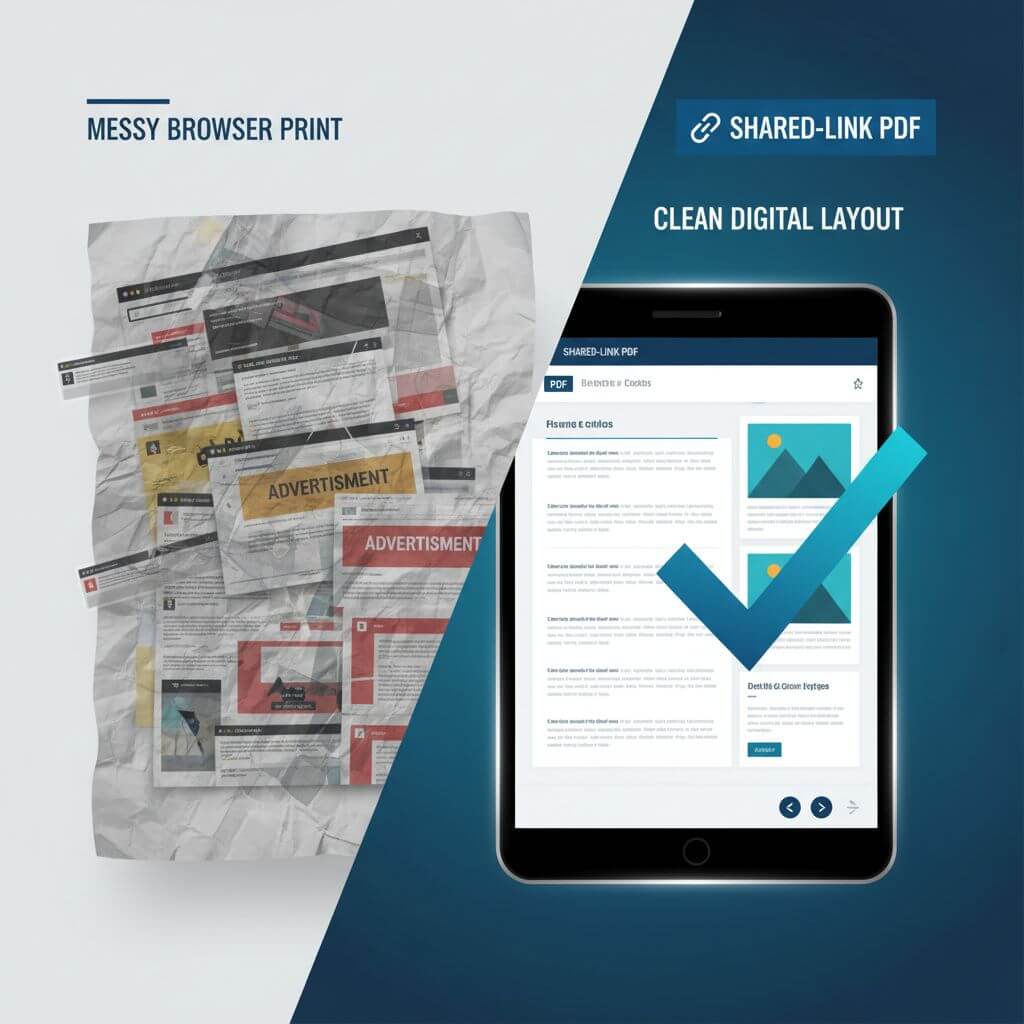
Pressing Ctrl + P on a ChatGPT page sounds easy—but the output is rarely usable:
- Glitchy layouts: sidebars, floating buttons, and overlays creep into the page.
- Code blocks break: long lines wrap or get cut, ruining readability.
- Wasted pages: content stretches over too many pages with awkward whitespace.
If you need a professional-looking document, you’ll want a cleaner source than the raw chat UI.
Method 1: Shared Link + UrlToAny (Cleanest Formatting)
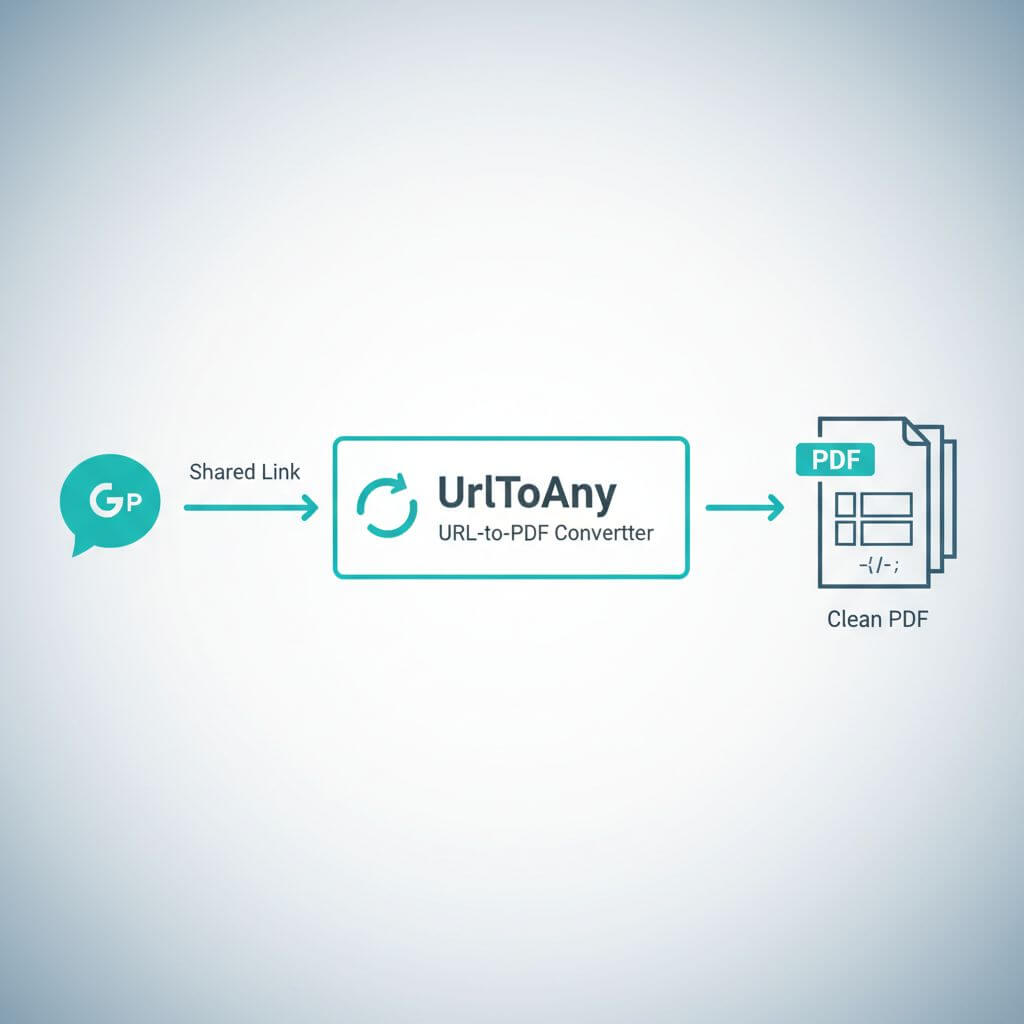
OpenAI’s “Shared Link” is a hidden gem: it generates a minimal public view of your conversation—no sidebar, no clutter—ideal for conversion.
Pair that with a dedicated URL-to-PDF service for best visual fidelity. Using UrlToAny typically yields a document that preserves code blocks, markdown, and spacing.
Step-by-step
- Generate the shared link:
- In your ChatGPT conversation, click the Share icon (top right) and choose “Create Link.”
- Copy the public URL:
- Once created, copy it to your clipboard.
- Convert to PDF:
- Visit urltoany.com.
- Paste your ChatGPT shared link into the input.
- Select PDF as the output format.
- Click Convert/Download.
Why this works
- The shared page strips UI elements, so the layout is clean.
- UrlToAny renders the public view accurately, preserving code formatting and markdown.
- No login required to view or convert, making sharing straightforward.
Method 2: Official Export Data (Bulk Backup)
If you need to back up your entire account’s history, use OpenAI’s native export.
Steps
- Click your profile icon and open Settings.
- Go to Data Controls.
- Click Export Data.
You’ll receive a ZIP containing .html or .json files. This is excellent for raw data backup but not ideal for readable PDFs. If you want shareable documents, you’ll still need to convert those HTML files to PDF.
Method 3: Browser Extensions (Hit or Miss)
Many Chrome extensions promise “Export ChatGPT to PDF,” but there are trade-offs:
- Privacy considerations: extensions gain permission to read page content.
- Performance overhead: extra add-ons can slow down your browser.
- Paywalls and watermarks: free tiers often add watermarks or limit features.
For occasional exports, native shared links plus a URL-to-PDF tool are simpler and safer.
Summary: Which Method Should You Use?
Here’s a quick comparison to guide your choice:
| Feature | Shared Link + UrlToAny | Browser "Print" | Official Data Export |
|---|---|---|---|
| Visual Quality | ⭐⭐⭐⭐⭐ (Clean) | ⭐⭐ (Messy) | ⭐ (Raw Code) |
| Ease of Use | High | High | Medium |
| Privacy | High (No login required) | High | High |
| Format | HTML/JSON | ||
| Best For... | Reports, Archives, Sharing | Quick drafts | Total Account Backup |
If you need a polished, share-ready document, generate a Shared Link and process it through a dedicated rendering engine.
FAQ
Does a shared link expose my entire account?
No. A shared link only exposes the specific conversation you choose. Treat the URL like any other public link—share it selectively.
What if my chat is very long?
Shared links handle long threads well. If the PDF becomes large, consider splitting the conversation into segments or exporting key parts.
Will code blocks and markdown be preserved?
Yes, that’s the advantage of the shared link view combined with a URL-to-PDF renderer: it keeps code blocks, lists, headings, and spacing intact.
Can I still use the official export for compliance?
Absolutely. The official export is ideal for complete data retention and audit needs; convert specific HTML files to PDF if you need human-readable artifacts.
Conclusion
Your AI chats are valuable digital assets—business plans, research syntheses, or debugging transcripts shouldn’t live only in a cloud UI. For professional results, generate a Shared Link and convert it with a dedicated renderer so your backup is as readable as the original conversation.
Ready to secure your chats? Convert your first link at urltoany.com today.