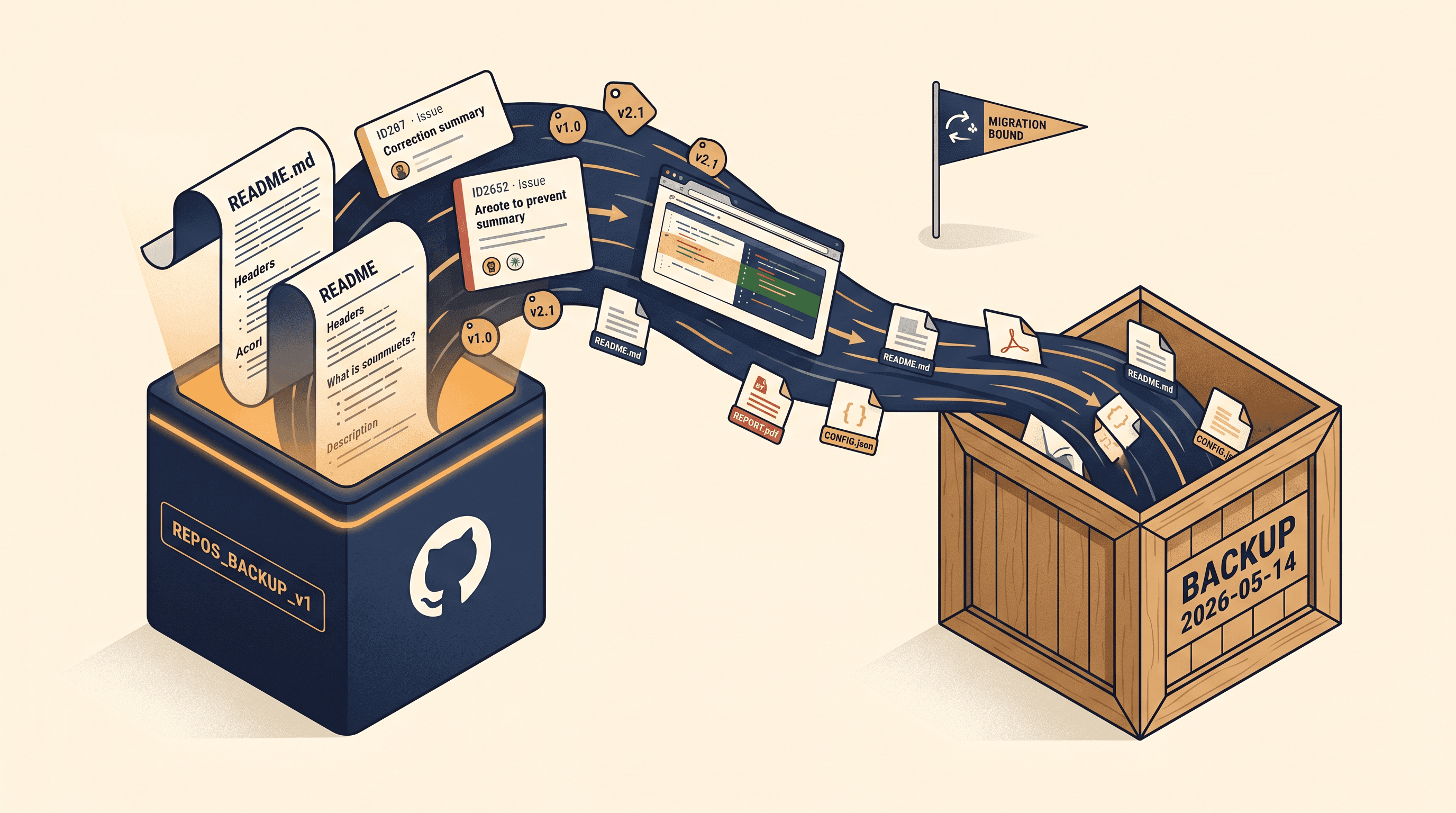
Export GitHub Repo to Markdown Before You Migrate
Forgejo's "Leaving GitHub for Forgejo" post hit 521 upvotes on Hacker News last month. The week after, "Twin brothers wipe 96 government databases" cleared 285. Two unrelated stories, same nervous question underneath: what if my host vanishes tomorrow — and what do I actually lose besides the code?
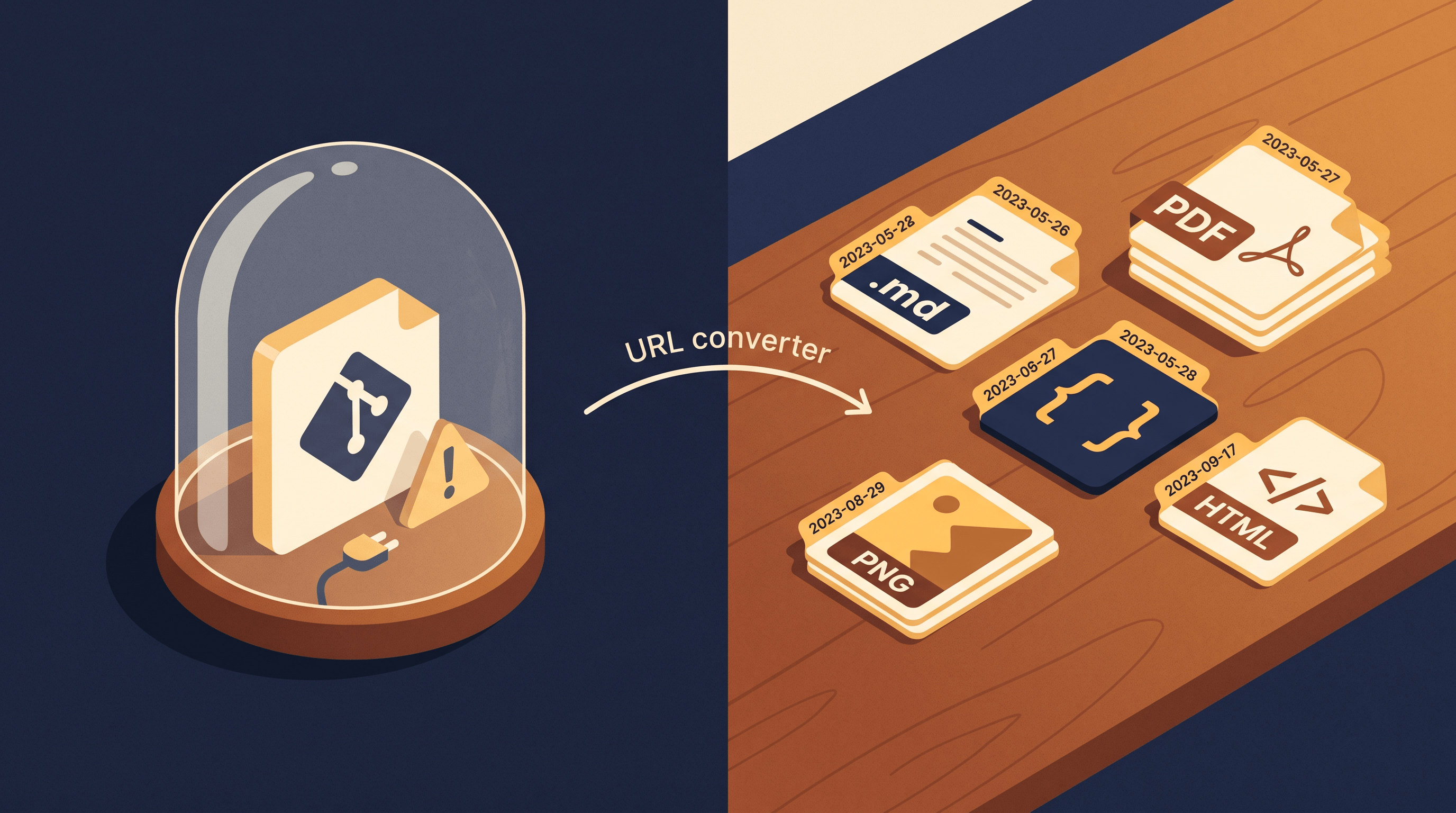
git clone rescues commits and branches. It does not rescue your README, your Wiki, your decade of issue threads, your release notes, your GitHub Pages site, or the Discussions where the team argued through every breaking change. That non-code surface is where institutional memory lives — and it lives on rendered HTML pages, not in .git.
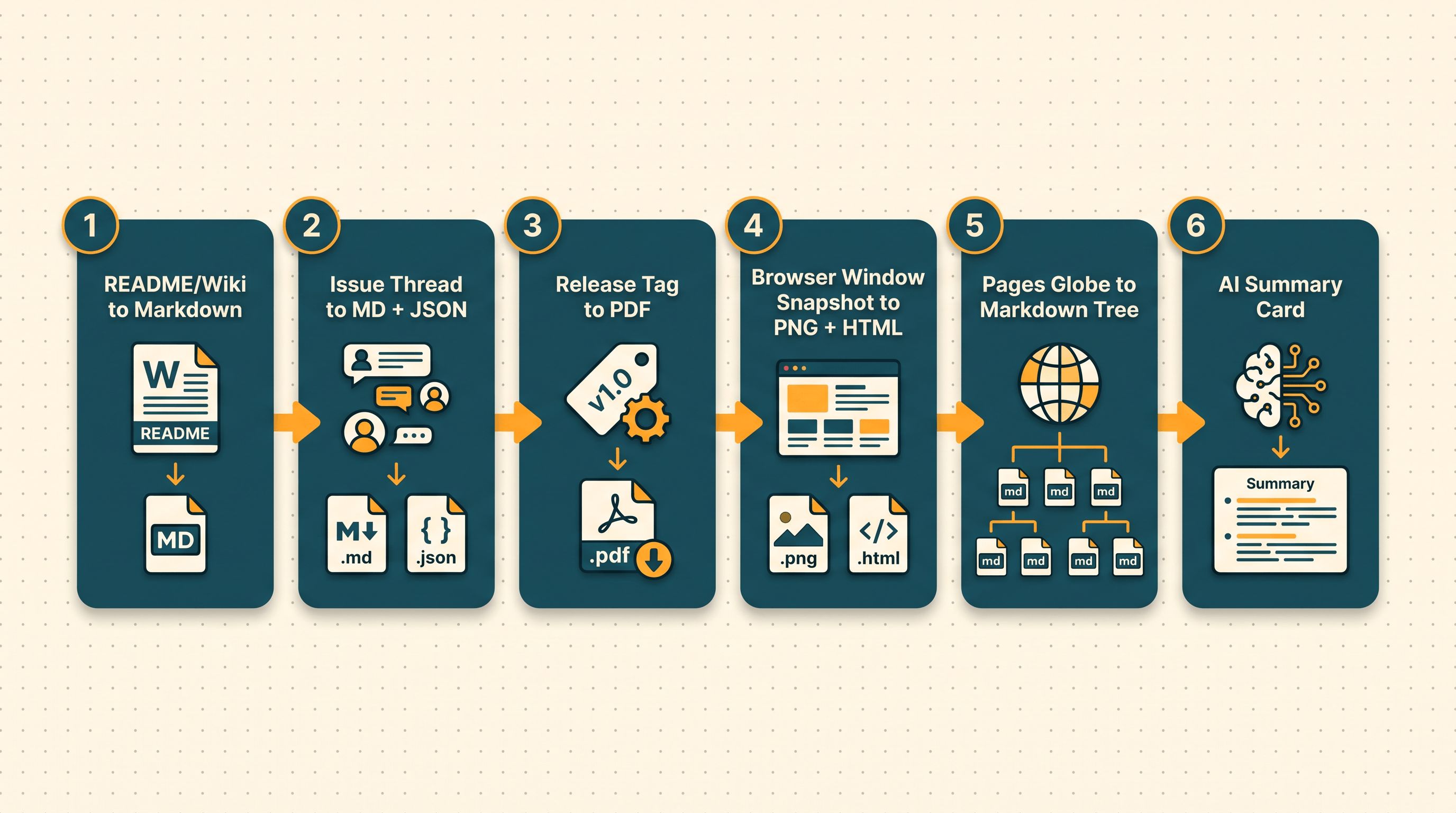
This guide walks through how to export GitHub repo to Markdown in 6 steps before you migrate or hedge: how to export GitHub repo README, Wiki, and Discussions to Markdown, archive issues with comments, snapshot releases as PDF, and mirror your GitHub Pages site. Examples use URL to Markdown, but the workflow is portable to any URL-converter or scraping pipeline you already trust. Last updated: 2026-05-14.
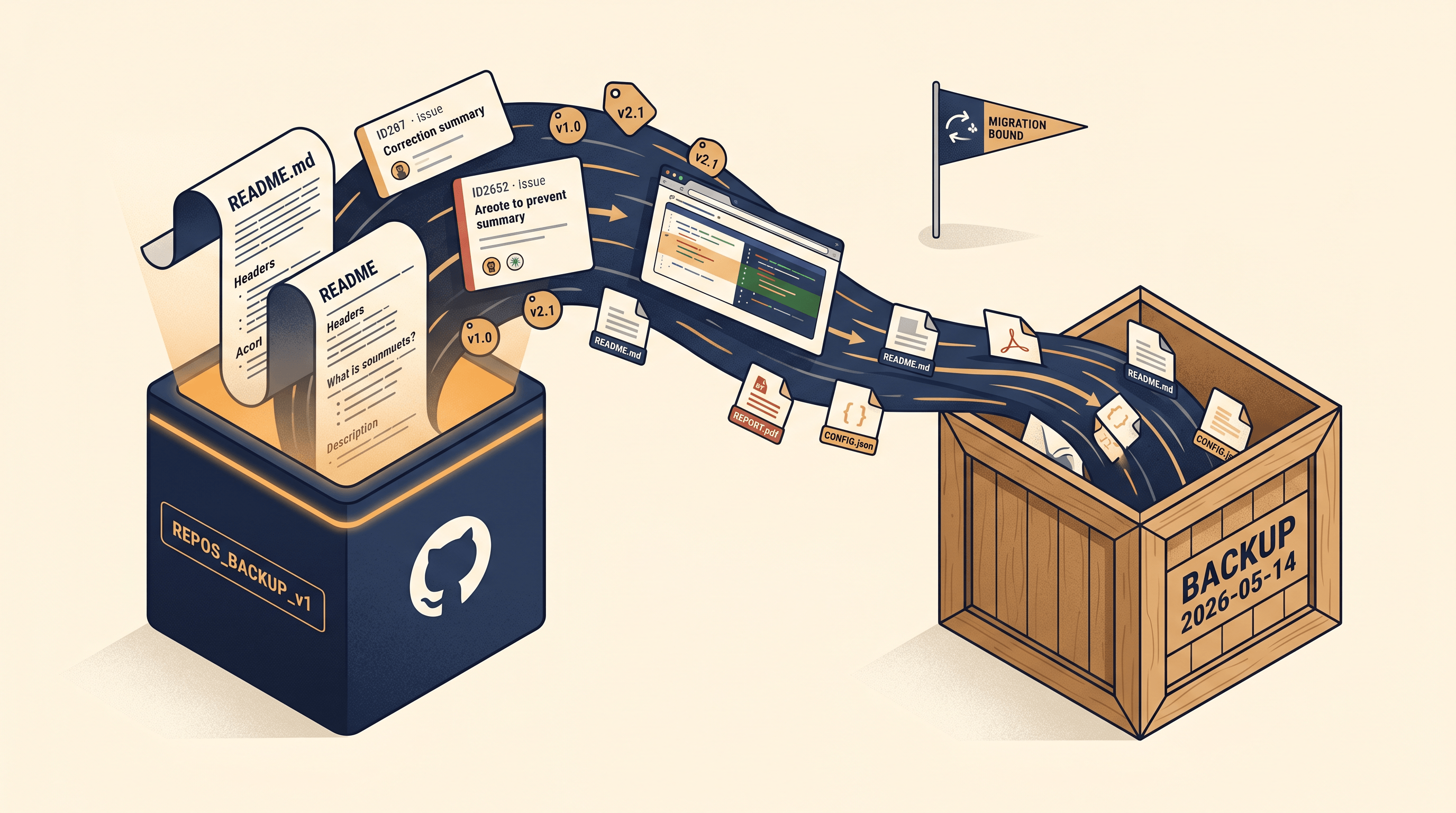
Table of Contents
- Why back up before you leave
- What you'll need
- Step 1: README, Wiki, Discussions → Markdown
- Step 2: Issues + comments → Markdown and JSON
- Step 3: Releases and notes → PDF
- Step 4: Full-page snapshots → Image and HTML
- Step 5: GitHub Pages → Markdown
- Step 6: AI-generated migration summaries
- Pro tips for better results
- Pre-migration checklist (10 items)
- FAQ
- Conclusion
Why back up your GitHub content before you leave?
You back up GitHub content because git clone only saves source code — it leaves Wiki pages, issue threads, release notes, Discussions, and Pages sites behind on GitHub's servers, where account suspensions, repo privatization, or platform policy changes can erase them overnight. To export GitHub repo to Markdown — and to portable formats like PDF and JSON for everything Markdown can't capture — is the only way to keep institutional memory in your own hands.
Three things changed in 2025–2026 that pushed this from "good practice" to "you should already have done this":
- The Forgejo migration wave. The "Leaving GitHub for Forgejo" Hacker News thread crossed 500 upvotes in 24 hours; multiple high-star maintainers wrote step-by-step migrations the same week.
- Hard reminders that data can vanish. The "twin brothers wipe 96 government databases" story (285 HN points) was government tooling, not Git hosting, but it landed in the same news cycle and reinforced the message: hosted data is never really yours.
- European data-sovereignty push. The 877-point HN thread on a European digital stack pulled self-hosted Git into the same conversation as cloud providers — repos are starting to count as critical infrastructure.
Git itself is portable. Everything wrapped around it on github.com is not. Backing up that wrapper — which is what "export GitHub repo to Markdown" really means in practice — is what this guide solves.
What you'll need to export GitHub repo to Markdown
A short list before Step 1:
- A list of repos to back up (one at a time is fine; we'll script the bulk path in Pro Tips).
- About 30–45 minutes per medium-sized repo (< 200 issues, < 10 wiki pages, < 20 releases). Larger repos scale linearly.
- A URL-to-anything converter. We'll use URL to Markdown and its sibling tools (URL to JSON, URL to PDF, URL to HTML) for examples; if you prefer
pandoc,monolith, or a headless-browser script, the steps map the same way. - A target folder, date-stamped:
~/backups/github/2026-05-14/<owner>-<repo>/.
You do not need a GitHub API token for most steps — every URL is a public rendered page. For private repos where you still want to export GitHub repo to Markdown, log in to GitHub in the same browser session and grab the raw *.md URL (more on that in Step 1).
Step 1: Export README, Wiki, and Discussions to Markdown
The first move when you export GitHub repo to Markdown is the README itself: paste the raw README.md URL (https://raw.githubusercontent.com/<owner>/<repo>/main/README.md) into a URL-to-Markdown converter and you'll get a clean .md file in about 4 seconds, headings, fenced code blocks, and links preserved, ready to commit straight to Forgejo or save offline.
Three sub-targets, all the same shape:
- README:
https://github.com/<owner>/<repo>/blob/main/README.md- Tip: use the raw URL (
raw.githubusercontent.com/...) for cleaner output — no GitHub chrome.
- Tip: use the raw URL (
- Wiki pages:
https://github.com/<owner>/<repo>/wiki/<Page-Name>- GitHub Wikis are themselves Git repos. You can also
git clone https://github.com/<owner>/<repo>.wiki.git— but exporting via a URL converter resolves links and embeds images for you.
- GitHub Wikis are themselves Git repos. You can also
- Discussions:
https://github.com/<owner>/<repo>/discussions/<number>- One discussion per file. The export keeps reply order, code blocks, and reaction counts (as plain text).
Three-step run with URL to Markdown:
- Paste the GitHub URL.
- Click Convert. A typical README finishes in 2–4 seconds.
- Save inside your date-stamped folder as
README.md,wiki-<page>.md, ordiscussion-<number>.md.
What you should see in the output:
# Awesome Project

> A short tagline.

## Installation
```bash
pnpm install
License
MIT
Code fences, blockquotes, and link rewriting all survive. Images may stay as `` — convert them to absolute GitHub URLs (`https://raw.githubusercontent.com/<owner>/<repo>/main/<path>`) before storing, or run a quick `sed` pass over the output.
## Step 2: Archive Issues (with comments) to Markdown and JSON
Issues are the second big surface to export from a GitHub repo to Markdown: run each issue's URL (`https://github.com/<owner>/<repo>/issues/<number>`) through a URL-to-Markdown converter for a human-readable copy, then run the issue **list** page through a URL-to-JSON converter for structured data — the two passes together cover both reading and re-importing.
**Pass A — Markdown per issue (human-readable archive)**
URL pattern: `https://github.com/<owner>/<repo>/issues/<number>`
Output: one `.md` per issue, containing:
- Title (H1)
- Author and open/close state
- Original body
- Every comment in order, attributed to its author
- Linked PR mentions and references (as plain text)
This is the copy you'll search later ("did we ever discuss the timezone bug?") and the copy you hand to humans during migration. Forgejo and Gitea can re-import issues via API; the Markdown copy is for people, not machines.
**Pass B — JSON for the issue list (structured backup)**
URL pattern: `https://github.com/<owner>/<repo>/issues?state=all&page=<n>`
Run through [URL to JSON](https://urltoany.com/url-to-json). Output is structured per-issue records (title, number, state, labels, assignees, created/closed dates). Loop pages until `page=N` returns empty.
A note on rate limits: GitHub's public pages return generic HTML to logged-in and anonymous users alike, so most converters work fine. For very large trackers (thousands of issues), pace requests at roughly 1 issue / 2 seconds to stay well under anonymous browse limits.
## Step 3: Save Releases and Notes as PDF
Save GitHub releases as PDF when you need tamper-resistant, long-term archives — for compliance, legal records, or just a single file per release you can hand to auditors. The URL pattern is `https://github.com/<owner>/<repo>/releases/tag/<tag>`; run it through [URL to PDF](https://urltoany.com/url-to-pdf) and you'll get a paginated PDF with the release title, date, author, full notes, and the list of attached binaries.
A small workflow tip we use ourselves: name the output `releases/<tag>.pdf` (`releases/v1.4.2.pdf`) inside the date-stamped backup folder. PDFs hash cleanly, so you can pin SHA-256 hashes in your migration log — if anyone later asks "did we ship X in v1.4.2?", you have a hash-verifiable artifact, not a screenshot from a browser tab.
Don't forget the changelog. If your repo keeps `CHANGELOG.md` at the root, Step 1 already covered it; if the changelog only lives inside Releases, the PDF export captures it. Keeping both is safer.
## Step 4: Full-page snapshots — Image and HTML
To capture the full visual layout of a GitHub repo page — badges, social preview, code highlighting, embedded diagrams — convert the URL to an Image (PNG) for a flat snapshot and to HTML for an offline-browseable copy. These two formats fill the gap Markdown leaves: what the page actually **looked like**.
You'll want this for:
- **READMEs with diagrams** (Mermaid, Excalidraw, hand-drawn PNGs).
- **Repository home pages** where the README renders alongside badges, social links, and sidebar metadata.
- **Pull request pages** where the diff itself is informative.
Two formats, two jobs:
- **URL to Image** (PNG/JPEG): a flat snapshot — fast, viewer-portable, perfect for visual diffs later. URL pattern: `https://github.com/<owner>/<repo>` or any sub-page.
- **URL to HTML**: a self-contained `.html` file with inlined CSS. Open it offline in any browser; links work, formatting survives. Use when you want to *browse* the archive, not just look at it.
> **Tool note:** if you'd rather get all five output formats — Markdown, JSON, PDF, Image, HTML — from a single URL paste, [URL to Any](https://urltoany.com) bundles them in one tab; it's the converter we use throughout this guide for that same-tab convenience. Roll your own scripts if you prefer — the workflow is identical.
## Step 5: Mirror your GitHub Pages site to Markdown
A GitHub Pages site is the last piece to export from your GitHub repo to Markdown: pull its `sitemap.xml` (`https://<owner>.github.io/<repo>/sitemap.xml`), then run each listed page through a URL-to-Markdown converter — you'll end up with a clean Markdown copy of every page, which slots straight into MkDocs, Docusaurus, or whatever Forgejo Pages equivalent you land on.
Two paths depending on site size:
- **Small sites (< 30 pages)**: paste each URL into URL to Markdown by hand. Five minutes.
- **Larger sites**: fetch `sitemap.xml`, parse the `<loc>` entries, batch through the converter's API or a headless-browser script. Save outputs preserving the URL path (e.g. `/getting-started/install/` → `getting-started/install.md`).
A hidden bonus: once you have the site as Markdown, switching static-site generators becomes a search-and-replace job, not a rewrite.
## Step 6: Generate migration summaries with AI Summarizer
After Steps 1–5, you'll have one folder per repo and possibly dozens of folders. Step 6 is the index: for each repo, generate a 150–300 word summary that answers "what is this, why did it exist, who depended on it, where did we leave it?" Drop the README URL into [AI Summarizer](https://urltoany.com/ai-summarizer), let it produce the summary, and save it as `_summary.md` at the top of each repo's backup folder. Six months later, when you're staring at a folder called `org-internal-experiment-2024-q3`, your future self will thank you.
A useful template for `_summary.md`:
```markdown
# <repo-name>
**Purpose:** one sentence.
**Status at migration:** archived / active / paused.
**Primary maintainer(s):** names.
**Key dependencies:** internal/external.
**What's in this backup:** README, Wiki (N pages), Issues (N total, N open), Releases (N).
**Migration plan:** Forgejo / GitLab / archive only.
Pro Tips for Better Results
A few tips we landed on after running this on 40+ repos:
- Date-stamp every folder.
2026-05-14-backup/beatslatest/. You will re-run this, and you'll want to diff. - Pin the commit SHA in your README export — add a line at the top noting which commit you exported from. Migration audits love this kind of provenance.
- Re-export after major commits. Treat this backup like a release artifact, not a one-time event. If your README rewrites monthly, export monthly.
- Paginate long issue lists explicitly. Some converters silently stop at page 1. Loop
?page=1,?page=2until you get an empty result. - Pair URL export with
git push --mirror. Markdown and PDF cover the wrapper;git push --mirror <new-remote>covers code, branches, tags, and refs. Together they make a real backup.
Pre-Migration Checklist for Forgejo (10 items)
Before you flip DNS, repos, or CI over to Forgejo (or any alternative), confirm each line:
- Code mirrored —
git push --mirror <forgejo-remote>succeeded for every branch and tag. - README + Wiki exported as Markdown (Step 1). If you care about Wiki edit history, also clone the
.wiki.git. - Issues archived — Markdown per issue + JSON list (Step 2). Forgejo's importer can also pull live, but your local archive is the fallback.
- Pull requests captured — at minimum the merged ones. PR pages export the same way as issues; patches (
?diff=split) export as HTML for review later. - Releases saved as PDF + binary release artifacts downloaded locally (Step 3). Forgejo will not back-fill binary assets.
- GitHub Pages site mirrored as Markdown (Step 5) and live site repointed via DNS once Forgejo Pages is up.
- Webhook URLs documented — paste them into a private note. Do not export raw secrets; just record where they pointed and recreate on Forgejo.
- Branch protection rules screenshotted or transcribed. Forgejo's equivalents have different names; map them manually.
- CI workflows reviewed — GitHub Actions YAML often runs on Forgejo Actions with minor edits, but pinned actions (
uses: actions/checkout@v4) need their Forgejo mirror equivalents. - Forks, stars, watchers — these do not transfer. Note your fork chain in
_summary.md(Step 6); thank top contributors directly if it matters.
These are the items that bite teams a week after migration, when everyone assumes the import handled it. The import never handles all of it.
FAQ
Q: Can I export a private GitHub repo README to Markdown?
A: Yes — sign in to GitHub in the same browser, then paste the raw README.md URL (https://raw.githubusercontent.com/<owner>/<repo>/main/README.md) into a URL-to-Markdown converter that runs client-side. For server-side converters, generate a fine-grained personal access token with contents:read, fetch the raw file via the API first, then convert.
Q: Will URL to Markdown preserve images and code blocks?
A: Code blocks yes — fenced and indented blocks survive cleanly. Images survive as Markdown links (), but relative paths get rewritten to absolute GitHub URLs only by some converters; if yours doesn't, run a one-line sed to prefix relative paths with https://raw.githubusercontent.com/<owner>/<repo>/<branch>/.
Q: How is this different from git clone?
A: git clone copies the Git repository — commits, branches, tags, source files. It does not copy the GitHub-rendered surface: Wiki pages (which live in a separate .wiki.git), issue threads, release notes, Discussions, GitHub Pages, or any UI metadata. To export GitHub repo to Markdown is to capture that surface — exactly what git clone misses.
Q: Do I need a GitHub API token for any of this?
A: For public repos, no — every URL above is a public rendered page. For private repos, you need to be signed in (browser-based) or to fetch via the GitHub API with a token (server-based). The token only needs contents:read (files) and issues:read (issues); don't grant more.
Q: What's the fastest way to back up 50+ repos at once?
A: Run two pipelines in parallel. Code: for repo in $(cat repos.txt) looping git push --mirror to your new host — a few minutes per repo. Non-code: script the URL converter with a list of URLs (README, wiki index, issue list, releases) per repo. On a typical laptop you'll finish 50 repos in under 4 hours, most of which is unattended.
Conclusion
Code is portable. Everything else on GitHub — Wiki, issues, releases, Pages, Discussions — lives in rendered HTML and disappears with your account. The six steps above are the full workflow to export GitHub repo to Markdown (plus PDF, JSON, and HTML for the things Markdown can't hold):
- README, Wiki, Discussions → Markdown
- Issues → Markdown + JSON
- Releases → PDF
- Full-page snapshots → Image + HTML
- GitHub Pages → Markdown
- Per-repo summaries → AI Summarizer
Run the steps once, store the outputs in a date-stamped folder, and the Forgejo (or GitLab, or self-hosted Gitea) migration becomes a code-import job rather than a content-loss disaster. The next time a Hacker News thread sparks a new migration wave, you'll already be ahead of it because you can export GitHub repo to Markdown — and to every other portable format you need — on demand.
Try it on your own repo. URL to Any covers all six output formats — Markdown, JSON, PDF, Image, HTML, AI summaries — from one URL paste. Free, no signup, ~2 seconds per conversion. Pick the noisiest repo in your org, run Steps 1–6 to export the whole GitHub repo to Markdown, PDF, and JSON, and watch how much never made it into git.