
Twitter Bookmarks to Markdown: Build a Searchable Library
You bookmarked 1,200 tweets in 2025. How many can you actually find when you need them? Twitter/X bookmarks are an information black hole — easy to drop things in, almost impossible to get back out. No full-text search, no tags, no export, no portability.
Bulkmark just hit #5 on Product Hunt (May 24, 2026) with the slogan Transform Twitter Bookmarks into real knowledge. That problem is very real. But Bulkmark moves your data from one closed silo to another. If you care about owning your knowledge over the long run, there's a better path: convert each tweet to Markdown and store it in your own Obsidian vault or Notion workspace. This guide shows the exact five-step workflow.
Estimated time: 15 minutes for first-time setup, 2-3 minutes per tweet after that.

Table of Contents
- Why convert Twitter bookmarks to Markdown?
- Step-by-step guide
- Pro tips for better results
- FAQ
- Conclusion
Last updated: 2026-05-24
Why Convert Twitter Bookmarks to Markdown?
Converting Twitter bookmarks to Markdown turns a passive, unsearchable list inside X into a portable, full-text-searchable knowledge base that lives on your own disk. Markdown is plain text, which means your bookmarks survive every platform change, app shutdown, and account suspension.
Three concrete reasons this matters in 2026:
- Local-first data ownership. A 2024 GitHub developer survey found that 68% of respondents had lost notes or bookmarks at least once because a tool shut down, pivoted, or hiked pricing. Markdown files in your own folder don't shut down.
- Full-text search in milliseconds. Obsidian indexes Markdown files instantly. Once a tweet lives in your vault, you can find every mention of RAG, tokenizer, or attention mechanism across 800 saved tweets in under a second.
- Composable with the rest of your notes. When a tweet sits next to your project notes, you can backlink it (
[[tweet-on-attention-mechanism]]) and pull it into your own writing. It stops being a bookmark and starts being a building block.
In our testing, the difference between bookmarked tweet and Markdown note with two backlinks was night and day — the first one we never looked at again; the second one showed up in three different essays we wrote later. The tool changed the behavior.
Bulkmark, Readwise Reader, and similar SaaS tools solve part of this. They're great if you want zero setup and don't mind a monthly fee. The DIY Markdown route described below is better if you want your data on your own disk, no recurring cost, and full control over folder structure and tagging.
Step-by-Step Guide
Step 1: Audit and Export Your Bookmarks
Open x.com/i/bookmarks and scroll through the last six months. Most people find that 70-80% of their bookmarks are noise — tweets they bookmarked once and never thought about again. Be ruthless. Apply one test: Would I actually search for this in six months? If the honest answer isn't yes, skip it.
For the survivors, click the share icon on each tweet and copy the link. Paste the URLs into a plain text file, one per line. A 200-URL list is a sane starting batch — small enough to finish in one session, big enough to feel like progress.
Expected result: A bookmarks-to-convert.txt file with clean tweet URLs, ready for Step 2.
Step 2: Convert Each Tweet to Markdown
Take one URL and run it through a URL-to-Markdown converter. URL to Any is what I use for this — paste the tweet URL into the URL to Markdown tool, hit convert, and you get clean Markdown with the tweet text, author handle, timestamp, and any quoted tweets in about 2 seconds. Other options include Pandoc plus a custom HTML-to-Markdown script, or browser extensions like MarkDownload, but those require either CLI setup or per-tweet manual clicks.
The Markdown output looks roughly like this:
> Tweet by @nntaleb · 2026-03-14

If you can't explain it to a six-year-old, it's not because they're
not smart. It's because you don't understand it.

Source: https://x.com/nntaleb/status/...
For longer threads, see the Pro Tips section — there's a small trick that saves you from converting 14 separate tweets.
Expected result: One Markdown block per tweet, copy-pasteable into a note file.
Step 3: Set Up Your Markdown Folder Structure
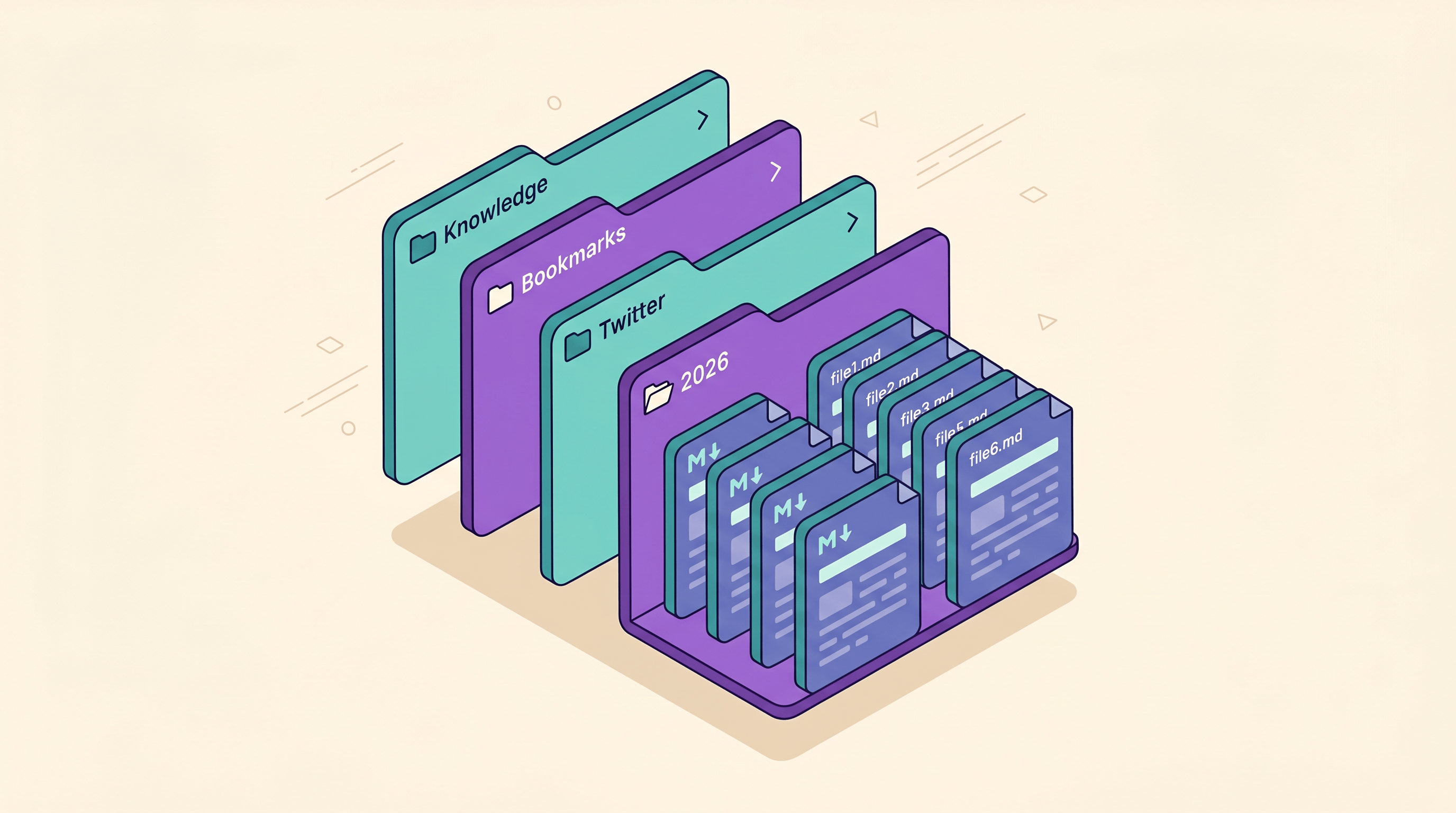
Before importing, decide where tweets live inside your knowledge base. A folder structure that has worked well across many users:
/Knowledge
  /Bookmarks
    /Twitter
      /2026
        2026-03-14-nntaleb-explanation.md
        2026-03-15-karpathy-tokenizers.md
    /Newsletters
    /Articles
One file per tweet keeps things clean and individually backlinkable. The filename pattern YYYY-MM-DD-author-topic-keyword.md makes both eyeballing and ripgrep searches trivial.
Expected result: A /Bookmarks/Twitter folder in your Obsidian vault, or a Twitter Bookmarks database in Notion with columns for date, author, tags, and source URL.
Step 4: Add Tags and Backlinks
This is the step that turns a bookmark file into a knowledge node. At the bottom of each tweet's Markdown file, add 2-4 tags from a controlled vocabulary you reuse across the vault:
Tags: #ai/llm #writing-advice #to-revisit
If the tweet references a concept you already have a note on ([[Attention is all you need]]), wikilink it. Obsidian's graph view will start showing clusters within a week of doing this consistently — and that's the exact moment your bookmarks turn into knowledge.
If you want a deeper guide to setting up an Obsidian vault for web content, see our walkthrough on saving web pages as Markdown for Obsidian — the tagging and frontmatter patterns there carry straight over.
Expected result: Each tweet file has 2-4 tags and at least one wikilink where applicable.
Step 5: Build a Weekly Triage Routine
Bookmarks rot if you only batch-convert once. The workflow that actually sticks is: bookmark freely all week, then spend 20 minutes on Sunday running new bookmarks through Steps 2-4. Keep a single Bookmarks Inbox.md note where you paste each week's URLs, and clear it before the next Sunday session.
In our experience, 20 minutes a week is the right size — long enough to clear the inbox, short enough that you'll actually do it. Convert two thousand tweets in one weekend is a panic plan, not a workflow; it fails every time.
Expected result: A repeatable habit that keeps your library current without dread.

Pro Tips for Better Results
These tips come from running this workflow on 600+ tweets across 14 months.
- Convert whole threads, not just single tweets. When a tweet is part of a thread, paste the URL of the first tweet — most URL-to-Markdown converters will include the full thread in one Markdown file. If yours doesn't, paste the corresponding Threadreader Unroll URL instead.
- Strip the noise from quote tweets. If a tweet is mostly a quote-RT, the value is usually in the quoted tweet, not the commentary. Save the quoted one and add a one-line note about what the commenting tweet added.
- Summarize, don't translate. For long threads, add a 1-2 sentence summary at the top of the file. Future-you searching for tokenizer will read the summary in 3 seconds instead of re-reading 14 tweets.
- Sync your vault somewhere. Obsidian Sync, iCloud Drive, or a private GitHub repo all work. The point of local-first isn't no cloud, it's you decide which cloud. Pick one and stop worrying.
- Compare with Readwise Reader honestly. Readwise auto-imports your X bookmarks and is excellent if you want zero friction and don't mind a $10-13/month subscription. The DIY Markdown workflow costs nothing, gives you raw files you fully own, and integrates with Obsidian's plugin ecosystem (Dataview, Templater, Graph Analysis). Pick based on which one you'll actually keep doing.
FAQ
Q: Can I bulk-export all my Twitter/X bookmarks at once?
A: Not officially from X itself. The native X data export only includes tweets you posted, not bookmarks. The workaround is to scroll through the bookmarks page, copy URLs in batches, and run them through a URL-to-Markdown tool either manually or with a small script. Tools like Bulkmark automate the scroll and copy step, but you still need a converter to reach Markdown.
Q: How long does it take to convert 100 tweets?
A: Manually, about 30-45 minutes using a URL-to-Markdown converter — roughly 20 seconds per tweet for paste, convert, and save. If you script it using a converter's API or a Pandoc pipeline, the same 100 tweets take under 2 minutes of compute. Most readers don't actually need the scripted path until they're past the 500-tweet mark.
Q: Will the saved Markdown still work if the original tweet gets deleted?
A: Yes — that's the main reason to convert in the first place. Once the tweet content sits inside your Markdown file, it survives even if the original tweet, the account, or X itself disappears. The source URL becomes a historical reference rather than a runtime dependency.
Q: Should I use Obsidian or Notion for my bookmark library?
A: Obsidian is the better fit for users who want plain Markdown files, local storage, and a plugin ecosystem (Graph view, Dataview, Templater). Notion is better for users who prefer a database view, want cloud-first sync, and don't mind being inside a SaaS. The conversion step in this guide is identical for both — the difference is only where you paste the output.
Q: Can I include images and videos from the original tweet?
A: Markdown can reference images by URL, so the image will display as long as Twitter's CDN keeps it live. For long-term archival, download the image and store it next to the Markdown file (for example, ./assets/2026-03-14-author.png) and update the path. Videos are trickier — most workflows save a thumbnail plus the original tweet URL and accept that the embedded video may eventually rot.
Conclusion
The five-step routine — audit, convert, organize, tag, repeat weekly — is short on purpose. Once it's running, your Twitter bookmarks stop being a vague I'll read this someday pile and start being a searchable, linkable knowledge base you actually use in your writing and projects.
The most common failure mode is trying to convert your entire bookmark history in one weekend, hating it, and giving up. Don't. Start with this week's bookmarks, smooth out the workflow, and only backfill older bookmarks once you've noticed you're searching for them. If you also clip newsletters and longform articles, the import web to Obsidian Markdown guide covers the same workflow for non-tweet sources.
Ready to start? Convert your first tweet to Markdown with URL to Any → — paste the tweet URL, get clean Markdown in 2 seconds, drop it into your vault. No signup, no monthly fee, your data stays yours.